Category: Blog

Your blog category

  • Minisforum MS-A2

    Minisforum MS-A2

    A while ago I picked up a Minisforum MS-01 to act as a lab machine, in replacement of my aging 2018 Mac Mini units. You can read about it here:

    New Home Lab Beast – Minisforum MS01

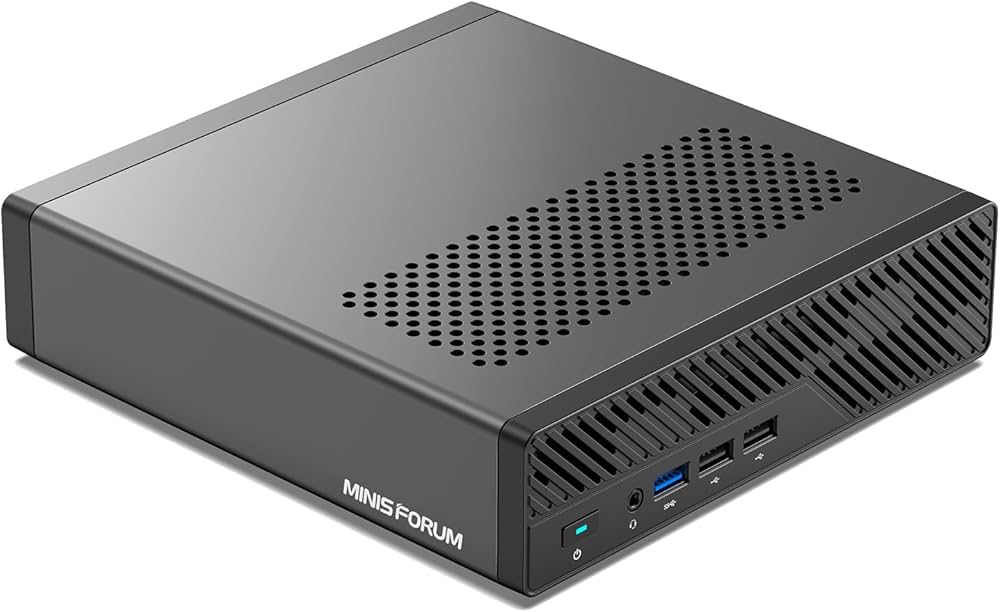
    It’s proven to be excellent so far, and has handled everything I’ve thrown at it. Now though, Minisforum have top-trumped it and released the MS-A2. This is in the same chassis as the MS-01 however it’s now based on the Ryzen 9 9955HX 16 core/32 thread processor…and wow is it a beast.

    The specification of the unit I have is as follows:

    -> AMD Ryzen 9 9955HX – 16 core/32 threads

    -> 96GB DDR5 RAM

    -> 4TB Lexar NM790 NVMe

    -> Samsung 990 EVO Plus 2TB NVMe

    -> 2 x USB-C 3.2 Gen 2 (10Gbps) – No USB4/Thunderbolt

    -> 2 x 2.5Gb Ethernet

    -> 2 x 10Gbe SFP+

    -> HDMI 2.1

    There’s no USB4/Thunderbolt on those USB-C ports, but they do support DisplayPort Alt‑Mode 2.0 which I think is up to 8K/60Hz or 4K 144Hz.
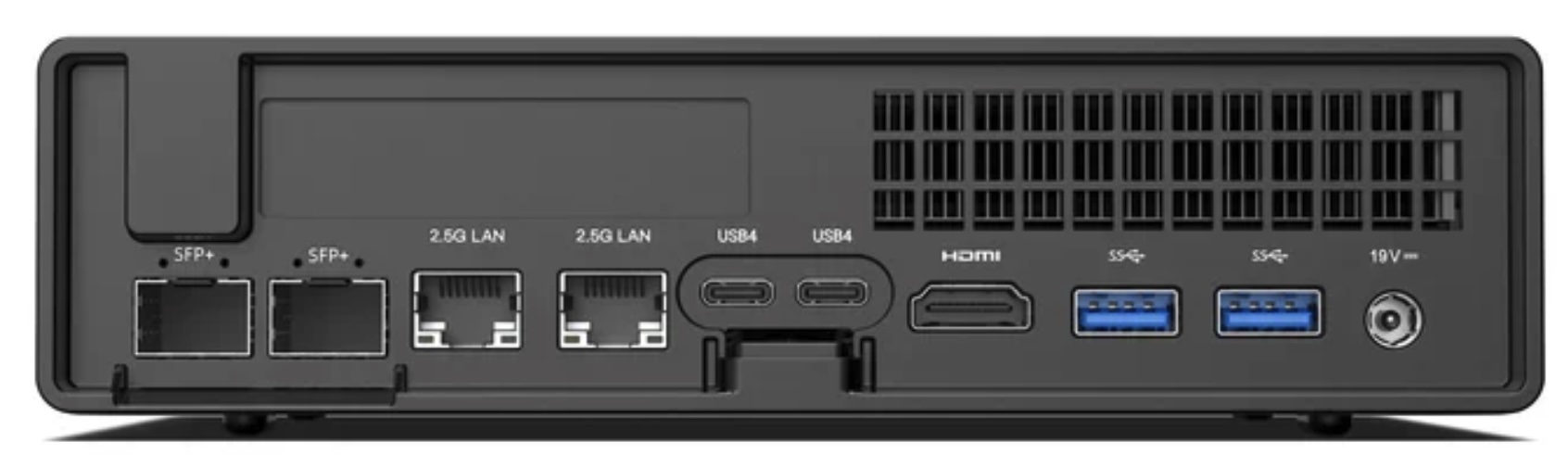
    So very similar to the MS-01, bar the lack of USB4/Thunderbolt. It’s a lot of connectivity – interestingly, mine is marked up as USB4 on the back, but it absolutely is not!

    Internally it’s just as strong. There are three NVMe slots, all supporting PCI 4.0 x 4, however interestingly slots two and three are configured as Gen 3 in the BIOS, and not Gen 4. I imagine this is to do with cooling, however I’ve configured the ports for Gen 4 and so far it’s been all good. There is a fan directly above slots 2 & 3, but it does not extend to slot 1.

    Interestingly, with slot 1, you can install an adapter for U.2 drives, which could be incredibly useful.

    It’s a solid platform, with great connectivity.

    Benchmarks

    Let’s look at the benchmarks first, comparing it to the 13900H in the MS-01, and the M4 Max 16 core in my main laptop.
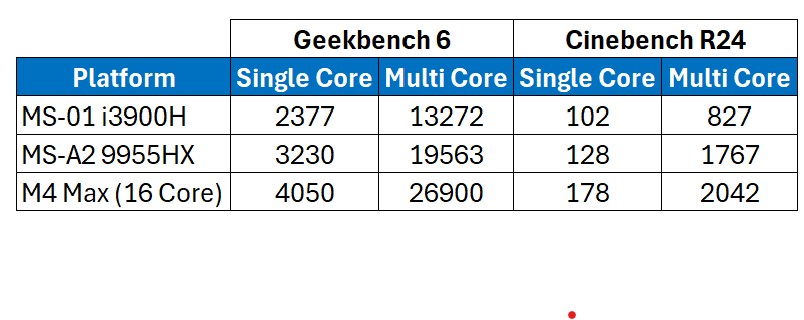
    Image shows the Geekbench and Cinebench benchmarks for the MS-01, MS-A2 and the Apple M4 Max
    Benchmarks

    That is a solid improvement over the MS-01 isn’t it! The 13900H has 6 performance cores with hyper-threading, and 8 efficiency/non-hyperthreading cores. This compares to the 9955HX having ‘only’ 16 performance cores, all supporting hyper-threading.

    For comparison, the M4 Max in the table above has 12 performance cores, and 4 efficiency cores. That is an impressive bit of silicon isn’t it?!

    The performance increase over the 13900H is substantial, and for a lab machine incredibly useful. I’ve copied across my main HyperV lab (Active Directory, Exchange, SQL, and Skype/Teams integration), and there is a notable difference in performance on the MS-A2 over the MS-01, although to be clear it runs very well on both.

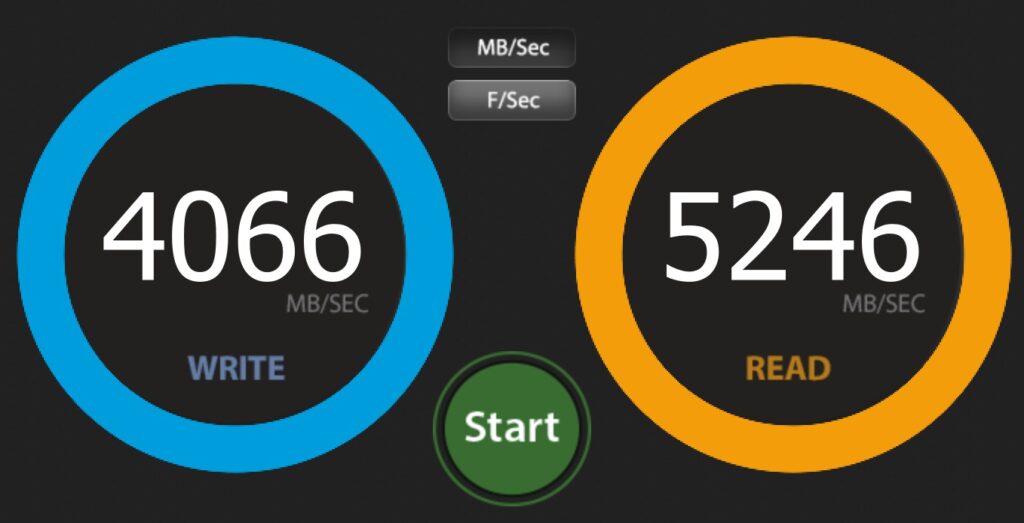
    Drive performance is great on both NVMe slots that I have in use. Note that slots 2 & 3 are configured for Gen 3 by default, however I have changed them to Gen 4 in the BIOS. Below shows the primary (Lexar) and the secondary (Samsung)drive respectively.
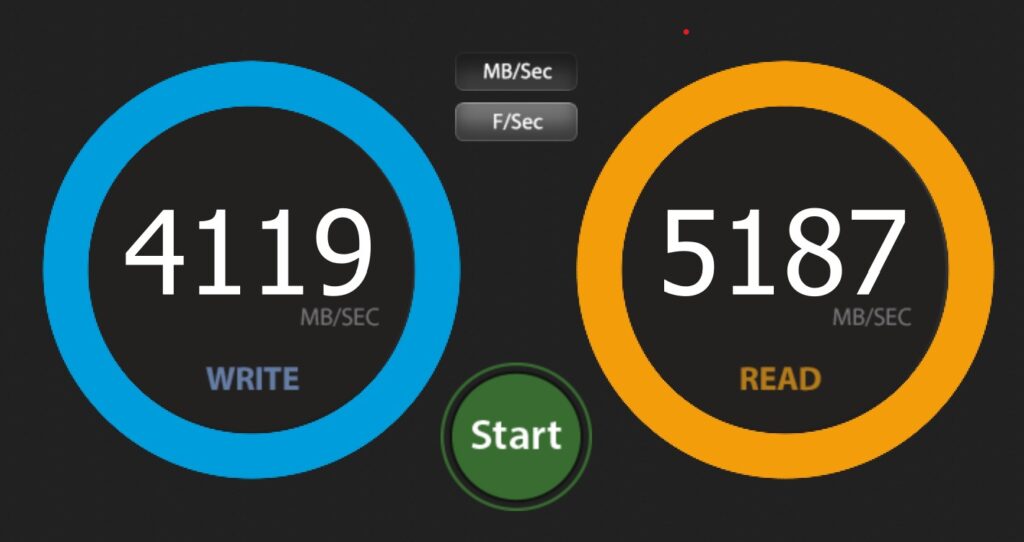
    The image shows the benchmark for an NVMe Drive - 4119MB/s write, 5187MB/s read
    Primary NVMe Benchmark
    Image shows the benchmarks for the secondary NVMe. 4066MB/s write, 5246MB/s read.
    Secondary Drive NVMe Benchmarks

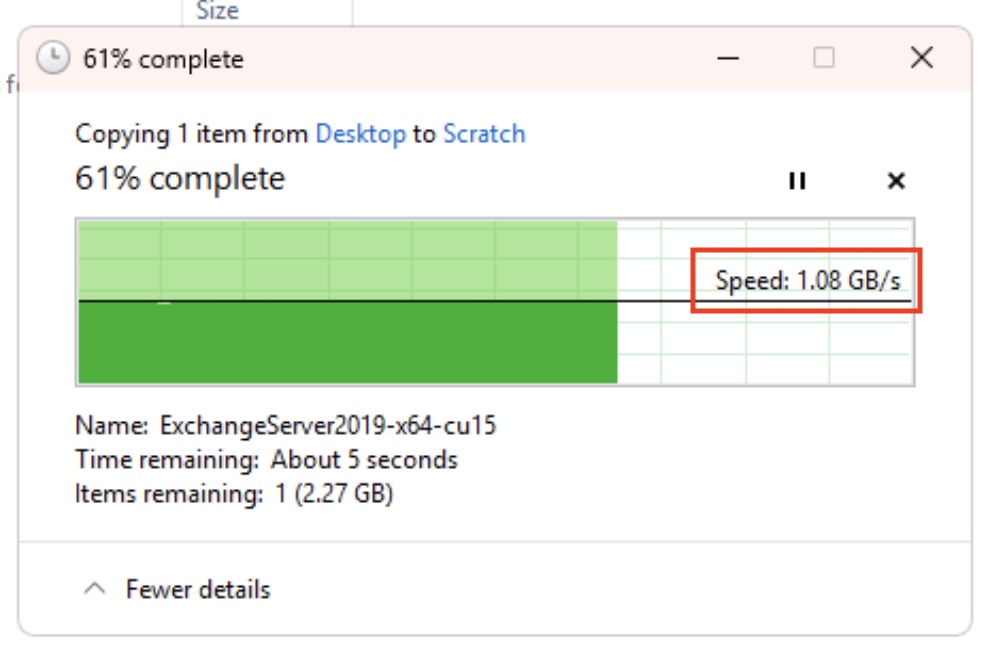
    Network performance over the 10Gbe and the 2.5GB was solid too. Note that on the MS-01 I had issues using both SFP+ ports with SFP+ to RJ45 adapters in them – I think they were overheating. I haven’t tested that in the MS-A2 however both the MS-01 and the MS-A2 are using fibre SFP+ connections in both ports, and over fibre they’re solid and work at circa 1Gb/s to/from my SSD NAS.
    Impressive performance all round. I’ve included the Apple chip for reference – the story would be more interesting there if we included power per watt wouldn’t it? Talking of power…

    Minisforum MS-A2 Power Consumption

    At idle, with the configuration outlined above (2 x NVMe, 2 x 10Gbe SFP+ connected), I’m seeing power consumption at circa 25-30watts. That seems roughly in line with the MS-01, which surprised me a little.
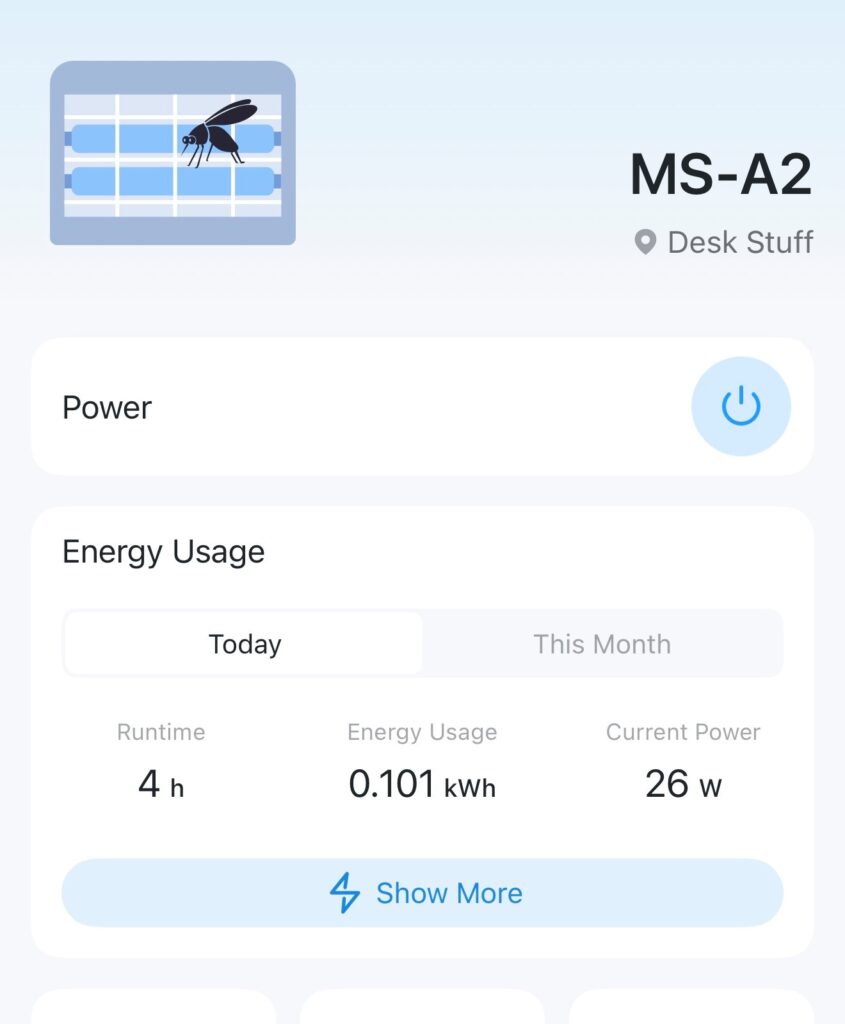
    Image shows the power consumption of the Minisforum MS-A2 at idle - circa 26 watts
    MS-A2 Idle Power Consumption

    The gap widens under load however – which is what you’d expect. When running Cinebench R24 I was seeing peak power usage around 130-140watts.
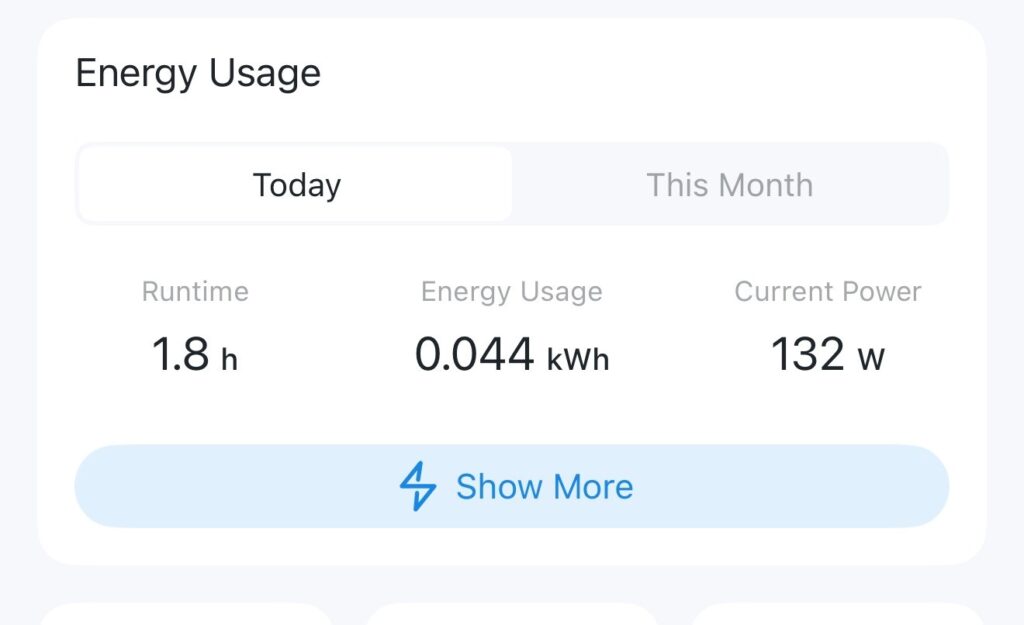
    Image shows the power consumption of the Minisforum MS-A2 under load.
    Minisforum MS-A2 Power Consumption

    I understand that the default TDP of the Ryzen 9 9955HX in the MS-A2 is configured at 55Watts. You can however configure that in the BIOS up to 75Watts if you wish – I’ve not as yet looked at that to see if it has any real-world impacts, however it’s certainly something I’ll be having a look at – theoretically that could offer a 15% ish uplift in performance in multicore workloads, so worth a look see.

    Costs

    It is a little bit pricier than the MS-01 – let’s compare the two. Firstly, the MS-01.
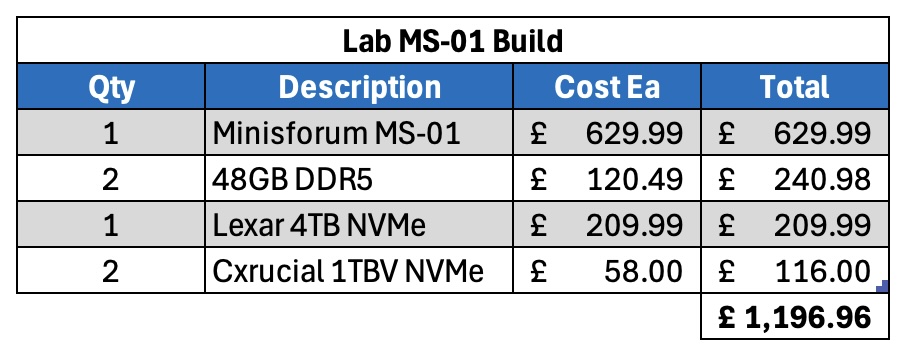
    Let’s now have a look at the MS-A2.
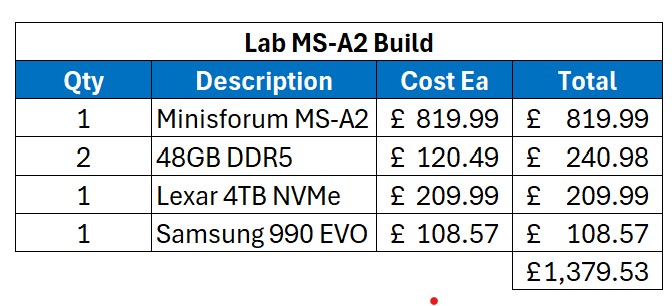
    Image shows a breakdown of costs for the MS-A2 lab machine.
    MS-A2 Costs

    For my non-UK readers, the above costs are in GBP, and include VAT – our sales tax – at 20%.

    So the base unit is more expensive than the MS-01, even more so as you can get further discounts on the MS-01 compared to when I originally bought them.

    Fan Noise

    The fans are very audible on the unit – similar to the MS-01. Ask the unit to do practically anything and the fans will spin up. It doesn’t bother me, however if it’s right next to you I suspect it could get irritating? That’s very subjective, and hard to qualify.

    Support

    I think the comments I made back when looking at the MS-01 still bear true: Now, this is worth being aware of. I’ve seen a few horror stories about dealing direct with Minisforum, and if it was anything like my experience dealing with Geekom I’d be very nervous about buying direct. Buy from Amazon however and any problems you can make their problem, and their returns process is usually excellent.

    Summary

    So far I’m very impressed by the thing. It’s a super-fast version of the already impressive MS-01. For my use – as a lab virtualisation machine – it’s a great fit!

    Minisforum seem to be producing some great stuff. I’m really looking forward to testing their upcoming NAS device for example.

    Anyway, any questions about this unit please let me know, and I’ll do my best to answer.

    EDITed to add – while I remember, this unit doesn’t support vPro like the MS-01.
  • Thunderbolt 5 Storage

    Thunderbolt 5 Storage

    Earlier I had a need to move a 500GB Virtual Machine to another one of my virtual hosts. I could of course have copied it across my 10Gbe network, which would have taken 20 minutes or so, but instead I thought it simpler to throw it on an external NVMe drive I have. My Mac happily told me it was going to take 2.5 minutes to copy the virtual machine to the drive.

    TWO AND HALF MINUTES!

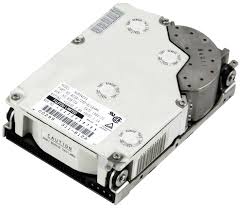
    In the end it took nearer three, but hey, that’s fast. This got me reminiscing. Back in the day when I first started working on ‘larger’ stuff, I did a lot of Novell Netware. We used to use Fujitsu 500MB SCSI drives in our normal server setups (the M2624FA I think)…. like this:

    Fujitsu M2624FA SCSI Hard Drive
    Fujitsu M2624FA SCSI Hard Drive

    This was hooked up to 10Mbps Ethernet – mostly Co-ax (Cheapernet), and then later moving to UTP (at a heady 100Mbps). What I remember about those drives is that copying that 500MB drive to a new server typically took about 20 minutes. That’s about 0.4MB/s. Shudder. The drives themselves were capable of more than that – sometimes a whopping 4MB/s – but the overheads of copying/delivering over 10Mbps limited that.

    Now, I’m sat here copying a 500GB virtual machine at about 2.8GB/s. That’s 7,000 times faster. That’s some progress. At 0.4MB/s it would have taken 14.5days…assuming it didn’t just melt.

    I then got thinking about some of the Microsoft Exchange implementations I’ve done over the years. IOPS and drive performance were king in those configurations. We’d end up putting in a lot of drives to meet the performance requirements rather than the space requirements – single enterprise drives would often only deliver 150-200MB/s, with maybe a 150IOPS per drive. For a 5,000 mailbox solution, you’d need about 5-10,000IOPS (I haven’t worked this out fully, don’t @ me!). So you see the problem. Here’s a 16TB Toshiba Enterprise Drive for example:

    Image shows the performance of a Toshiba Enterprise 16TB Hard Disk Drive
    16TB Spinning Hard Disk

    Now a single NVMe (PCIe 4×4 for example) 500,000 to 1,000,000 IOPS. So yeah, the world changed.

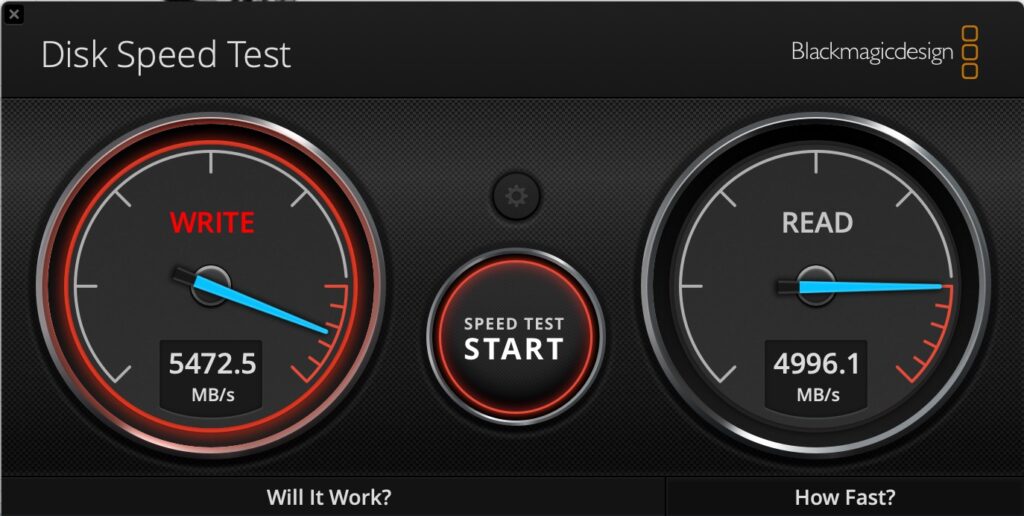
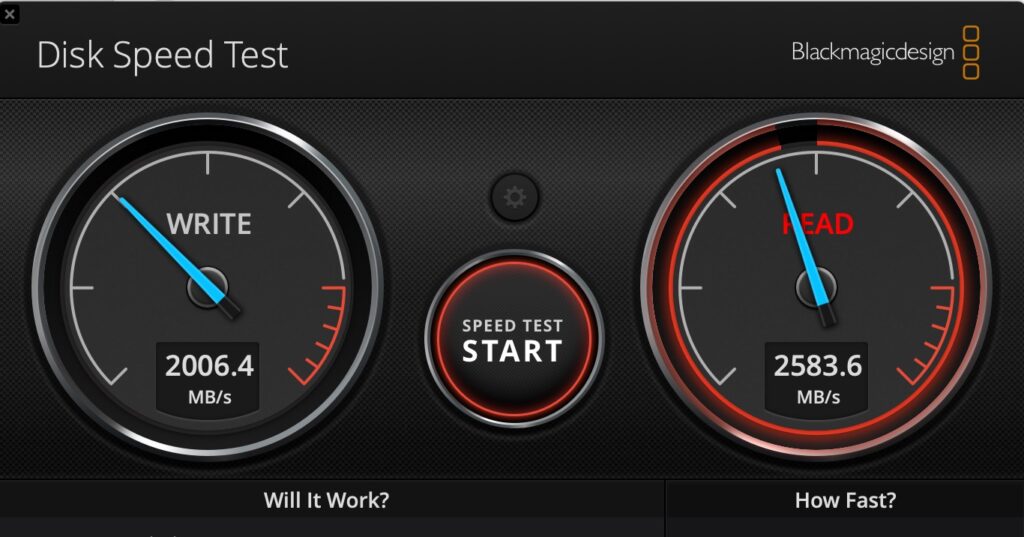
    Anyway, enough reminiscing! What about that drive I was copying to? Well, it’s an external Samsung 990 Evo Plus 4TB installed in an ACASIS 80Gbps M.2 NVMe SSD Enclosure. The performance of this setup is simply epic:

    Image shows the performance of a Thunderbolt 5 connected NVMe SSD
    Thunderbolt 5 NVMe

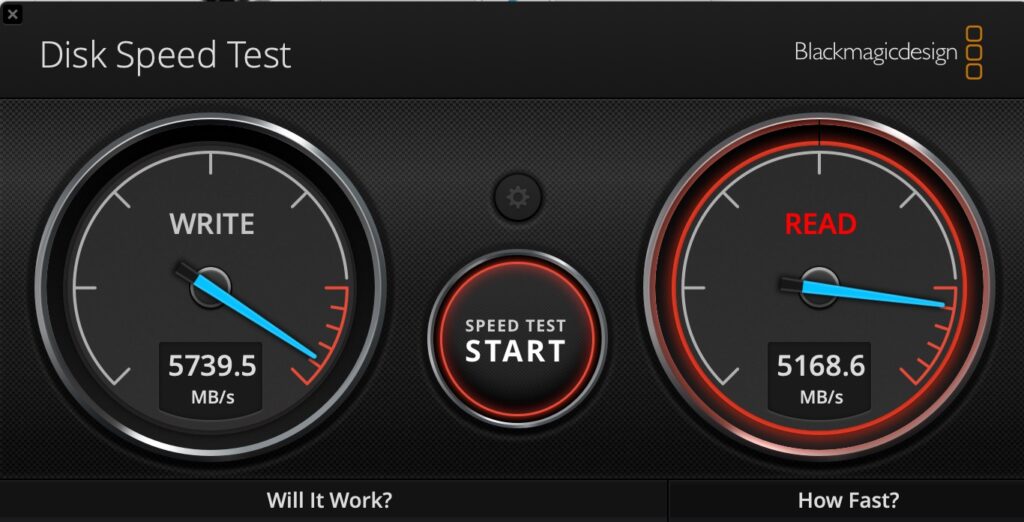
    So about 5.5GB/s write, and 5GB/s read. That compares pretty well with the internal SSD on my MacBook Pro M4 Max:

    The image shows the MacBook Pro M4 Max Internal SSD Performace
    MacBook Pro M4 Max Internal SSD Performace

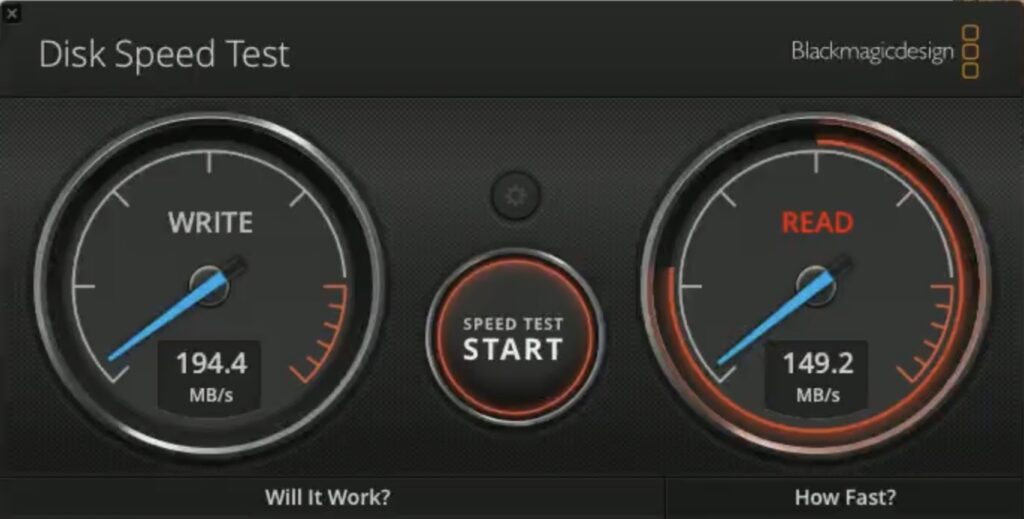
    Thunderbolt 3/4 was also pretty fast of course, but it couldn’t get close to the internal speeds – this is a 2TB version of that same Samsung drive but in a Samsung X5 Thunderbolt 3 enclosure:

    Image shows the performance of a Samsung SSD in a Thunderbolt 3 enclosure
    Samsung 990 Pro 2TB/Thunderbolt

    That external Thunderbolt 5 enclosure is a bit pricey at about 250GBP, however you pay the price for new stuff don’t you. It does work, and it works very well. It’s also got a cooling fan in which I thought could be helpful as I’ve often seen drives slow down considerably under constant load due to heat – there’s also the faster cache to consider too. These 990s have about 400GB of pseudo-SLC cache on them before they slow down.

    I’ve been thoroughly impressed with them (I’ve a couple), and am always constantly surprised by the performance. Being able to use Carbon Copy Cloner for example to backup a few TBs from one to the other becomes a quick coffee break rather than a plug in, forget, check tomorrow operation.

    Anyway, that’s enough reminiscing for one day. New stuff is newer, faster, spankier – who knew.

  • JetKVM – IP Keyboard/Video/Mouse

    JetKVM – IP Keyboard/Video/Mouse

    Getting remote access to some machines – headless servers for example – can sometimes be a challenge. Sure, there’s RDP or VNC, however that requires the machine to be up, on, and usable doesn’t it? What about those times you need to deal with machine that isn’t accessible for whatever reason? Or if you need to do something that requires a good old fashioned keyboard, monitor and mouse? BIOS/Service Pack upgrades for example.

    Well, that’s where these KVM units step in (Keyboard, Video, Mouse). Essentially they are devices that connect to the PC HDMI post, and provide a keyboard & mouse via USB. They then connect to your network allowing you to remote control that PC/Mac as if you were sat physically in front of it.

    I tend to use Mac mini devices as my headless servers as they’re so capable, and use so little power. One challenge you have with those is that on a fresh reboot, if you have FileVault enabled (encryption), you must login with a physical keyboard at the device to get at the keys to unlock the drive for normal boot. This is a huge pain for a headless server.

    I had taken to configuring a small boot OS that was not encrypted, and then having another encrypted partition with my ‘real’ user on. This would mean you would initially connect remotely and login as the unencrypted user over VNC, logout, and re-login as the user that has the encrypted partition. I’d move that user’s home folder to the encrypted drive too. A bit of an effort.

    This unit solves this challenge as you’re effectively logging in from a local keyboard.

    I’ve been through several KVM units like these over the years and never really found one that I got on with fully. Then I stumbled on the JetKVM on Kickstarter.

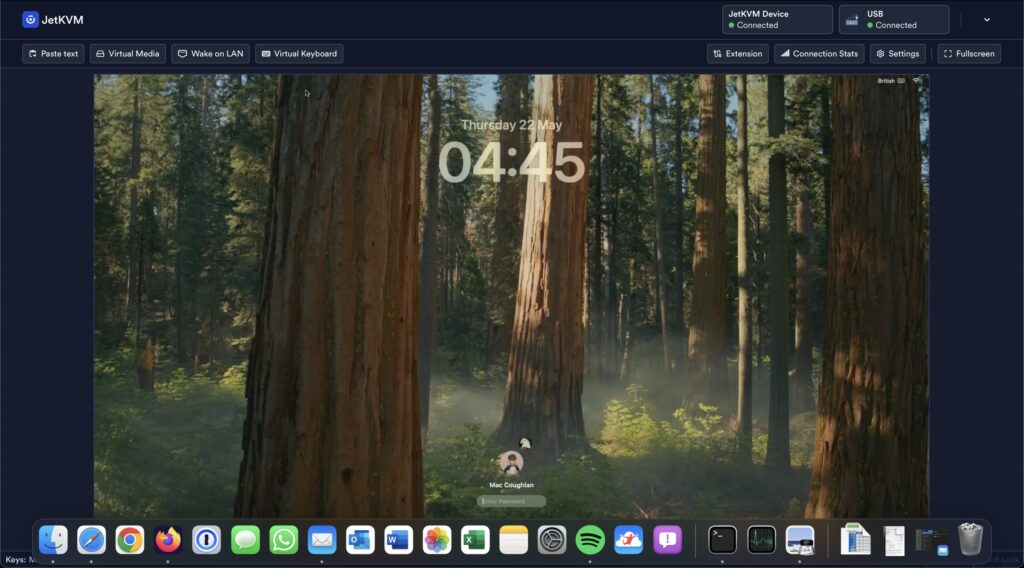
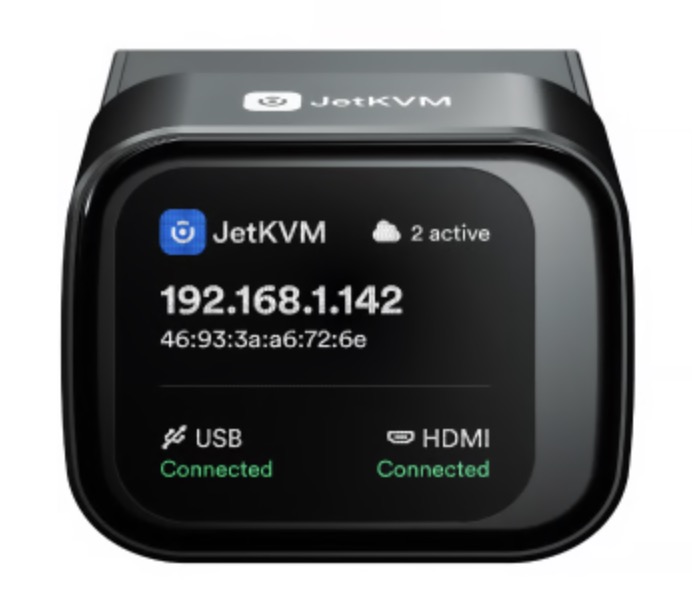
    This is a small device that plugs in to your HDMI port, a USB port, and an Ethernet port on your network. It picks up its own IP Address (which it helpfully displays on the small screen), and you can then connect to the IP using a web-browser:

    Image shows the JetKVM connected to a remote machine.
    JetKVM Connected

    It takes minutes to setup, and so far it’s been awesome. It’s done exactly what it said it would do. There are some considerations of course – a big one being power. If, when your machine goes to sleep, it stops powering your usb ports, then you could have an issue as the JetKVM gets its power from the USB Port. Fortunately, they provide a pass-through cable that allows you to power the JetKVM with a mobile-phone USB-C charger.

    This was interesting as my observations with the Mac mini M4 have been that it does indeed power down the USB Ports on sleep…but, for some reason, the JetJVM maintains power. I know that Apple does use a low-power sleep system for keyboards and the like, so perhaps it’s through that mechanism? In any event, you can power it separately if you require. I also understand that a PoE version is in the works.

    On the subject of power, the device doesn’t allow for physical power-down and re-start of the end-device. Not surprising if you think about it! I control that differently anyway, using Smart plugs. Depending on your use case however, help could also be coming for that….

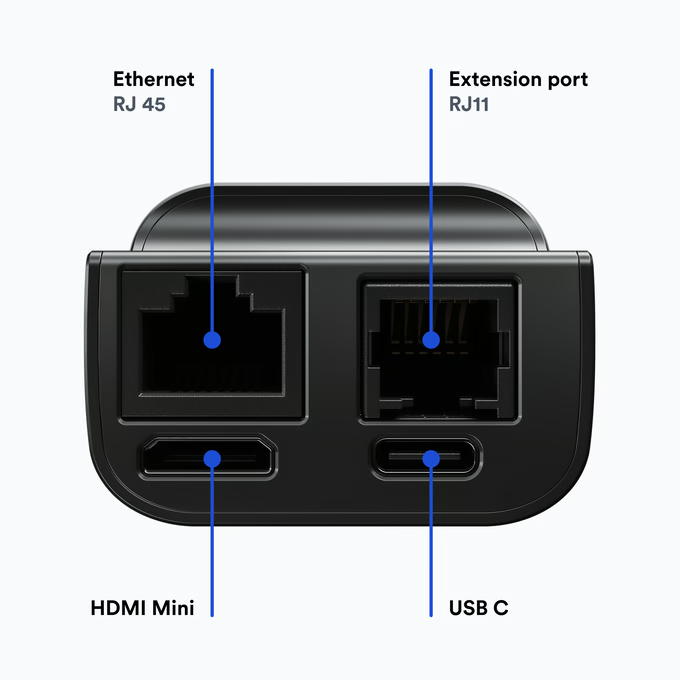
    There’s also an RJ11 Port (serial). All the software is Open Source and is up on GitHub – I’d expect to start seeing some cool extensions coming! Perhaps one of those extensions could deal with power?

    Image shows the layouts of the ports on the JetKVM
    JetKVM ports
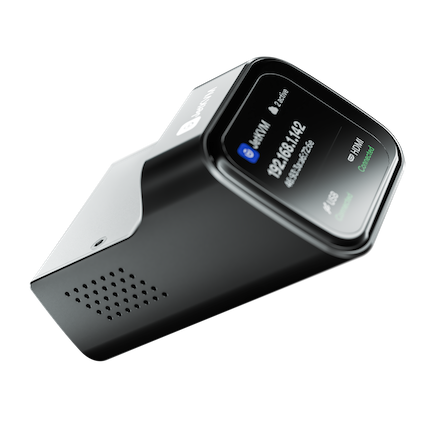
    Image shows the front-view of the JetKVM
    JetKVM Front View

    They do provide a cloud-access model too, to allow remote-access. Currently, this requires authentication with Google. I’ve not tried the remote access element as I have my own mechanisms to provide remote-access where it’s needed, however it looks like a fairly decent offering.

    You can see all the current docs here:

    JetKVM Documentation

    I paid 68US$ + 19$US Shipping back at the beginning of April, with the unit turning up about 10 May. I suspect now they’re clear of the Kickstarter campaign these will start popping up on Amazon and the like – and I suspect, when they do, I’ll have some further ones to buy.

    Very happy with the unit so far, it’s been really useful!

  • SynologyDrive Would Like to Access Data from Other Apps

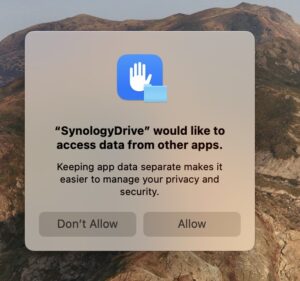
    This is an irritating error message I seem to be getting from the Synology Drive App Recently:

    The image shows the message 'SynologyDrive would like to access data from other apps'.
    SynologyDrive would like to access data from other apps

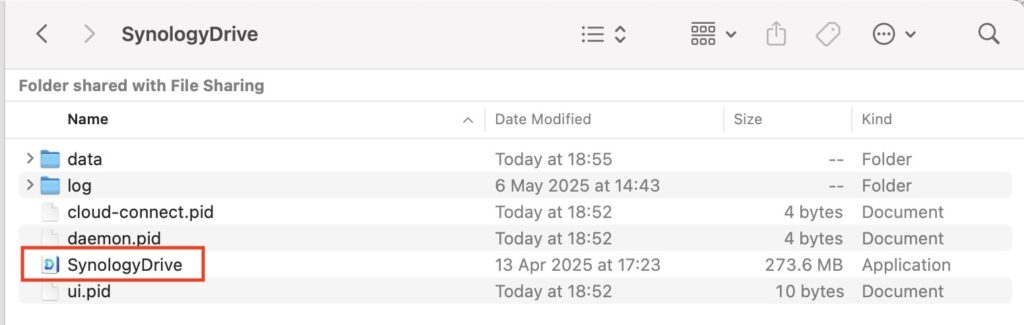
    In a fit of boredom I thought I’d set out to search why this was so – I tried adding the Synology Drive app to full disk access however it didn’t help. Then I noticed the clue is in the error – ‘SynologyDrive’ – notice the lack of space. So, off I search for SynologyDrive…and you’ll find it here:

    <username>/Library/Application Support/SynologyDrive

    Image shows the location of the 'SynologyDrive' app
    SynologyDrive App

    That’s the app we need to add to Full Disk Access. Now, this is usually hidden (the Library folder) – so we need to show hidden files. You can do this with CMD+Shift+. (That’s . at the end!). You can also do this in terminal:

    defaults write com.apple.finder AppleShowAllFiles TRUE
    killall Finder # refreshes Finder

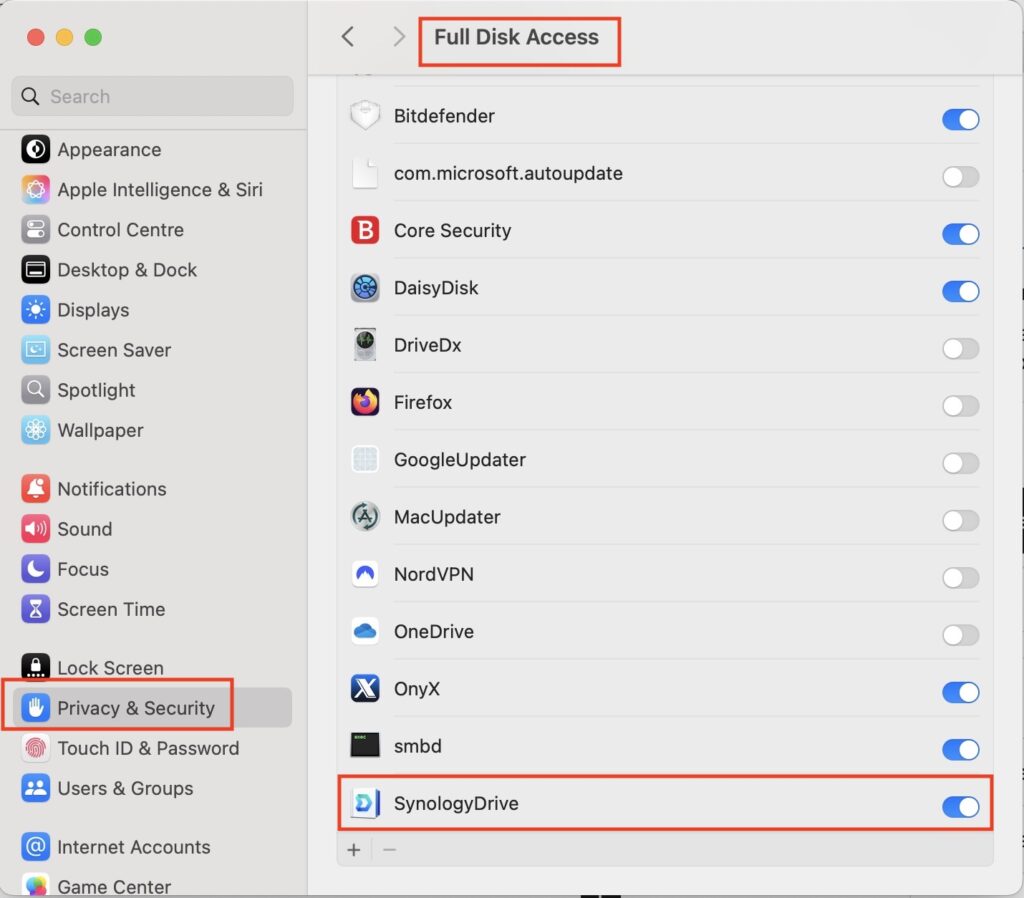
    Browse to the location and make sure you can see the file. Next, open Preferences and go to ‘Privacy and Security’, followed by ‘Full Disk Access’.

    What you now need to do is drag ‘SynologyDrive’ from Finder to the panel in preferences, and ensure it’s turned on:

    Full Disk Access
    Full Disk Access

    You’ll be warned that you need to restart Synology Drive – do so, and you should see that message no longer pops up.

    You can turn off showing hidden files using the same CMD+Shift+. or the following in Terminal:

    defaults write com.apple.finder AppleShowAllFiles FALSE
    killall Finder # refreshes Finder

    They really should fix this in the installer!

  • Cannot pair a yubikey for MacOS Login

    Cannot pair a yubikey for MacOS Login

    I’ve done a bit of a derp, and it’s taken me way too long to work out such a simple derp. I use physical keys for logon to my MacOS devices, as well as passwords. I’ve been setting up a new MacBook Air today, and could I get my YubiKey to work?

    I’ve factory reset it, I’ve been through the pin setups, all the certificates I configured manually and everything checked out – but could I get it to pair? Absolutely not. I was expecting the normal pairing prompt when you plug the device in:

    Image shows the notification you get when you plug in a SmartCard for login to MacOS.
    SmartCard Pairing

    I’m sure several of you are laughing already.

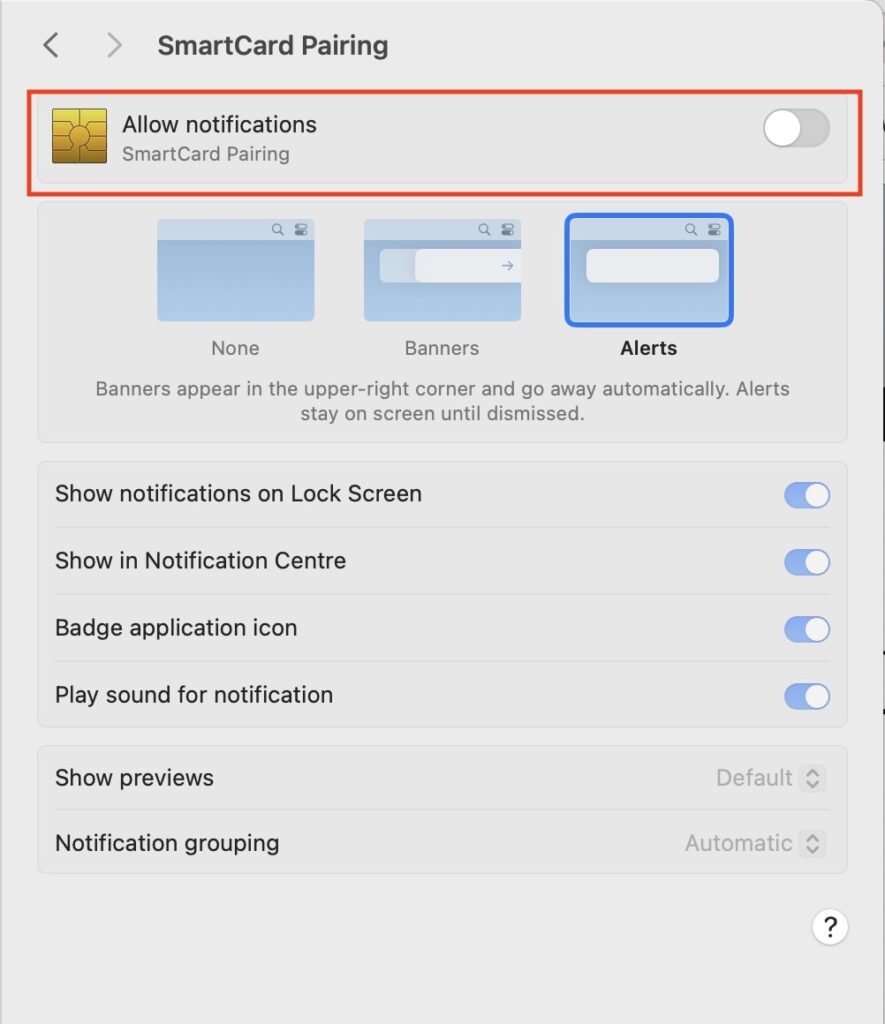
    Try as I might, everything looked good, nothing worked. Why am I not getting the SmartCard pairing notification?! WAIT. Notification. Let’s check our MacOS notification configurations in Preferences:

    Image shows the configuration of notifications for the SmartCard pairing in MacOS.
    SmartCard Pairing Notifications

    Yeah, notifications were turned off. That’ll be it then. Somedays it’s the simple things that get you – and on those days I’m pleased I don’t operate heavy machinery.

  • Desktop Virtualzation – It’s Brilliant

    The ability to run multiple different operating systems on your laptop has proven to be invaluable for me – it’s just so, so useful. I’m often on many different sites all with slightly different environments, or I’ll be needing to build & test server based stuff. Being able to do that on my laptop has saved me so much time & effort.

    As an Apple Mac user, I’m always coming across scenarios where I need to run Windows – whether server or desktop – so being able to fire up multiple different versions all at the same time saves a ton of time. No rebooting into a single copy of Windows in BootCamp for example. My normal productivity environment for example is an Apple Mac running Windows 10 in Parallels Desktop

    One thing I get asked about a lot is what’s the impact of virtualising Windows like this, just how usable is it? Well, it’s brilliantly usable, just as much as most physical devices (I.e. Natively running Windows) I’ve used. There has to be a performance impact though, right? Yes, yes there is, but it’s relatively minor in reality.

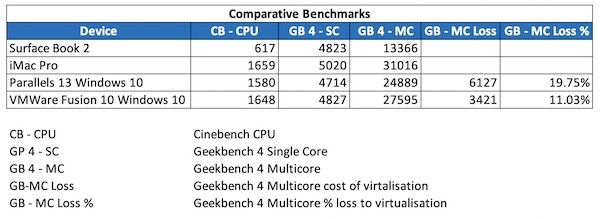
    I’ve done some benchmarking below showing:

    • Cinebench scores natively in MacOS, and in Windows 10 running in both Parallels Desktop 13 and VMWare Fusion 10.
    • Geekbench 4 scores natively in MacOS, and in Windows 10 running in both Parallels Desktop 13 and VMWare Fusion 10.

    Anyway, these figures are shown below.

    General Machine Benchmarks
    General Machine Benchmarks

    Now, I know it’s a bit unfair to compare the Surface Book 2 to an iMac Pro like I have above, but even on my MacBook Pro I get better performance in Windows 10 virtualised than I do natively on the Surface Book 2, and the SB2 Is hardly a slouch.

    It’s interesting to see the differences in the performance for VMWare Fusion and Parallels by the way. I tend to use Parallels for my Windows 10 setups, and VMWare Fusion for my server stuff, however looking at the above I may now reconsider this. More testing required. I will say though that in all of the graphics tests Parallels 13 seems significantly faster than Fusion.

    Anyway, my general point being that running an OS virtualised for general day to day use is amazing. Being able to take snapshots, to roll-back etc. when testing is invaluable. As is having standard builds of Windows available for a simple copy, rather than having to build fresh very single time I need a machine saves me tons of time.

    You can do this on Windows too of course using HyperV – this is included in Windows 10 Enterprise or Professional. Anyway, you can read about that here.