This is quick addenda to my previous post on the PST Import Service. Sometimes you can run in to an issue where the import service says it cannot find the PST files – something like ‘The PST could not be found in the storage account’.
You can view the storage blob created during an import session – it’s a quick/handy way to be able to see why the import service is having the problem.
It’s pretty easy. Download and install the ‘Azure Storage Explorer’ from here:
Download Azure Storage Explorer Today
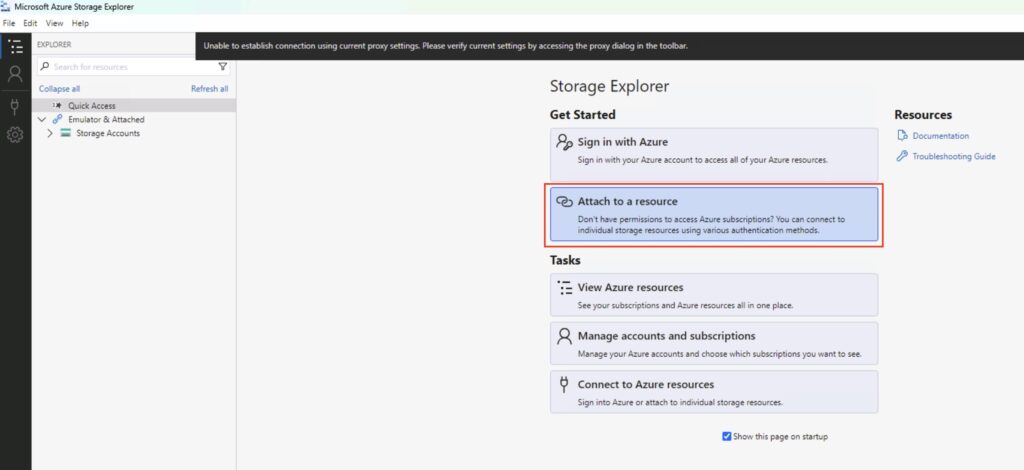
Fire it up, and select ‘Attach to a resource’.
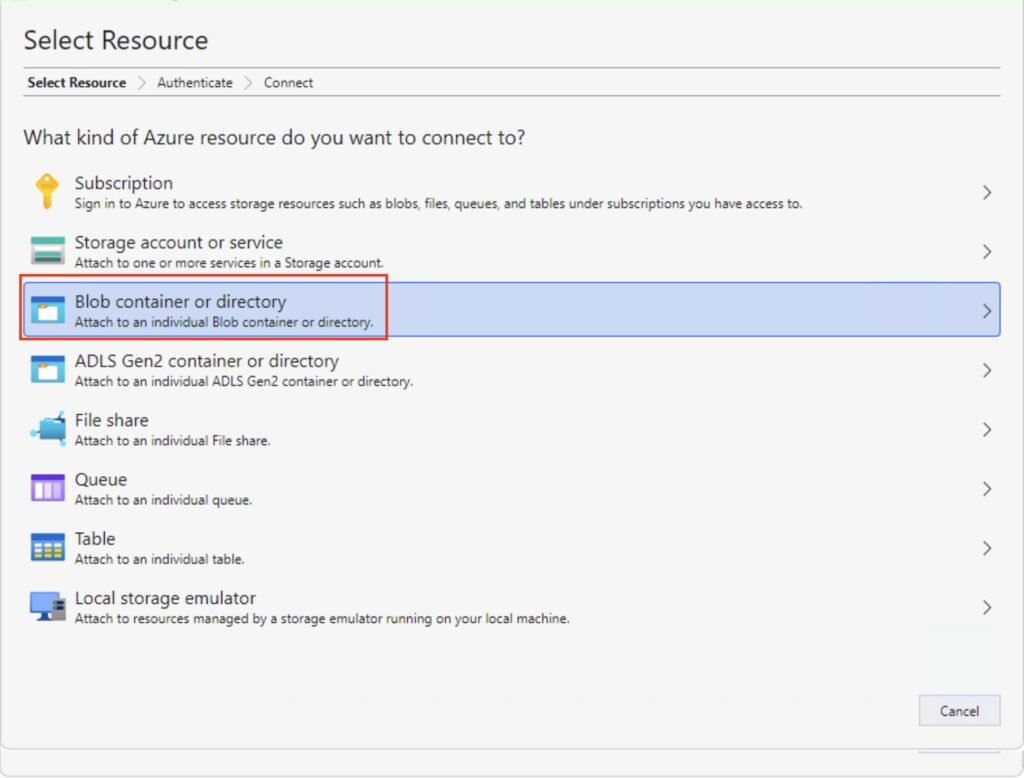
You now need to select ‘Blob container or directory’.
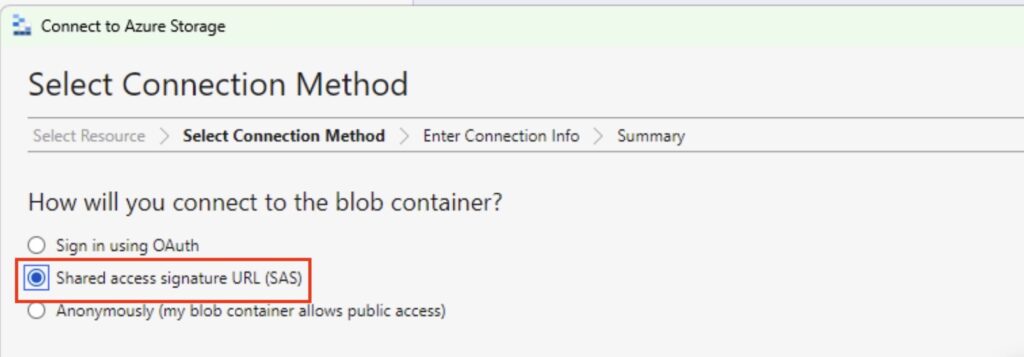
Next, select the ‘Shared Access Signature URL (SAS) option’:
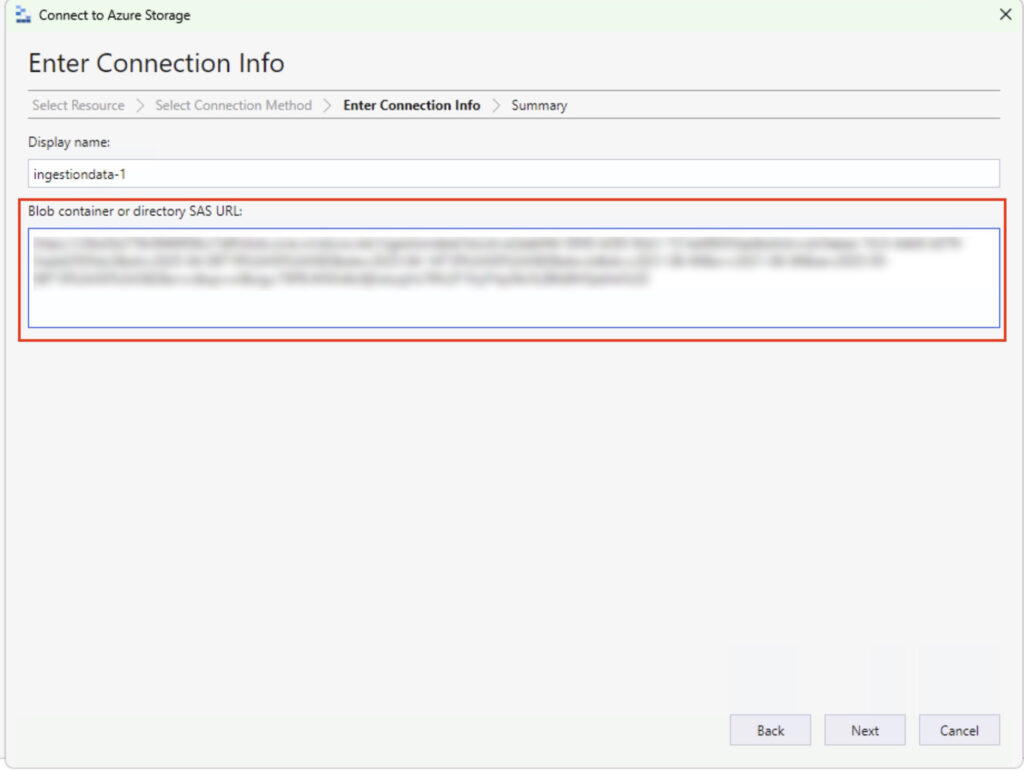
Now, paste in the HTTPS link to your blog – don’t worry about the display name, it will self populate:
Click ‘Next’ and good things will probably happen. You’ll get a summary – which is good – followed by a ‘Connect’ button, which, if you’ve gotten things right, will also be a good thing:

In the above you’ll see:
1: How I learned about the sub-folders meaning nothing works.
2: The PST files we have imported as part of this demo.
3: The PST file I’m currently running for an actual real person.
Anyway, it’s useful to be able to look.