The company I currently work for is in love with Email. Lots and lots of it. In fact, I’m fairly sure it’s their goal to deliver all the email everywhere.
Anyway, a side effect of this is that often you know you have some information, from someone, somewhere, about something and it’s hard to track it down.
Sure, Outlook has search, but hell you can never find anything, right? Well, having watched some people use the Outlook search I can understand why they can never find anything – I suspect people don’t realise exactly how powerful Outlook search is. There are great and simple ways to narrow the scope of your Email searches making it far, far easier to find the stuff you want.
Simple things like AND and OR. Search for Andy Pandy for example and Outlook will search for messages that contain:
Andy OR Pandy – and not in that order either. So emails with Pandy Andy will also show up.
It’s the most common misunderstanding of Outlook search I see, and why people can’t find things. If you wanted something that contained Andy AND Pandy you could search for:
Andy AND Pandy
…or search for emails with Andy in, but not Pandy. Guess how we do that?
Andy NOT Pandy
You can also of course search for the explicit phrase by searching for “Andy Pandy” (I.e. In quotes).
There are also some far more powerful search methods such as:
From: Emails from that person. Hasattachment:Yes Only emails that have an attachment. Attachments:attachmentname Only emails with that specific attachment – very useful Received:=date Items only received on that day Received:yesterday Take a guess on that? Also tomorrow/today… Received:last week …wild stab in the dark?
You can of course combine all of them – let’s imagine we want to find an email from Andy.Pandy@contoso.com, that has an attachment, and you received it last week. Well, you could search for:
You can see a video run through of how it works, and why it’s so cool, below. This was produced by Webucator, they produce a number of Microsoft Outlook Online and Onsite Training Classes. Must admit I do like video run throughs of stuff – it makes things so much easier to, well, visualise. Always find quite astonishing when some companies ban things like YouTube – how many people now when they want to know how to do stuff would immediately turn to YouTube? I know I do.
A lot of people I know have started using Windows tablets of one sort or another – and a question that keeps cropping is why when their machines are members of the domain can they not use the PIN login method?
By default on the domain this feature is turned off.
As a side note, it’s interesting the resistance you can run in to enabling the PIN login method….It’s INSECURE shout/rant etc. It may be insecure – but it’s interesting that the same people who shout & moan about this don’t moan about 4 pin locks for people’s phones & iPads, and they arguably can contain very similar data-sets?
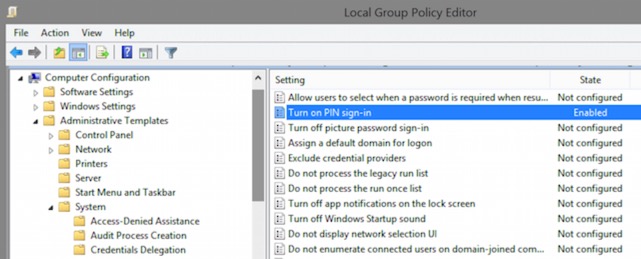
Anyways, where is the Group Policy setting? Under the Computer Policy, go to Administrative Templates\System\Logon.
Under there you should see the option for ‘Turn on PIN Sign-In’.
If you open the local group policy editor you can see it here:
You can also set it directly in the registry at this path (for example if your edition of Windows doesn’t have the Group Policy editor in it):
What feels like a long, long time ago I wrote an entry about how people can and should manage their presence – you can see it here:
The Etiquette of PresenceLong gone, sorry!
Presence isn’t that unusual any more – people are use to it…. that’s not to say people are always using it in the best way however.
I still see people who the first thing they do when they get in or online is put their Status on busy. So much so you ignore the busy – you IM anyway, are you really busy or just on busy? Hello?
Of course their response or lack of it tells me whether the busy is real or not…but that’s not very good is it? I may as well just ignore their presence and call whenever I want. What’s the point of that?
In addition to that it’s obvious to me that some people bang up the times on their inactive and away settings:
They set them so that even when they wander off from the their PC for ages they’re still showing as available. Again, what is the point of that? Trying to IM someone when available only to see them rock in from the sandwich/coffee shop chatting away can be a little frustrating.
Why do people do that? Why want to appear to be available when you’re not? My guess is it’s down the fear of the ‘Big Brother’ as in oh my, if I’m away for ages people will assume I’m lounging around watching Homes under Hammer.
The reality of course is that few people do view this in such a way.
You can also do custom presence states with Lync too – for example I have a few extra on my presence options:
You can see I’ve got a few extra states at the bottom – all designed to help people understand the best way to contact me.
Mobile clients are also now massively on the rise. Personally for example I tend to leave my Lync client on my phone running all the time – I may logout at the weekends totally, but that’s only if I remember. I’m OK with that – I would get why a lot of people wouldn’t be of course.
Presence is a great tool if managed and used properly. Constantly on busy – people will ignore it. Constantly available but not, people will ignore it – and get frustrated with you in the process.
One common workflow that is often missed in the Lync world is what happens when you disable a user in Active Directory? For example, if a user has left? Well, the user will remain enabled for Microsoft Lync, and in some situations will still be able to logon to Lync as well:
In reality you need to work in disabling a user for Lync when disabling their Active Directory account as well. Now, fortunately it’s fairly easy to find out who those disabled users are, and to disable them – so let’s have a look at that here.
How Many Are There? Firstly, you may want to know exactly how many Disabled AD Users that are enabled for Lync – it’s pretty easy to find out using this command:
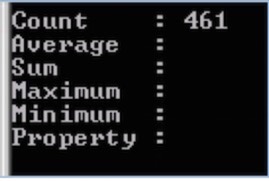
Note the above may be wrapped on your browser – it should be entered as a single command. The output of this will show you how many disabled accounts you have – like this:
So in the system I’m looking at there’s 461 accounts – quite a few.
Who are they? Next, you’ll want to know who those accounts are? Well, again that’s pretty easy to do with PowerShell – like this:
This will give a text output of the disabled accounts – if you want, you can push to a text file by putting >Output.TXT or similar on the end.
How can I disable them for Lync? Again this is very easy with PowerShell – you can use this command. Bear in mind this will disable all of those identified users for Lync. All of them! Consider this for example if you have some AD disabled accounts you use for Synthetic Tests and the like. Anyway, the command is this:
Summary All of the above commands are built in the same way and should be fairly obvious. PowerShell is a fantastic tool for the scaled systems Adminstrator – how people managed without it I don’t know. Well, VBScript I guess? Still a big fan of that for down & dirty quick stuff.
There is a certain behaviour with Microsoft Lync 2013 (and 2010 I believe) and authentication that could mean that when you disable an account in Active Directory, the user can still login to the Lync client. This isn’t ideal as the user is able to continue using services on the Lync platform – including Enterprise Voice – for the whole time they are connected, regardless if their account is enabled or not within Active Directory.
Doesn’t sound great does it! The reasoning behind it is to do with the way that authentication is handled by the Lync client. If a user logs in to their Lync account and selects ‘Save my Password’, Lync will generate a certificate and this certificate will be installed in the user’s certificate store – this certificate is then used to authenticate.
If you look at the certificate that is generated for the user you can see that it’s often quite a large time period set for its validity:
In my demo environment for example you can see validity is some 6 months! As long as this certificate is valid the client will still be able to login to Lync regardless of whether their Active Directory account is enabled or not….seems kinda crazy doesn’t it?
In reality, as part of the administrative process for disabling a user account you should include the step of physically disabling the Lync user account too, either within the Lync Control Panel or with the PowerShell Management shell for Lync. Of course you can also add this option to your Active Directory Users & Computers plug-in and do it all at the same time! Why not – it makes admin far, far simpler.
With the demise of Microsoft ForeFront Threat Management Gateway, I get asked repeatedly about what reverse proxy products are suitable for Microsoft Lync. Of course there are a raft of products out there capable of reverse proxy services – some of them quite expensive..There is also one that’s free – it’s called Application Request Routing or ARR.
You can have a look at the web site and read all about it here:
This is a plug-in for IIS that full supports Reverse Proxying, and is supported for Microsoft Lync usage. It’s pretty powerful in its own right really – but for the purposes of this blog I’m going to focus on the reverse proxy element.
Another useful feature – especially if you’re tight on public IP Addresses – is that multiple web sites can be proxy’d from a single IP address. I can have for example:
…all listening on one public IP Address but being routed to three different back-end web servers. The proxy is routed differently depending on the requesting URL.
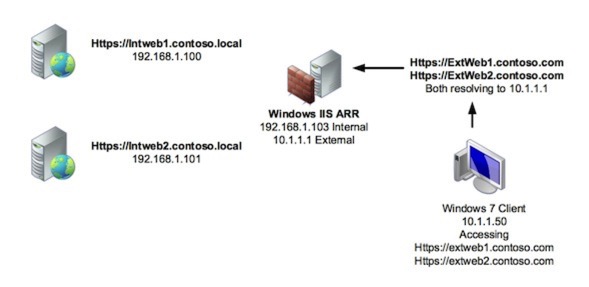
So to look at what’s involved in configuring the reverse proxy, first let’s look at our lab environment. It’s detailed below. Click on the image to see a larger version.
Configuring the Reverse Proxy Routing Firstly, there’s a few things to watch out for when you’re configuring the Server itself. I prefer to have two interfaces on these units – one internally facing, and one externally. The issue with having multiple interfaces is ensuring that the correct traffic goes out via the correct interface – if it doesn’t, you’ll have issues with your firewall rules won’t you? This article below explains what you need to watch out for on that front:
Certificate Considerations I want to be able to access my https sites from one IP address – to do that, I need a certificate that has all of the destination URLs listed in its Subject Alternative Name (SAN) field. So, for my lab, I have one certificate that has extweb1.contoso.com & extweb2.contoso.com in its SAN. This is then bound to the default web site within IIS. Without the AAR configured, connecting to https://extweb1.contoso.com for example, brings up the default page of the IIS installed on the reverse proxy server.
Installing ARR Installing ARR is simple. You can get the code, and run the installer from this web site here:
Configuring a Reverse Proxy Rule Let’s look at configuring the RP rules. We want multiple URLs routing to different hosts, so we need to configure multiple rules. In addition, I only want to Reverse Proxy HTTPS requests, not HTTP. To do this, we need to do the following items:
Configure our server farm within ARR
Turn off SSL Off-loading (Important!)
Delete the HTTP rule
Modify the HTTPS rule so that it only routes the requests that we want, and not everything
That’s really all there is to it! So let’s look at each bit – specifically, for the extweb1.contoso.com website.
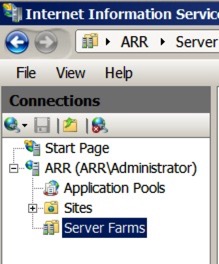
Configure our Server Farm for ExtWeb1.contoso.com Fire up Internet Information Services Manager, and expand down the panels on the left – you should see a new entry – Server Farms:
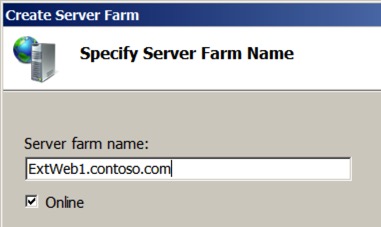
Right-click on the server farms, and select ’Create Server Farm’. You will be asked to give it a name – use the External Web Site address as it makes it easier to track. For this example, I used ‘ExtWeb1.contoso.com’. Make sure ‘online’ is selected, and hit next.
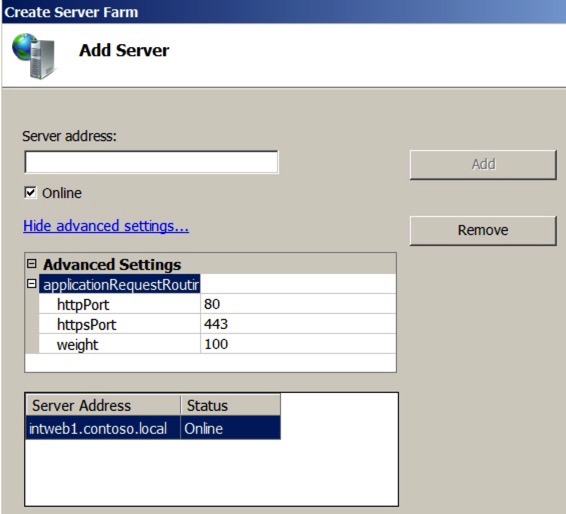
At the next screen, enter the target address that you want to route to. For example, I want ExtWeb1.contoso.com to route internally to IntWeb1.contoso.local. In addition, you Microsoft Lync People, you can modify the target ports here too (to 8080/4443 for example) by hitting the advanced button. Make sure you hit ‘Add’ to add the destination server to the list.
Once you’ve done that – hit finish. You’ll now be asked if you want to create the re-write rules – like below – click ‘Yes’. Note that if you have already created a proxy rule you may get a message saying that the system wants to create a conflicting rule – that’s because by default the rules capture all traffic, not just the traffic we’re interested in. We’ll modify that rule in a minute.
Now, we need to turn off SSL Off-loading, and optionally turn of disk-caching. Again for you Lync people, make sure you turn off caching as this causes issues with the Lync Web Services.
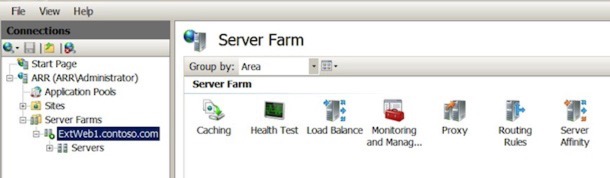
Under the ‘Web Services’ section now in the IIS Manager, you should see the Server Farm we have just created. Select it, and you should see all of the options in the right hand pane, like so:
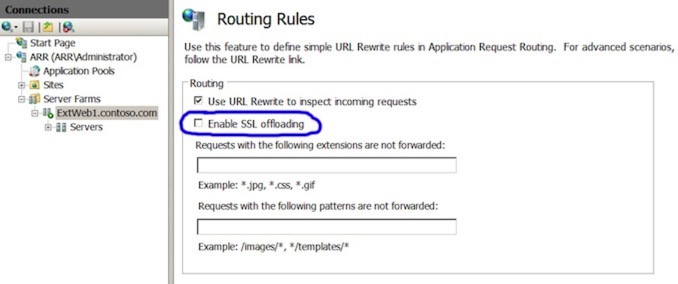
Firstly, select the ‘Caching’ option and turn off disk-caching. Next, select ‘Routing Rules’ and make sure you turn off ‘Enable SSL Offloading’.
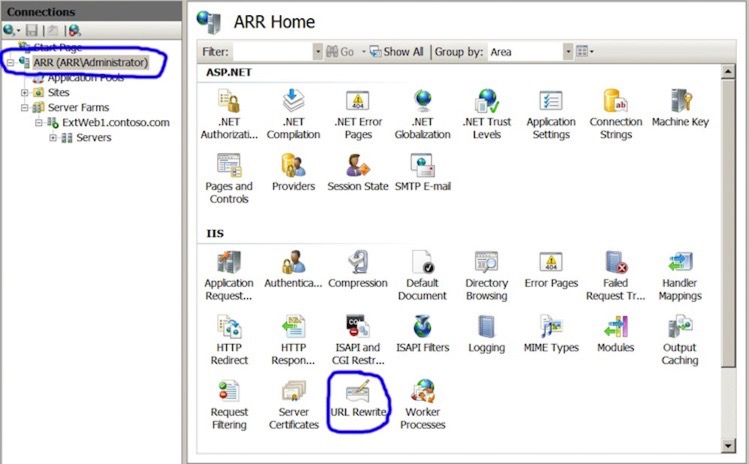
For our final trick, we are going to modify the re-write rules so that it only captures and routes traffic for ExtWeb1.contoso.com to IntWeb1.contoso.local. To do this, select the very root of the IIS installation, and select the ‘URL Rewrite’ option as highlighted below:
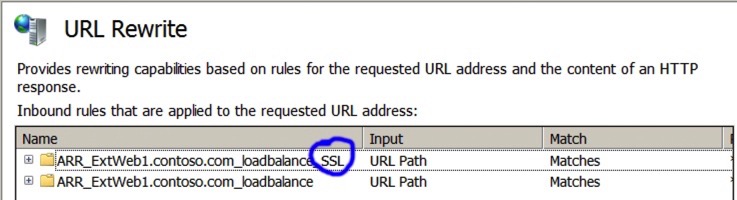
In the URL Rewrite Screen, you should see a couple of rules for the farm we have just created – one for HTP and one for HTTPS (SSL). In my lab, I’m going to delete the HTTP one as I don’t want to forward HTTP requests, only HTTPS – note that the SSL/HTTPS one has an SSL marker on the end. Use the ‘Remove Rule’ on the right hand pane to remove the HTTP one it hat’s what you want to do.
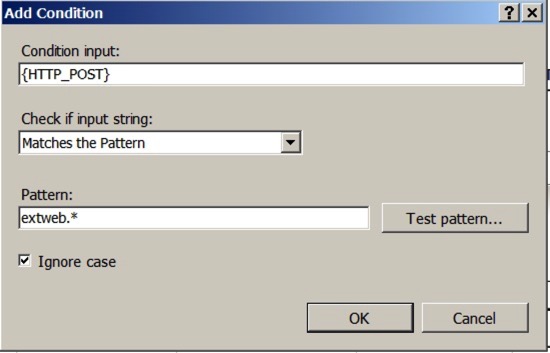
Next, we’re going to modify the SSL rule to only affect traffic for extweb1.contoso.com. To do that, select the rule, and hit the ‘Edit’ button on the right hand pane. Further down the page, you will see an area marked ‘Conditions’ – these are the conditional modifiers to apply to the rule – you will see there is already one there making this rule match traffic that has HTTPS switched on. Click the ‘Add’ button to add a new rule – note that it’s {HTTP_POST} we’re interested in, but you can select it from the list rather than type it in.
Click ‘OK’ and then Apply the rule … and you’re done! Easy isn’t it? You can then go through and add in Server Farms & rules for other specific routing requests with different targets. For Microsoft Lync for example, you could have your meet, dialin, and web-farm stuff all directed appropriately.
Video Run Through I’ve also put together a video showing the whole process from start to finish – you can view that below.
Let’s look at a simple way to get a copy of your live Active Directory environment for testing purposes. The process is:
Implement a new domain controller in your live environment
Physically separate this new domain controller (after it’s synchronised) to a completely separate network.
Fire up the new domain controller and seize all of the flexible single master operation roles to your newly isolated domain controller
Clean up the live environment removing the dead domain controller
What you’re left with is a complete copy of your Active Directory domain, in a completely isolated environment. Forgive the incessant bolding of the separation but it’s a very important point – once you’ve isolated that domain controller and seized the FSMO roles you absolutely must not let it out in to the wild – it would roam wild and cause all kinds of unhappiness. At best, it would ruin your weekend.
It’s pretty easy to do in reality – process is:
Promote and synchronise a new domain controller
Physically separate (there I go with the bold again) the unit from your main network.
Seize the FSMO roles on the disjointed Domain Controller making a whole self-contained copy of your Forest
Remove the domain controller and associated meta-data from your live domain.
So let’s run through the seizure, and clean up of the original Active Directory. I’m assuming you know how to promote a new domain controller, and physically separate it from your main network.
Seizing of FSMO Roles On your new and isolated domain controller you need to seize five FSMO roles – these are:
Schema Master – Forest-wide and one per forest.
Domain Naming master – Forest-wide and one per forest.
RID Master – Domain-specific and one for each domain.
PDC Emulator – PDC Emulator is domain-specific and one for each domain.
Infrastructure Master – Domain-specific and one for each domain.
Of course you’ll need relevant permissions to seize these roles – Schema & Enterprise Admins.
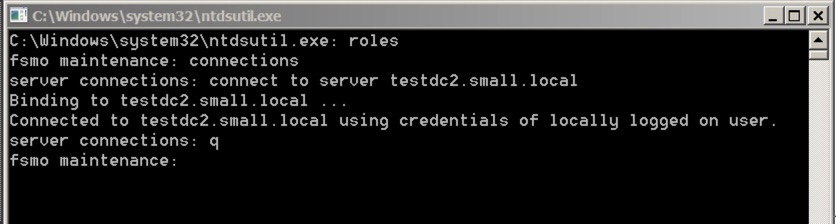
We can seize them all using the NTDSUTIL utility – let’s go through each of them in turn. Firstly, we need to set up NTDSUTIL – so fire it up from Start/Run, or from a DOS prompt – and do this:
The commands are:
Roles
connections
connect to server your server
q to quit to the higher menu
Next, we’re going to seize each role in turn. To seize each role you use:
seize role
..where role is:
pdc
schema master
naming master
rid master
infrastructure master
So let’s do the PDC first. The command is:
seize pdc
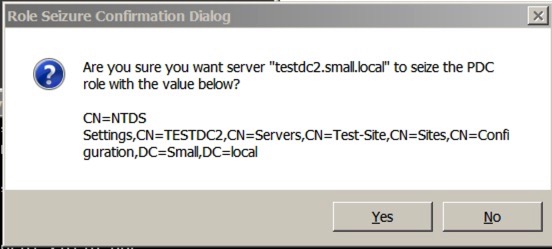
Once you enter that, you’ll receive a warning similar to this:
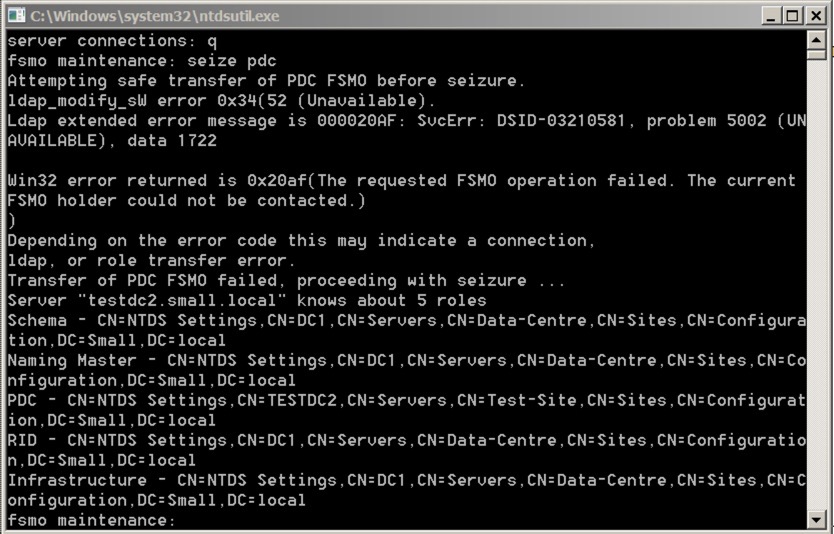
Say yes, and let it complete. You’ll see the completion/process in the window:
Notice that it first tries to do an orderly transfer before going through the seizure.
You’ll need to do the same for all of the remaining roles. Once they’re done, you’ll have a fully isolated copy of your Active Directory, complete the FSMO roles. You can then go off and do all of your testing in that environment – remember you must not allow this domain controller back on to your main network.
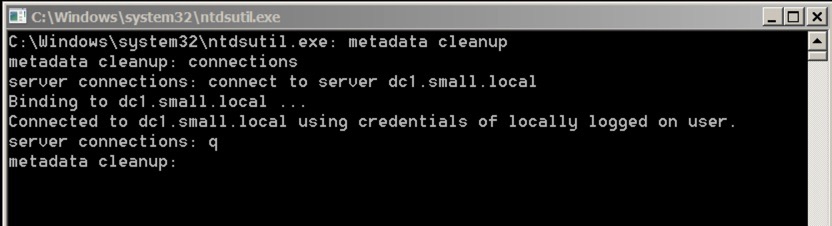
Clean up your Live Active Directory Once you’ve removed your DC and isolated it, you’ll still be left with all the objects in your live Active Directory – we’ll need to clean that up. Firstly, we need to fire up NTDSUTIL and connect to the relevant service. You do this as follows:
The initial commands are:
Metadata cleanup
connections
connect to server your server
q
We’re now ready to connect to to the items to clear up – to do this, you need to select the right domain, site and server. Let’s go through how you do this – firstly, from the NTDSUTIL use the following commands:
select operation target
list domains
select domain number
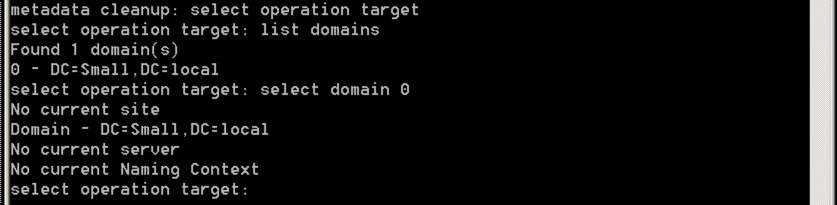
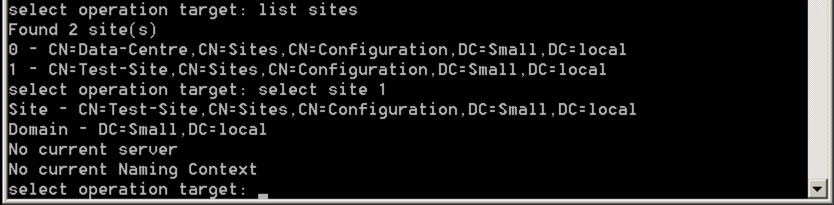
What you’re doing is selecting the relevant domain – it should look like this:
Next, we’re going to select the site with these commands:
list sites
select site number
It should look like this:
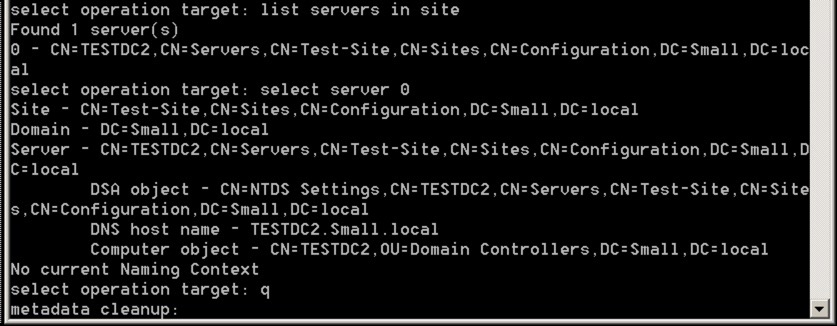
Finally, we’re going to select the relevant server in that site using these commands:
list servers in site
select server number
q
The q takes us back to the metadata cleanup level with the correct server specified – it should look like this:
The last stage is to delete the server – you do this using this command:
remove selected server
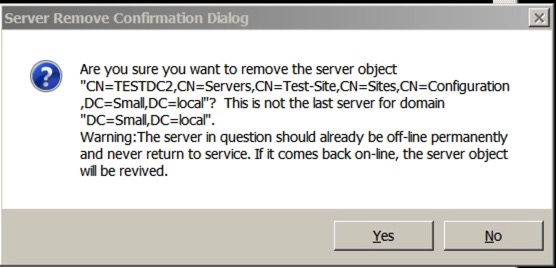
You’ll quite rightly receive a warning like this:
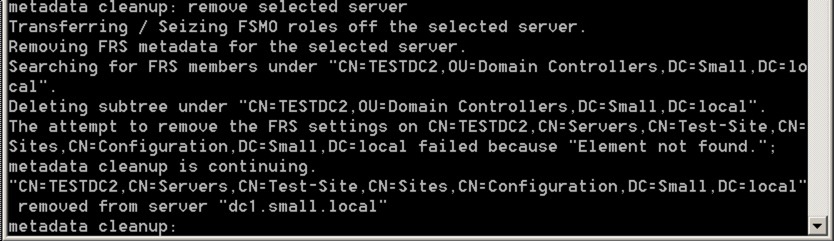
Say yes and let the command complete – the output should be like this:
…and you’re done! It’s worth scanning through your DNS too to see if there are any remnant records for the removed server too, but you’re pretty much done now and ready to go.
There’s a video below running through the whole process too, should you want to see it all in action.
It’s an incredibly hard subject to fully qualify really but at a basic level you need to know what happens when you apply a schema update to your system. Like I say, I’ll go in to the ins/outs in upcoming articles – but a very basic level it’s a good start to have a copy of your system to work from for testing purposes.
Performing Schema updates on your live Active Directory – from a change control perspective it can fill you with fear can’t it? It’s one of the few functions that are forest wide, and effectively irreversible (bar a forest restoration process).
To be absolutely fair, they very rarely go wrong – and even when they do, hardly anybody notices. What’s going to go wrong? A system breaks in the middle of the update? Usually you can just run the update again and let it finish. The biggest risk is from ineffectual planning. I mentioned a while ago that a friend of mine had rather unfortunately committed a schema update to their live systems without doing the prep for a previous edition – and of course, this negated their ability to implement the platform they wanted. It wasn’t unrecoverable – but it was … a little stressful to do. Editing your schema is not for the light hearted. I’ll happily dive in on a demo or test platform – but live? I’d avoid that at all costs. Article here for example on removing an Exchange 2013 domain prep:
I spend a lot of my time designing and being involved in the implementation of Microsoft Lync – and that always involves a schema update. I’m always slightly surprised at most company’s attitudes to schema updates. Pretty much 90% of them think ‘pah, what’s the worse that could happen’…and continue on regardless. A high percentage of them have little idea of what’s involved if it goes wrong.
My bigger clients usually have at least thought about it – some of them even tested recovery of the forest.
From a consultative point of view, I always try and include the ramifications of what’s about to happen with the recovery routes – I.e. attribute/schema updates, and how hard it is to roll back. On a tangent for a second – I get why a lot of techs see change control as a pain, and slowing down their day job – I try and look at it another way – it’s transference of risk and responsibility. If you make completely clear what is being done, what the risk is, and what the recovery method is – the decision to go ahead is with the business, not with the tech. As long as you’re broadly right you’ve made the business able to make a reasonable business decision against risk.
Anyway, I’m getting ahead of myself. Testing of schema updates, and forest recovery, are fairly key to any system really – and on that front I’m surprised by how many companies don’t do it. I suppose in some ways that goes to show how general reliable it is. I’ll be producing a number of articles on how to risk-assess, protect, and recover from schema updates – and this is just one of those base articles. There’s a lot of noise on the best ways of doing this out there though – so would be interested in what people think.
Let’s look at how you can create a copy of your Active Directory for testing purposes. It’s simple enough to do – and there’s a few ways of doing it. Firstly, let’s cover how to create a replica by implementing a new domain controller, synchronising it, then physically removing it and seizing the FSMO roles on that unit.
Some people don’t like this method as they think it’s risky and a little dirty – and I kind of get why they would think that. It’s also possible to do a normal forest recovery type restore, and we’ll look at that next….
In my working life of talking to many companies about their technology usage, and their deployment plans, I tend to find that the needs & wants of the average Systems/User Administrator are often forgotten. This, I think, is a dangerous mistake to make with a number of technology deployments as it can lead to issues and frustrations with deployment & administration.
Spend some time making your Administration team’s lives simpler, and you’ll be repaid with faster turn around times, and fewer errors in administrative functions. Just for clarity on that last bit, I’m not suggesting that Administrators are error prone – far from it – but you ask anyone to manually configure telephony for 30 users (for example) and expect them to get them 100% right all the time – well, I think you’re asking for a lot.
In my mind, I tend to think that if you are doing something specific, with a pattern, and repeatable in a manual method, well, quite frankly you’re doing it wrong. Wrong in that it’s slow, and probably more importantly – it’s error prone.
Microsoft Lync, and Exchange, are prime examples. There are loads of PowerShell tools available for automating tasks, and for implementing certain functions, features, and processes fully automatically and with minimal input. The problem is though that they require scripting skills. A lot of Sys Admins are very comfortable with scripting – but it still takes time and effort. What about front-line user managers? The ones who set up users, who configure their telephony policy for example – do they know scripting? Do you WANT them to know hows to script-admin against your systems? You’d hope the risk on the last one would be negated by security policy of course, but that’s not really the point.
When I’ve worked on larger projects I’ve always tried to put effort in to simplifying take on processes, whether those take-on processes are migrations from legacy, or delivery of new services. Make it simple, make it repeatable – and what you achieve are fewer errors, and faster take on. Fewer errors means less headaches from support calls, and fewer unhappy users during migration/take-on. I’m uncertain on the less/fewer in that sentence.
How does that apply to Microsoft Lync & Exchange, my most common take-on/migration project? Well, there products have their own administration tools. Lync Control Panel for example. Having multiple tools does involve additional understanding and take-on from the administration staff. Admittedly it’s really not hard to administer users in Lync Control Panel – but it is something typically new, and it is something additional.
The other thing – and probably the real drive – is that most common tasks are utterly repeatable. Think about that – repeatable. The task to achieve the the end game is the same, all the time. If that doesn’t shout out automation I don’t know what does.
Setting up a new user in an organisation is a great example – Add the user in Active Directory User and Computers, add them to the right groups etc. That gives them their identity. Next, jump in to Exchange management and configure their mailbox. Then, jump in to Lync management and configure their Unified Comms stuff. Sure you can see where I’m going with this – it’s a faff. A repeatable faff that’s prone to error.
How do I fix this? Well, I extend ADU&C to automate the common tasks of:
Configuring their Exchange mailbox
Configuring their Lync environment
Configuring their telephony in Lync etc.
There’s absolutely no reason that this cannot be extended to take-ons too, rather than new users. For example, with Lync Deployments, I often put in scripts that enable Administrators to enable groups of people, or in certain situations whole Organisational Units for example.
The result? Happier administrators, fewer take-on/enablement errors, fewer support calls, increased productivity, and a certain feeling of TECH AWESOME. You can’t argue with that can you?
The video below gives a run through of some of the Lync stuff – it will give you a good idea of what I mean. The hi-def version can be viewed by clicking here.