Author: Mark Coughlan

  • Windows Update Errors (Insider Preview)

    Recently on some of my machines I’ve been getting errors not being able to update Insider Preview versions. I end up with ‘Updates could not be installed’ or similar. Using the Windows Update Fix Tool doesn’t seem to sort it out either. Anyway, I’ve found a process that seems to resolve the issues for me. Have done it a fair few times and it seems to work…So I thought I’d share the process.

    Stop the Services

    Start the Services plug-in – Services.msc (I’m assuming you’ll know how to do this – Windows key+R, enter services.msc).

    Find the Windows Update service – if it’s started, stop it. Set the service to ‘disabled’ for now.

    Services

    Next, fire up an elevated command prompt (I.e. Command from the Start menu, right-click, select run as administrator).

    Run As Admin

    From that command prompt, stop these services:

    net stop bits

    net stop appidsvc

    net stop cryptsvc

    You can copy/paste those in to the DOS prompt if you want.

    Clean up the SoftwareDistribution Folder

    Go in to your Windows folder, and find the ‘SoftwareDistribution’ folder. Rename it to ‘SoftwareDistribution.bak’. Note that if you get an error saying the folder is in use – double check to make sure you’ve stopped the Windows update service. Personally I just normally bin the whole folder – but then most of my units are virtual so I normally snapshot them before doing this.

    Clean up the CatRoot2 Folder

    Go in to your System32 folder in your Windows folder, and find the ‘CatRoot2’ folder. Rename it to ‘CatRoot2.bak’. Now, this can be fussy. This is often locked by the Cryptographic service (cryptsvc) and you’ll find that the CryptSvc often keep starting due to dependencies from RPC and the like. The trick is to wait until you get the ‘This folder is locked’ with the ‘Try again’ button, then type in the ‘net stop cryptsvc’ into the Command prompt, and as soon as it’s finished stopping, hit the try again button. This generally works. May take a few times though – it’s clearer what I mean by this in the video.

    Reset Security Descriptors

    Next, we’re going to reset the security descriptors for BITS and Windows Update. See here for the commands for that. Couldn’t paste them in here – keeps converting some of the stuff to Emoji, and I haven’t worked out how to stop it!

    Reset the Windows Update Service to Manual

    Finally, reset the Windows Update service to ‘Manual’ in the ‘services.msc’ consoler, and reboot.

    You should now be able to re-run Windows Update and hopefully all your updates apply. There’s a quick video of the run through below.

  • 1Gbps Fibre Internet Connectivity

    I live in Central London, and one of the benefits of living here is that the Internet connectivity has always been relatively good. I’ve had 200Mbps down/20+Mbps up for quite a while, and you get used to such performance. The upload speed always seems to be the restrictor though, doesn’t it? Makes things like uploading YouTube videos, and online backups (for example) something you set off, and leave to it. 

    Anyway, I got the opportunity to upgrade to 1Gbps Fibre connectivity from a company called HyperOptic. That’s 1Gbps up and down. I saw it was available, and given the cost at circa GBP50/month, I thought it was a no-brainer. I also kept my existing provider, as something so cutting edge may perhaps not be reliable. I tend to adopt stuff early, and sometimes that can cause some headaches – I couldn’t afford any issues with my Internet as I rely on it so much. So much so I’ve had more than one provider for as long as I can remember. In fact, I wrote about load-balancing multiple connections here:

    Load Balancing Broadband Connections

    So I’ve had the service for a good few months now, so thought I’d share my views. 

    My opinion is a simple one – just wow. It’s been rock-steady from a reliability point of view, and the performance just changes the way you use things. Uploading/download stuff feels much the same as it would as if I were operating over a local network. Just simple things like Windows Insider Preview updates come down in no time at all. It just makes my remote working life far, far easier.

    Online backups now are far more tenable than they were. I use BackBlaze, and I’ve found their service very fast, and utterly reliable. You add in a decent connection and all of a sudden I can now backup all of my important stuff and not give too much thought as to how much I backup off-site. I wonder with the advent of such Internet connections whether services like BackBlaze, who offer unlimited backup, may have to reconsider the price point/offer? Mozy went through that pain, and I believe Crashplan has now pulled out of the consumer market? I shall watch that space. I’ve a ton of cloud storage with my Office365 tenancy and my DropBox area so was considering jumping to that, but the BackBlaze service is just such a configure-and-forget platform it’s well worth the money. Backups you have to do sometimes just don’t happen. Automating those backups is the winner here.

    Anyway, performance. Below is the current performance I’m seeing using the DSL Reports Speedtest. I’m connected over 1Gbps wired-Ethernet at this point. 

    Wired

    Seriously, how impressive is that? For comparison, this is the same test but over WiFi.

    WiFi

    In this case, it’s my WiFi not keeping up with the connection – which is fair enough. I use a Netgear R8000 AC3200 router and am in general very happy with the performance.

    Anyways, want to see this stuff working? There are a couple of videos below you may find interesting. I’m incredibly satisfied with the service. Fantastic performance, and a very reasonable price – what more can you ask for?

    Oh – as a quick side note – if you do consider the service remember they use Carrier Grade NAT (CGN). CGN can cause issues with stuff like VPNs and the like. My work VPN won’t work through it for example. They can give you a static IP address too – I spoke to them online about it, and it was sorted in minutes.

  • Skype for Business inbound Ringtone

    I ran in to an interesting problem a few weeks ago with regards to callers to a Skype for Business platform. Some users were not getting the ‘ring ring’ when dialling in. I.e. The ringtone or ringback as it’s often called.

    What made it harder to locate was the fact that it wasn’t all users, and it wasn’t all of the time. I.e. It seemed random across a user DDI range, and for different callers. It took a lot of logging and reading.

    Here’s the thing. I never did spot a real instance of it actually happening. If you can’t see an event how do you trace it? 

    By a complete fluke I was using my Skype consumer client – and I was logged in to my Australian account, rather than my normal day to day. Guess what – no ringback tone. The experience is dial – hear nothing for a while – person answers.

    This was predictable and reproducible. Also found the issue dialling in from the US.

    This explains the randomness of the event, and made me feel happier about my log-reading skills. 

    So, the scenario is a SIP trunk terminating on a Sonus SBC, and a SIP trunk from the Sonus SBC to a Skype for Business mediation server.

    Investigating a failed call and one that worked however yielded exactly the same call behaviour. You see the 100 trying, the 183 with SDP…and the SIP conversation happens exactly the same way. So it can’t be our end then, right?

    So off to the carrier I go with a list of stuff that isn’t happening. They’re still investigating. 

    In the meantime, there is a way to force ringback on the carrier – I.e. Make sure the carrier is providing it. It’s fixed the issue for us in that all users now always get the ringtone/ringback or whatever you want to call it. So I thought I’d share how to do it – some people may find it useful. 

    Essentially we’re going to change the 183/SDP messages to the carrier to 180 ringing. You can see the full list of SIP response codes here

    So, how do we do it? Well, the Sonus can apply message translation rules to routes – so you can change one SIP message to another for incoming calls. In our case, we’re going to change 183’s to 180.

    Let’s have a look at how this was done.

    The first thing we’re going to do, is to define the translation in the ‘Telephony Mapping Tables’. You get to this in the ‘Settings’ part of the Sonus configuration:

    TMR

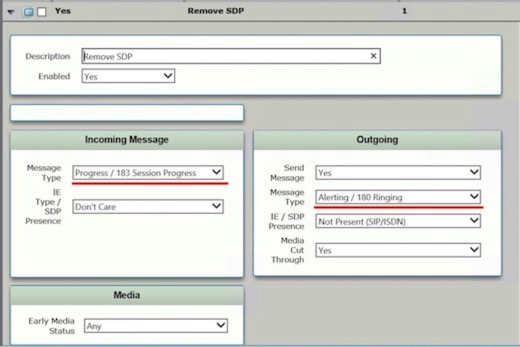
    Expand the ‘Message Translations’ section and add in a translation. In my configuration, the translation looks like this:

    MTR

    The important bit is the incoming message type, and the outgoing message type. We’re going to convert 183 Session Progress to 180 Ringing.

    Once you have set up the translation, you need to find your incoming route.

    Incoming Route

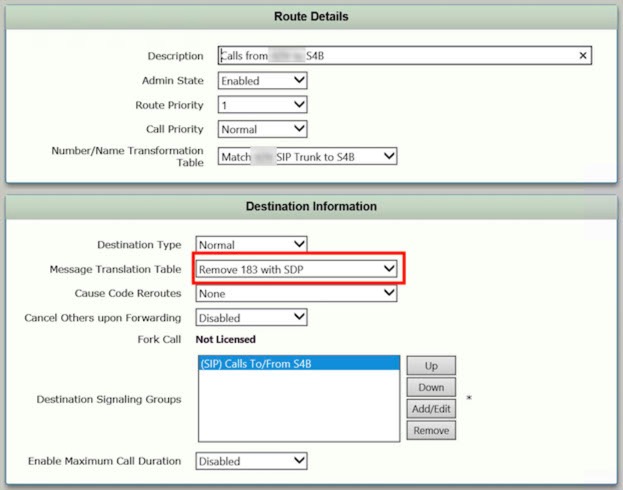
    We have multiple SIP trunks on this one, from two different providers. Select the one from your provider, and edit it. In there you’ll see the option to select your message translation.

    Edit Routes

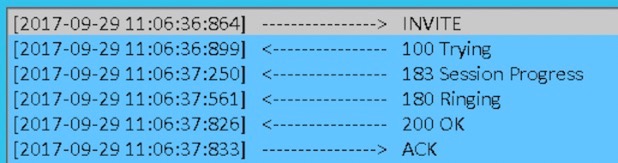
    Once you apply it, you should see a change in behaviour on the inbound calls. An example from before the change is shown below – you’ll see the 183 conversation.

    Call with 183

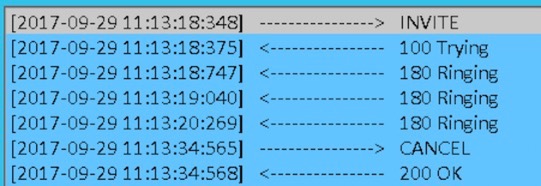
    After you implement the change, you’ll see we send the 180 Ringing. This is causing the service provider to deliver the ringback to the calling party.

    Call with 180

    Now it could be that the service provide will nail why they’re having this behaviour when being called by certain countries – at which point I can take this configuration off.

    If you’re having issues with no ringback however, this brute force approach to asking your provider to deliver may give you a solution.

  • Unified Communications – Why so hard?

    Quite a while ago I wrote an article on why I like working in the Unified Communications field – you can see it here:

    Why UC?

    It was an interesting conversation at the time going through the reasons that the technology kept me interesed. There is also of course a flip side to this – why is deploying a Unified Communications platform so hard? Or rather, why do so many organisations deploy UC platforms and have trouble with the process.

    It’s an interesting question, and one with many answers. In my working life I typically get involved with two types of organisations and deployments, with these being:

    • Organisations who want to deploy the technology, but are not quite sure how to approach as it’s not really in their internal skill set.
    • Organisations that give the technology to existing technology teams and ask them to get on with it.

    (Obviously there’s many other scenarios, usually somewhere between the two mentioned above).

    In effect, you’re either there at the start, or engaged later to pick up the pieces. From a technology perspective, you can understand why organisations take both of these approaches. Some are either a little more risk averse, or simply don’t have the internal time bandwidth for such projects – this tends to be the key feeder for the first scenario in my experience. The second scenario has a more varied set of drivers – the more common one is where an organisation does have a great internal team, and that team is keen to get involved in the newer technologies.

    So why is deploying Unified Communications technologies so hard…? Ask that question from 20 people in the field and you’ll likely get at least 27 different answers. For me, I think the answers seem to be different depending on who is actually answering the questions. Technology type people see it as a learning curve – and an enjoyable one, for much the reasons I highlighted in my article Why UC? The problem is with this approach is that while the needs of the technical teams are being met, the needs of the users are not. You’re deploying front-line tools often using people who are learning on the way. 

    Deploying UC stuff requires an understanding of the technology at a far deeper level than a lot of other user-facing platforms. Let me put it another way – when deploying stuff like Exchange the platform can be a bit more tolerant of configuration issues than a lot of UC platforms. This tolerance is not really a technical one, it’s more around the impact on the users. Get Exchange not quite right and you’ll have some annoyances and feedback from the users about those issues, but in general the platform will operate.

    Get a UC platform wrong (I.e. Telephony etc.) and my, you’ll be in a world of hurt as those users make their frustrations known to you.

    I think the ‘why so hard’ question is an interesting one, and it’s not one specifically answered by the technology itself. The real reason it’s so hard to deploy well is out there in some of reasons to deploy the technology in the first place: Enabling a user to change how they work.

    That may take some explanation. You want to give your workforce modern and enabling tools to get their job done, get it done well, and to, well, enable them to be more successful. The way you do that is implement technologies that enable change the way they work. The problem with this is of course is that if you give them tools that ‘don’t quite work’ you’re not enabling them, you’re putting them at a disadvantage. The next thing you know you’ve got unhappy users that for whatever reason can’t get their screen sharing, or their conference calls (for example), working. 

    Some of the elements of UC platforms that make it great for working on, can also make it difficult to deploy, and to deploy well. Getting the tools out to the users in a way that’s functional, and works well every single time, is absolutely key to a great deployment. A deployment that your user estate will genuinely thank you for deploying. How often does that happen? Going back to the two scenarios I mentioned earlier:

    • Organisations who want to deploy the technology, but are not quite sure how to approach as it’s not really in their internal skill set.
    • Organisations that give the technology to existing technology teams and ask them to get on with it.

    Using the above scenarios, typically I’ll see that one line of engagement results in a positive experience where the users are effectively bought on the journey of the new ways of working. The other one often involves climbing a mountain as the user’s perception of the platform is already tainted.

    UC stuff can be challenging to deploy. Make it work across multiple devices, from anywhere, and in a consistent and repeatable manner requires attention to detail on how platforms are designed to operate. It requires experience – experience such as knowing which certificate providers can cause you issues with other organisations, experience on providing media quality over congested networks for example. Getting input from people that do this as their day job can only be a good thing in my opinion.

    Having to work back through existing deployments that ‘don’t quite work as expected’ is probably around a third of my day job. What’s interesting is it’s always similar problems you see on such sites – similar ones that could be avoided. What kind of things? Well, like misunderstanding how cores work on Lync/Skype is quite a common one. Firewall rules are another. As is not really understanding the roles of QoS and Admission Control.The most common? Probably certificate misconfigurations.

    I’ll finish up by saying that user experience is absolutely at the centre of UC deployments. Lose the users early on, you’ll have an uphill battle on your hands. How do you ensure consistency of the user experience? My best advice would be to have resources at hand who have been there, and understand the underlying technology you’re working on, whether that be Cisco/Microsoft etc.

    Get it right, and your users will love you for it.

  • Cannot export from iMovie in 1080p

    I ran in to an odd issue with iMovie – it wouldn’t let me export the project to a file at 1080p, it would only let me select 720p or 540p. This was a bit odd – I checked all the source footage and it was all at least 1080p? Anyway, there’s a simple way to fix, and it involves:

    • Select all of your project footage with CMD+A, and then copy it with CMD+C.
    • Create a new project, and insert any photo in there – it has to be at least 1920×1080, so any decent resolution photo.
    • Paste in your project data with CMD+V.
    • Delete the photo you inserted….
    • …and you can now export in 1080.

    Bit weird, but like I say, quite simple to fix. The video below shows a run through on how to do it.

  • 2017 Kaby Lake Macbook Pro

    A couple of months ago I did the below blog/video, showing not only what I run on my MBP, and how, but also the general performance of the 2016 MacBook Pro Touchbar (I.e. The Sky Lake one).

    What’s on my Macbook Pro?

    I’ve now picked up the 2017 Kaby Lake equivalent – albeit the higher specification retail unit (The 2.9Ghz i7/512Gb SSD). I thought it would be useful to have a look at the performance of that – you can see that below.

    Quick summary:

    • 2016 didn’t feel like a massive step up from my 2015.
    • The 2017 does feel a fair bit quicker in general use than the 2016.
    • The weird battery performance I was getting on the 2016 unit seems to be gone.

    Anyways, video below.

  • The Arrogance of Success

    I’ve today had to spend time moving my password management solution from 1Password to another vendor. I won’t say which vendor I’ve moved to, as the idea makes me a bit uncomfortable. Anyway, the reason I’ve moved got me thinking about other vendors I’ve used – and loved – in the past, but then ended up really, really disliking. The process is usually a similar one, and it goes this way:

    • Vendor produces a GREAT product. 
    • I invest in it.
    • I tell people to invest in it, as it’s great. 
    • Vendor basks in its success.
    • Vendor has idea to get more money out of that love.
    • That vendor implements things that annoys.
    • Vendor refuses to listen to its long term users.
    • Users get rage, move on.

    The critical part of this seems to be that vendors almost get arrogant in their success – once they have that arrogance, things start to go wrong.

    So what has 1Password done? Why has it annoyed me so much I’ve binned my investment in them, and re-invested in one of their competitors? Well – at a high level – they’ve got very arrogant in their position. Specifically, they’re pushing their user population to a subscription service, and yet seem to be completely disregarding their existing customers. Customers who have invested in their success. Firstly, one of the things I liked about 1Password was its ability to use local vaults that did not require uploading my stuff to someone else’s cloud in a way that that vendor could read your data. Other things I liked were it’s multi-platform support, and the fact that it in general worked well.

    What’s so wrong with the subscription service? Well…not that much I guess. It moves the financial model from a platform related one – I.e. Paid version, then you pay to upgrade – to a regular monthly cost. Of course they say it’s ‘the cost of a couple of cups of coffee a month!’.. Sure, that’s true, but it adds up to a lot more over time than the investments in platform/version type investments. In addition, 1Password have made no effort to smooth the journey for people who have already bought the client on (in my case) Mac OS, Windows, iOS and Android. I’ve effectively just burned that investment – so hell, I’ll burn it and invest again elsewhere. 

    WAIT, you think – this doesn’t of course mean the existing clients will stop working does it? No, it doesn’t. In addition 1Password has stated they’ve ‘no plans’ to remove the support for local vaults. They shout about that, and the words they use tell me one thing – that they’re ignoring the key question most people like me are asking: Will the existing non-subscription client continue to be updated? The silence on that question, from multiple people, speaks volumes. I’ve spent way, way too much time getting them to answer this question today. They’ve answered everything except this specific question. Make your own conclusions from that. A lot of users – me included – feel betrayed by them as a vendor

    So, it’s goodbye 1Password. I’ll take my investment elsewhere, and I’ll also advise everyone I talk to of exactly the same thing. This bit is interesting – as somebody who works in tech I get asked a lot about what to buy/use etc. I wonder what the effect of that is?

    Just for clarity, I don’t expect to buy one product and expect upgrades for free forever. I’ve no issue re-investing in new versions etc. This method of pushing to subscription though just bugs me. I have to pay again, for something I already have, and that uses a sync methodology I don’t want to use, and the platform I’ve already purchased will no longer get any updates. 

    So who else have I dealt with that have gone this route? Well, let’s think:

    • MOZY – the backup service. Initially a great service, at a great price. Gets you invested, and then they whack the price up. Mine went up nearly 1200% for example. So bye then.
    • Crashplan – same thing, attractive buy in, then the service got massively over-subscribed, and plummeted.
    • TomTom – pushing everyone to their subscription model, negating my fairly substantial investment in the existing apps from multiple countries.

    It just bothers me that companies get this success behind them, and then they go and crap all over the people that got them the success in the first place!

    Professionally I come across this too. How many times have I worked with customers where existing providers, vendors, and partners have just taken that customer for granted? Margins start to go up, response times go up, the vendor/partners ‘want’ of that business seems to assume that they’ve already won the business. Then along comes a hungrier partner, keen to get some good stuff going, and boom, that original partner is now sidelined and struggling to get back in the door.

    It’s a difficult thing to try and keep that hunger I think, in some respects anyway.

    The push to subscription services is a golden opportunity for a lot of companies. A golden opportunity to turn business into a nice annuity – few vendors have done it well in my experience. Who has done it well? Well, Office365 I think is an utter bargain for what you get. Same with the Adobe stuff. TomTom? Nah. It’s WAVE or Google Maps for me now. 

    Such is life I guess. Become arrogant in your success, and your success will become a lot more difficult to maintain. Annoy one of your customers – whether consumer or business – and it’s not just that customer you’ll lose, it’s everyone else that customer gets to influence too.

  • I don’t need Anti-Virus on my Mac…Right?

    Wrong – on so many levels. 

    Since my article yesterday about protecting your stuff, a few people have asked me about Anti-Virus (AV)protection for their Apple Macs. The general assumption out there seems to be that you don’t need AV protection on a Mac. I think this is wrong.

    It’s true there’s far fewer malware and virus packages targeted at OSX – and because of this the probability of you getting hit by such a thing is far lower. But probability isn’t protection is it?

    Apple themselves used to claim that the Mac ‘doesn’t get PC viruses’ and told owners they could ‘safeguard your data’, ‘by doing nothing’. They quietly dropped this claim in 2011/2012 following the outbreak of the Flashback Trojan on OSX.

    So if you have a Mac, and you’re not running any form of AV….you’re protected by the lower volume of targeted malware out there, and that’s it. You’re playing the probability game.

    The other thing to consider is that for some strange cultish reason people who like OSX/MacOS (to be clear, I’m a big, big fan) seem to think it’s a fully secure operating system, and often compare it to Windows. Usually in a facetious ‘lol Windows’ sort of way. 

    Here’s the thing though – MacOS mostly fairs worse than Windows when it comes to hacking and security testing. Read that again – it’s true. Didn’t expect that did you?

    Time and time again MacOS has come out badly on InfoSec & hacking tests.

    So as I say – no virus protection, you’re playing the game of numbers rather than offering any real protection.

    The other element to consider is that of being a good net-citizen. What do I mean by this? Well, if you’re not careful you could find yourself passing along virus & malware code that while it couldn’t infect your MacOS machine it could of course infect a Windows machine who you happen to send stuff too – via email for example. 

    So how do I protect my stuff…? From a scenario point of view I have a couple of MacOS laptops, and a main big spec iMac that is the centre of the my digital life. Each one of those units also runs Windows in Parallels. I.e. Virtualised. So how do I protect my environment?

    As per the previous article, I start at the basic level and then work up to some more specific stuff that is probably more due to my paranoia than any great technical need – so let’s work through them.

    Don’t do stupid

    This is probably the core to all of your security really. Don’t do daft things like download hooky software, or click on links in suspicious emails. That last one is an interesting one – when I get emails saying ‘login to your account’ for example, I never do it from the email links, I always go directly to the website myself.

    There’s also other core stuff to do, including:

    Encrypting your hard disk (Encryption – it’s for everyone)

    Use a password manager (Why don’t more people use password managers?)

    Protecting Core MacOS/OSX

    There’s various anti-virus/malware products out there for OSX. There’s a decent review of the products here at Tom’s Guide:

    Best Antivirus Software and Apps 2017

    Personally, I use BitDefender. Quite pleased that my own assessment of products out there comes top of the list at Tom’s Guide too! Anyways, it’s a great product – works well and is not intrusive.

    There’s various other products out there – another common one is ClamXAV for example.

    Protecting my Windows Machines

    I run a number of Windows machines in Parallels. Windows comes with its own anti-virus built in – something called Windows Defender. I will  say that Windows Defender never seems to fair very well in most testing scenarios. It is of course far better than nothing.

    If your core OSX platform is protected by a good platform like BitDefender, it’s arguable that Windows Defender would suffice in your Windows machines. Personally, I don’t believe in ‘average’ security. You may have spotted this. So…in my Windows machines I use the AVG product. I only use the free one in Windows now rather than the subscription model, mainly as my core MacOS platforms are so well protected.

    UPDATED: I no longer use AVG – after issues getting it installed and working with my account, I gave up. Interaction with tech support was terrible. I now use Bitdefender in Windows as well.

    For most people, the above would be enough to provide you a decent level of protection. There are however additional things you can do. This is perhaps where I start moving in to the area that’s beyond most people’s requirements. I work in IT, and am constantly on people’s systems – so protecting me and them is absolutely critical to my day job.

    So, some of the extra stuff I do.

    LittleSnitch for OSX

    While MacOS has a decent in-built firewall, it doesn’t tell you an awful lot about what your machine is up to in terms of network connections. Who are you connecting to right now…? You probably have no idea. Anyways, this is where LittleSnitch steps in. You can read a bit more about it here:

    Little Snitch keeps an eye on your Mac’s Internet connections

    It essentially allows you to view exactly what your Mac is connecting too.

    Sandboxed Machines

    Using virtualisation it’s pretty easy to build new machines – whether MacOS or Windows. In view of this, I have some sandboxed machines for each of the common OS environments I use. What’s a sandbox? Well it’s an isolated machine that you can use to test stuff on.

    I have some MacOS and Windows Sandbox environments that I use for testing stuff in. 

    Summary

    Protecting your environment is key to protecting your data. It’s also part of being a good net-citizen really. Don’t risk your stuff – and don’t risk mine either.

  • Protect your stuff!

    Haven’t blogged for a while. I’ve been busy with the day job, doing some properly interesting stuff. Without boring you all to tears I’ve moved back from being constantly in a sale/pre-sales environment and gone back to actually doing stuff. It’s what I enjoy, it’s what I’m good at – I think.. and it produces defined actual outcomes. Mac is in a happy place.

    Anyways, that’s not the point of this blog. I’m sure by now you’re all sick to death reading about the recent ransomware attack. Now, in the press it was all about the NHS – the UK’s National Health Service for my overseas readers. FREE DOCTORS for my American friends. The actual scope of the attack was far wider of course – lots and lots of people got hit by it.

    I’m not going to delve into that attack too much – like I say, you’re probably sick of hearing about it – but I did have an interesting conversation about how to protect your stuff against such things. It set me thinking about how I protect my data. 

    I’ll be honest and say I’m quite paranoid about my data. Why? Well, I’ve experienced losing some important things – think photos and some videos. Stuff you cannot reproduce. It’s utterly gutting. Some stuff would just be a pain in the backside to lose – but you can reproduce it. Documents and the like. Others – irreplaceable. 

    This paranoia has led me to have a really robust backup system – I think. So I thought I’d share my thoughts on how you make your stuff resilient to such attacks.

    There’s more to just protecting your data by having a copy of it – you need to protect against corruption too, regardless of whether that corruption is accidental or malicious. The malicious bit may take some explaining – let’s say for example you have a weeks worth of backups of your stuff. Now, you get infected by some pesky ransomware that slowly sits in the background encrypting your data….and in week three pops up the dreaded ‘Give us ONE MEEEELION DOLLAARS’ for your data. You’re utterly stuffed. It’s outside your backup window – all the stuff in your backups will already be infected with that crappy malware.

    Now I’m not going to preach to you about how to protect your stuff, but I thought some of you may find it interesting to see how *I* protect my data.

    For perspective, my typical active data is about 50Gb of work stuff, and about 200Gb of personal video/photos etc. I generate, on average, about 1Gb of work data a month (email and documents), and around 5Gb of personal stuff. I will point out that I archive and keep everything however, so your data production will likely be lower. Personally, storage is cheaper than my time to go through deleting emails I will never need. I just keep everything.

    If you’re not very techy, or don’t have the inclination, I’ve ordered the below stuff in a list of importance and ease to do.

    So, how do I do stuff? See below. Just to be clear – before I get a kicking in the comments – there are other things you need to do: Anti-Virus, keeping updates…updated etc. I’m specifically talking about how I handle backups.

    Automate your backups

    Firstly, and a really, really important point, is make your backups automatic. Why? Well, stuff that takes effort does not get done as often as it should. Also, it’s an effort. You have to do stuff. Both Windows and Mac OSX can fully automate backups for you:

    Apple Mac OS TimeMachine

    Windows 10 Backup

    I will honestly say that Apple’s TimeMachine absolutely knocks the socks off Microsoft in this area. You setup TimeMachine, and it backs up every hour for you. That’s it. You never need to do anything else. Windows – sure, you can do it, but it seems a lot more involved.

    Anyway, make the point of it automatic and you’ll *always* have backups of stuff. If I had one single recommendation, this would be it,

    Backup Media

    I have two backup media sets of 20Tb (Yer, I know – you probably won’t need anything like that) that I swap out once a month. What do I mean? Well, imagine in my setup that TimeMachine backs up my main machine every hour, on the hour, to that backup set. Let’s call it SetA. At the end of the month, I physically disconnect that backup set and stick it in a drawer – don’t panic…we’ll get to offsite in a minute – and then I connect another drive called ‘SetB’.

    Why? Well, it does numerous things: It protects against a failure of my backup drive(s), lengthens my backup window, and also provides a longer backup set and will protect against such ransomware encryption attacks. Perhaps not totally – more on that in a second.

    So how could you use this? Well, 2Tb drives are cheap. Let’s imagine you have a reasonable amount of data that a 2Tb drive could accommodate – buy two, and on the 1st of the month swap them over. Stick the other one in a drawer. If you want to be really fancy then stick it in a draw at your office.

    Offsite Backups

    Due to where I live, I’m blessed with a very good internet connection. I use this to backup up all of my stuff to an online service. Now, I use BackBlaze. It’s on my main machine, and it just sits there uploading my stuff to the BackBlaze service. OMG THEY’VE GOT ALL YOUR DATA! Calm your boots. I encrypt everything. Not the subject of this blog but if anyone’s interested happy to write about how I protect my own data when it hits the cloud? Let me know in the comments and I’ll sort something.

    I’ve the best part of a couple of Tb up in BackBlaze now and it works really well. It also keeps an archive of up to 30 days for each file so you have an archival history of each file backed up too. It’s a good service. NOTE: With any backup service, make sure you test restoring!

    Point-In-Time-Backups

    The other thing I do is take snapshot or point in time backups. What do I mean by this? Well, in addition to the automated stuff above – the regular TimeMachine backups, and the backup to BackBlaze – I also take ZIP (Well, RAR, but people know what ZIP is) backups of my changed data, usually weekly. I put these into a folder that:

    • Gets backed up to BackBlaze
    • Gets backed up to my normal hard disk regular backups

    Why do I do this? Well, simply to give me a point of time roll-back. I.e. I can go back and find all of my photos/documents etc. at a particular date. WAIT. Isn’t this covered above in the Offsite/Auto-stuff?? Well, yes, it is, but it enables one more thing……

    Non-Syncronised Offsite Backups

    This bit is key to protecting against ransomware. What I do is I take those point in time backups above, and I put them somewhere that isn’t synchronised anywhere on any of my machines. Think about this. I have a backup archive dated say 1st May 2017. I put it in a folder in DropBox that is *only* in DropBox. It’s not synchronised to any of my machines. How could any ransomware possible encrypt that and block me access? It can’t is the answer.

    It’s an incredibly simple thing to do. On DropBox for example you can do selective synchronisation. I create a folder on DropBox, and ensure it isn’t synchronised to any of my kit – all using that selective synchronisation. If you’ve already uploaded the stuff you can use the DropBox web site to copy the stuff to the folder too – you don’t need to upload it twice. This is important as if you’ve got a ton of data up there you don’t want to be uploading it again.

    So what does this give me? Well, it gives me a copy of all my stuff that my end-points (I.e. PCs, Macs etc.) can’t access to encrypt. It’s a simple solution to a complex issue.

    Summary

    Protecting your stuff shouldn’t be that hard, and it shouldn’t take very much technical know-how really. It would utterly break my heart to lose some of the photos, videos, content that I have – stuff that isn’t reproducible. So with some effort, I do my best to avoid that happening. As a side-result of that I protect other reproducible stuff in the same way……I don’t like having to re-do stuff.

    Anyways, it’s an interesting subject. As data-sets get bigger this is going to become more challenging, not less. I’m sure technology will keep up however.

  • CertSrv Missing

    Just a quick – ran into an issue on a site today where a Certificate Authority had been configured, but there was no CertSrv directory – so you couldn’t browse to https://server.domain.com/certsrv to issue certs.

    Anyways, there’s a simple way to fix. Start an elevated command prompt and use this command:

    Certutil -vroot

    That’ll create your directories & site for you. Not really sure why it didn’t get created – at a guess they didn’t have IIS installed when they configured the authority? When I have come across this before it’s usually because people have added web services after creating the CA, and have not finished the post-install config in the Server Manager.

    Hey ho.

  • Consumerism & IT (Working title – Everyone’s an expert)

    The consumerisation of technology has led to some interesting effects – namely people who do the odd bit of IT at home implementing IT systems for offices…and coming a bit unstuck for various reasons.

    In some respects a lot of us will have been there. I remember early on in my career some of the initial deployments of Netware 2/3 … Well, let’s say visiting those sites a few years later made me cringe somewhat. Still, you learn right? Educate and move on.

    Education & experience does seriously affect your world view though doesn’t it? For example I look now at code I wrote maybe 5 years ago – and while it’s functional – I often find myself thinking what on earth was I thinking? Or why did I write those 60 lines of code when a simple piece of sub-code would work? Also – I appear to have discovered in-code documentation. This is a good thing.

    Anyways, a little while ago a friend of mine who’s an owner of a small startup (well, I say small – it’s about 150 people now, and I say startup – they’re on year 4 I think) asked me for some guidance. Why me? Well, their issues were predominantly around using Skype in Office365, WebEx, GoToMeeting etc. They’d tried them all. All with similar issues – disconnections, poor quality etc.

    I swung by one day fully prepared for a free lunch, and then spent a good few hours scratching my head. I could see things were not working – what I couldn’t see was what wasn’t working. Yes, confusing statement. What I mean is that media products were terrible – laggy, disconnections, and just generally hideous. I got chatting to a few people around me and their general assumption was that it was ‘everything’. That ‘everything’ changed my view, and I started looking into general network performance.

    Internet speed tests – brilliant. Local network tests – what you’d expect from 1Gbps local connections. Then wait – what’s that? Did I just see Outlook disconnect for a few minutes too? What on earth. So I started to look harder at the network – random loooong times to connect. Wait what?! Anyways, I did some more digging and I see that there’s been some hacking on the workstations to massively increase the TCP/IP timeouts and retries. Aha, now we’re on to something.

    As part of my wandering about and getting coffee, I glanced at the IT rack. Yes, the IT rack is in the coffee area. Where else would you put it? Anyway, this consisted of a pile of Netgear switches on a shelf…in a usual uncomfortable mix of different colour cables, and lack of securing to the rack. In my idleness I started to work through the OCD damaging mess of cables – and the issue became clear. Something so, so basic that I’d almost forgotten to check for such things. Something was flashing in my brain about the 5-4-3 rule. 

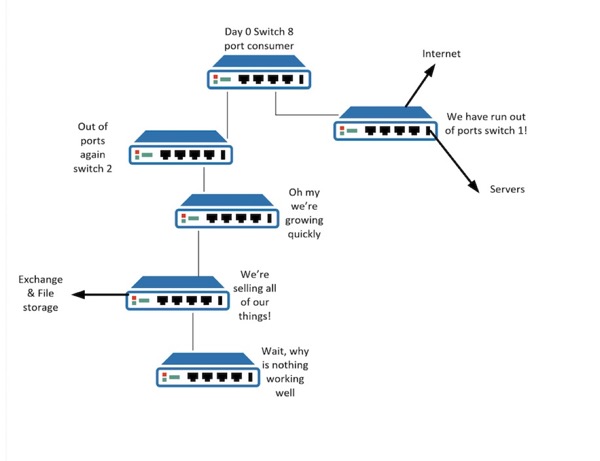
    So…I start pulling the mess of cables apart – and this connection method becomes clear:

    Switches…done badly

    So day 1 they buy a cheap 8 port switch. Who doesn’t have a drawer full of them? Then they need a few more ports – so add another switch, plug in the Internet connection and the odd on-prem service. Then wait, we need more ports. Plug in new switch etc. Then we end up in the world of network notwork. Did you see what I did there? Kinda proud of it considering my level of coffee intake.

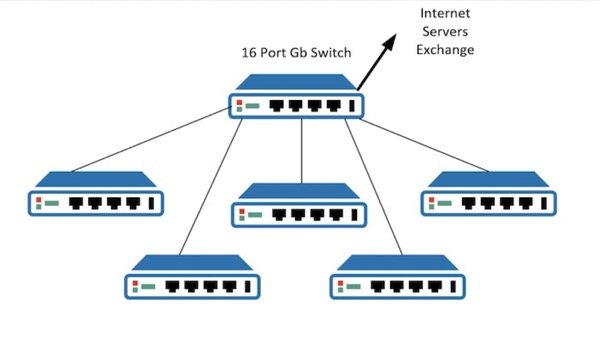
    Anyways, anyone with a basics of networking should see how inefficient the above is. A simple re-wire and guess what – everything now just works. Forgive the poor diagram – I’m still having breakfast:

    Switches done goodly

    It’s so easy to wander down to PC World (Other advice-filled wonderous providers are available), buy stuff, and just plug them in…and it mostly works isn’t it? Hell, this model probably would cope if all it were doing was delivering Netflix to the front room, kitchen and bedrooms. For work though, all those minor irritations, disconnections, poor quality media sessions – they rob your users of time and motivation, which of course robs your business of productivity.

    Anyways, here endeths my Tuesday breakfast sermon. Be careful of the fella that ‘does IT’ because he got Netflix working in his kitchen. Or something.

  • Goodbye Evernote…

    UPDATE: Over the last week I’ve received numerous emails on my customer’s email platforms (like many consultants, I end up with a lot of accounts) re-affirming that corporate data must not be kept on Evernote. How much damage have Evernote done to themselves here? It’s looking like a colossal backfire.

    Original Article

    I stumbled across the Evernote platform a number of years ago. It’s multi-platform, sync to any device, electronic-scrapbook method of operation became very useful, very quickly. Here I am now with the best part of 10Gb of information in there. Not any more however.

    Some articles flying around over the last couple of weeks set the alarm bells going off about their privacy policy. Take this one for example over at LifeHacker:

    Evernote Employees Can Read Your Notes, and There’s No Way to Opt-Out

    Even the headline made me sit up and take notice. So they can read your notes without opt-out made me immediately wonder about how. Surely my data is encrypted at rest within their cloud? So I can only assume they have access to the encryption keys. No, wait, how wrong I was. More on that in a second.

    Firstly, the update to the privacy policy due end of January 2017 stated that a machine learning tool may require Evernote employees to look at your data. Hmmm. Ok. Perhaps. But wait, even if you opt out of that, you absolutely cannot opt out of allowing Evernote employees to look at your data. Think about that for a minute.

    Now of course after a fair bit of pressure they’ve backed down on the changes, and sound contrite about it. See here:

    Evernote Revisits Privacy Policy Change in Response to Feedback

    By ‘feedback’ I assume they mean ‘rage’.

    Note that they say that Evernote employees won’t access your data without your permission. Now, after that thing over having to opt-out of stuff explicitly to stop them reading your data – well, it’s got my spider senses tingling for a couple of reasons.

    Firstly, what else have I opted in/out of that would allow them access whenever they like?

    Secondly – and far more important to me – is how are they accessing my data? There’s only two options here really – the data is stored at rest with no encryption, or Evernote employee’s have access to your encryption keys.

    After some investigation it would seem it’s the former – your data is not encrypted. A lot of talk about the encryption in the service really only is at a transport layer – I.e. Data to and from the US Data Centres. It is not encrypted at the data centre itself. (Update: It appears Google Cloud is encrypted at rest…but it’s not relevant really if Evernote staff can get a clear view of your data).

    That sets off all kinds of uncomfortable feelings.

    Looking into this even more, I can see that in the forums encryption at rest has been a long-requested feature. Why wouldn’t they implement it? Access – that’s why. I suppose there’s a marginal technical reason about workloads (encrypted data is slightly more expensive from a transactional point of view to process)….but hey, now they’ve moved to Google’s cloud there’s no issue there, is there?

    Yes, Google Cloud.

    So here we are now with your data, unencrypted at storage point, and within Google’s platform. The forum thread on the subject is interesting. 

    I am so not down with this I couldn’t get my stuff off their platform quick enough. In particular this one almost made me choke on my coffee:

    Google Quote Lols

    I’ve always been of the mindset that any company that has ‘Don’t be evil’ as a corporate motto has a reason for that motto being in place. This is not a good thing. I will add though that as far as I know Google’s Cloud does encrypt data at rest, so perhaps this is progress of a kind?

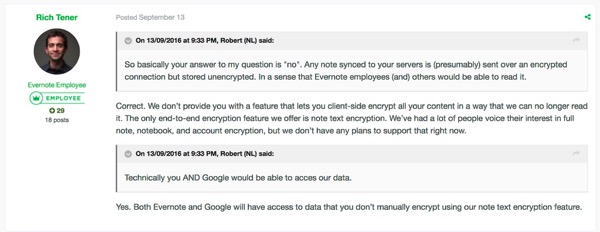
    Everything about this move – the issue around access to data, the lack of encryption, the move to Google – has my tech senses tingling like Spiderman at a Marvel party. Consider this from the forums:

    Evernote Quote
    • We don’t provide you with a feature that lets you client-side encrypt all your content in a way that we can no longer read it. 
    • The only end-to-end encryption feature we offer is note text encryption. We’ve had a lot of people voice their interest in full note, notebook, and account encryption, but we don’t have any plans to support that right now.
    • Both Evernote and Google will have access to data that you don’t manually encrypt using our note text encryption feature.

    Well ain’t that dandy.

    So, for me, sadly, it’s goodbye Evernote. The platform front end is great – really great – the back end, and their attitude to their user’s data, not so much.

    What will I replace it with? Well, not one product that’s for sure. I’m sure OneNote will be in the mix, as will making more use of my Office365 50Gb Mailbox, as will putting stuff in flat-file store again. All of them more preferable that what Evernote is doing with my data today.

    Sad times.

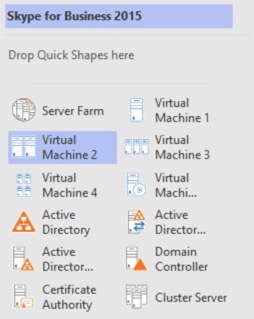
  • Visio Stencil Shapes Wrong

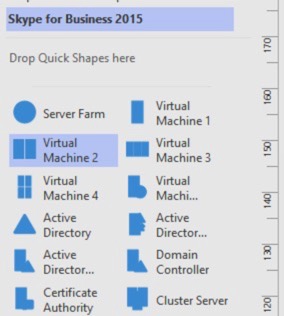
    This has been driving me slightly bonkers – on a few of my machines my Visio has not been able to display stencils properly. In effect I get some random filled in shapes like this:

    Visio being wrong

    When of course it should look something like this:

    Visio being wrong

    Anyway, you know it’s going to be something simple, right? It was – themes.

    On the design tab, make sure you have ‘No theme’ selected when you import/open your stencil. That way it won’t try and apply the theme to those stencils.

    Visio Theme

    Things like this are enough to drive you to coffee.

  • NO! We do not sell your data! (Working title – Email Aliases)

    If you read my blog you’ll know I have a certain healthy paranoia about security. I encrypt everything, and am at a loss why people don’t use Password Managers more often. From a finance point of view I go as far as having a separate cash account with low amounts of money in, and a separate credit card with a low limit. They’re the only ones I let near the Internet. Perhaps too paranoid.

    Anyway, I’ve a current little spat going on with a certain electricity provider who insists they don’t send on my details from when I’ve registered with their website. I find this hard to believe, as since I’ve registered with them I’ve been getting a ton of spam – not crappy ‘you’ve won a million dollars’ ones, but proper targeted advertising. How do I know it’s them? Well, it’s the email addresses I use for services.

    The email address for this account is similar to:

    RoadNOenergysupplier@mydomain.com

    …where ‘road’ is three digit abbreviation of the property address, NO is the house number, and supplier is the supplier – mydomain.com of course being my personal email address.

    NOTE: @Simon_kiteless mentioned over on that there Twitter that you can do this very simply with GMail, using the ‘+’. So you could enter ‘yourEmail+supplier@gmail.com’ and filter your email on that address. Very cool, thanks Simon. You can read more about this method on Gizmodo. 

    I do this for pretty much most key websites. This is for a few reasons:

    • It’s more secure. Somebody getting one email/password combo won’t automatically get access to every other site where you’ve used that combination.
    • It means I can track who’s doing what with my information.

    The primary purpose was the first one – the second one was a curiosity…and it’s the first time I’ve had a major provider swearing blind they don’t sell on my data, and yet…….

    For what it’s worth, does anyone else have a hotmail/outlook.com address they give to people they don’t want to really talk to? No? No, me neither.

    Anyway, this is pretty easy to do with most email providers. I use Office365 for example, which allows up to 200 email aliases. As I use a password manager I don’t have to remember them all. I also of course have a generic one that I use on sites I don’t really care about – and email for that address goes to a dump account that I check now and again.

    Anyways, I’m curious to see how this one plays out.

  • Access Edge Static Routes

    An age ago I wrote about dual-homing Windows servers, and what you need to do with static routing:

    It’s interesting that even today I still run in to sites that have issues due to incorrectly configured routing on their Access Edge units. The Edge server plays an important role in Lync & Skype for Business – and not just always for the obvious stuff like remote access and federation. It also can get involved in media calls for internal subnets.

    Jeff Schertz has a great article explaining why, linked below. Rather than me make a hash of it, have a read, it’s good stuff:

    Lync Edge STUN versus TURN

    In certain scenarios your internal clients will need to talk to your Access Edge for media – for example if peer to peer communication isn’t possible.

    This brings me on to the point of static routes on the Access Edge – they’re very important! Get them wrong and some subnets may not be able to communicate with the Access Edge, and that’ll lead to all kinds of issues. Of course the obvious ones like remote access etc. but also –  more confusingly – ones like not being able to make a VoIP call between two clients.

    Hopefully your internal network only uses RFC1918 compliant addresses – that is your internal networks are on:

    • 10.0.0.0/8
    • 172.16.0.0/12
    • 192.168.0.0/16

    I usually define static routes on the internal interface for all of the private ranges. It’s easy to do with the following commands:

    netsh interface ipv4 add route 10.0.0.0/8 “InternalNW10.100.0.1

    netsh interface ipv4 add route 172.16.0.0/12 “InternalNW10.100.0.1

    netsh interface ipv4 add route 192.168.0.0/16 “InternalNW10.100.0.1

    You need to replace the ‘InternalNW’ with the name of your internal NIC, and of course 10.100.0.1 with your internal next hop gateway, but it’s pretty straight forward.

    The subnet mask is particularly important – a few sites I’ve seen configure 172.16.0.0 in the wrong way – they’ll use the wrong subnet mask such as 172.16.0.0/255.255.0.0 (172.16.0.0./16)…which is of course wrong, and will miss out a chunk of the private ranges.

    Anyway, that’s my random musing for the day.

  • Outlook 2016 – Cannot delete reminders

    I’ve been running into an issue recently where my Outlook 2016 for Mac would constantly bring up reminders that I had already dismissed. I noticed it seemed to be related to using Outlook on another Mac for the same Exchange account – I.e. As soon as I did it on another Mac, then boom all the reminders were back on *all* machines.

    It’s irritating, but not catastrophically so I guess.

    Anyway, after doing some research there’s a fix that seems to sort it.  Firstly, shut down the Outlook 2016 for Mac client on all of your Macs. 

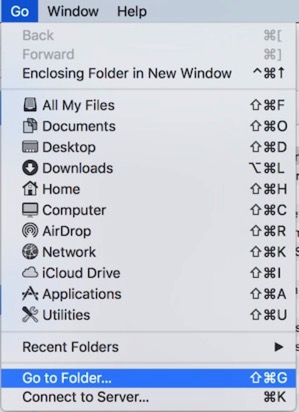
    Go to the user’s library folder – you can do this by selecting the ‘Go’ menu in Finder, selecting ‘Go to Folder’ and entering ‘~/Library’:

    Go to folder

    Under the home user’s library, navigate to:

    /~Library/Group Containers/UBF8T346G9.Office/Outlook/Outlook 15 Profiles/Main Profile/Data/Events

    …then just delete all the folders/contents of that directory. Do that on all of your Macs.

    Once done, fire up Outlook and they should stop popping up in such an annoying fashion.

  • Microsoft Lync wants to use the OC_KeyContainer

    Ran into a weird issue on Lync 2011 on my Mac machines (as a side note, how rubbish is this client? Let’s hope the upcoming Skype for Business for MacOS is everything we expected and more… ). It was putting up a prompt saying:

    Microsoft Lync wants to the “OC_KeyContainer_useraddress” keychain

    …and asking for a password. Usual user password doesn’t work. Anyway, after some digging it’s pretty easy to fix if you see it.

    Exit Lync 2011.

    Use Finder to go to the user’s library – you can use ‘Go to folder’ and enter ~/Library

    Library

    In the Library folder, go into the Keychains directory. You’ll see a few files called:

    OC_KeyContainer_useraddress

    For example: OC_KeyContainer_AndyPandy@Contoso.com

    Simply delete them. Once you’ve removed them start Lync 2011 again and it should continue as normal

  • Why don’t more people use password managers?

    Woke up to see another data leak story today:

    O2 Customer Data Sold on the Dark Net

    When ever I see stuff like this it makes me double check my security for websites etc. to make sure I’m not accidentally doing anything daft. This morning though it got me thinking – how come more people don’t use Password Managers? Or more specifically – how do people make stuff secure without using password managers? It’s beyond me.

    Looking at my own for example I currently have 422 logins to various things. Yes. Four Hundred and Twenty Two. Bonkers.

    Without a PWD manager the likelihood is a lot of those sites would:

    • Use relatively simplistic patterns or words that are memorable.
    • Repeated across multiple websites. 
    • Instantly forgotten and constantly having to tick ‘forgotten password’ on sites.
    • Email to a single source meaning a single email could be compromised, resulting in the compromise of multiple sites.

    Now, I’m the first to admit I can be a bit paranoid about such stuff. I like to follow best practice. Achieving that though without a way of managing your passwords – difficult. 

    Working in IT means I get to ‘help’ a lot of my friends etc. with their computers, microwaves, shelves* etc. It astonishes me how poorly their general attitude to security is. Firstly, it’s rare someone will hand me their laptop and it be encrypted. They never think to question that I recover their stuff so quickly, just assuming it’s something down the black-art of ‘those computer things’. I’ll also often find things like text files on the desktop containing common email/password combinations and more often than not including the web site that they’re associated to.

    Utterly crazy.

    So why is a password manager so important? Well, the obvious one is that it stores all your passwords and makes them easy to access. It has other – more important – benefits too:

    • You can generate truly random passwords that even you won’t be able to remember. Stuff like SAjhhWJKH987KJJ71$$$!$%%%%_43 for example. Try remembering that. (There’s a legitimate argument against such passwords too, to be fair: See XKCD). 
    • You don’t have to remember all those ridiculous passwords! The manager will do it for you.
    • You can have unique passwords for every single site.
    • Most will do a security check through the passwords that are stored advising you of any poor or repeated selections.

    Wait – how do you secure your password manager? Well – of course you have to set a master password…And you need to be creative with that. I use phrases that make no sense for example, rather than short words. So something like ‘Jay likes to eat b0ats on a Sunday’** for example. Easy to remember as it’s so weird. You don’t find yourself typing it in very often either – iPad/iPhone it’s all TouchID, and on my main machines it locks when I lock my normal machines.

    Do I save passwords in my Browser? Yes, I do – for some sites. Never for any sites that hold any detail or financial information.

    What about the ‘tick here if you’ve forgotten your password’ – if they all go to the same email address then hey, you only need that email address compromising don’t you…? Well, of course I don’t setup a different email address for every website as that would be beyond silly – but I do have a few separate ones for secure sites. I don’t use the same email on any financial sites for example. Ever. That could however be part of my general paranoia and may be a bit beyond the norm – I’ll graciously accept that.

    Honestly, check out password managers. It’ll make your life more secure, and what’s more make your day to day easier too.

    Products like:

    LastPass

    1Password

    …are probably the most popular. All multi-device, all integrate natively in to your web browser etc.

    Get secure. It’s your responsibility, not the providers. It’s your data. They’ve always got a get out – oh we did our best. Blaming them all you like may make you feel better, but it’s still your secure data flying around that internet.

    *OOOO! You work in IT! Can you help me put a shelf up?

    ** No, this isn’t my passphrase. Even I’m not that daft. //scuttles off to change pass phrases.

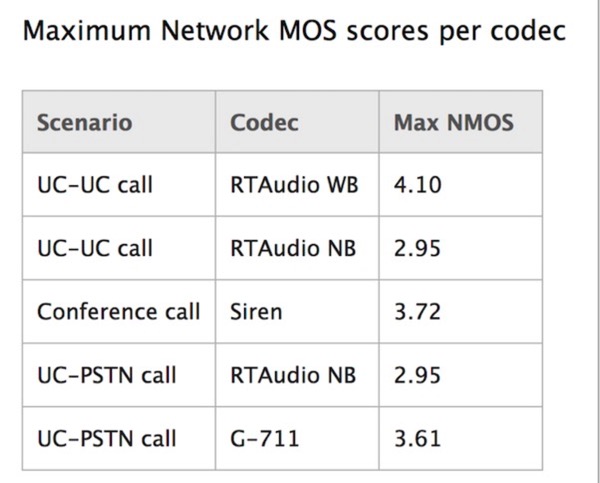
  • Maximum Network MOS Scores Per Codec

    Placeholder: Not interesting!

  • Protocol Workloads – Skype for Business

    Skype & Lync Server can look very confusing from a protocol and message flow perspective. What connects where, how, what protocol etc. It’s not as complex as you’d imagine – but I would say that as I’m doing this every day.

    Anyway, there’s a great protocol workflow diagram here that shows all the major protocols and flows:

    Skype for Business 2015 Protocol Workloads Poster

    I’ve downloaded the current one, and uploaded here, should the link change in the future.

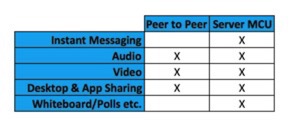
    From a what goes where perspective, there’s peer to peer and central MCU brokered traffic to think about. I.e. Does the workload go direct client to client, or does all of the traffic go to a central bridge and then out to the clients. The following summarises the protocol flows:

    Where a workload can do both – I.e. Peer to peer or via the central MCU – is typically down to escalation. Take audio for example, that will for the most part go peer to peer (Well, there’s some other scenarios here including the process of STUN/TURN, but this is a quick summary)…..Until you drag in a third party and it becomes a three way audio call. At this point the call escalates from peer to peer to the MCU. Once you’ve gone to the MCU a media session will not go back to peer to peer.

    Other workloads like the Whiteboad/Polls/PowerPoint streaming will always go via the central bridge.

    *EDITED to add there’s another more general set of diagrams and descriptions at the following location:

    Technical diagrams for Skype for Business Server 2015

    *EDITED to add – Jeff Shertz has a more in depth article on the subject here:

    Understanding Lync Modalities

  • 2016 Retina Macbook 12″

    Toward the tail end of last year, Apple released the Macbook. A 12″ Retina machine with a mobile processor. You can read about my initial thoughts about it here:

    2015 12″ Retina Macbook

    That wasn’t really a review, just my first thoughts on the product. So how did I end up liking it?

    Well, a lot would be the simple answer. Very portable, runs native apps, battery – I’d say I ended up treating it more like my iPad than my laptops. I.e. Being a bit ‘oh, I should probably plug this in at some point’ rather than trying to keep my laptops fully charged just in case.

    Any frustrations? Well, a few, with the main one being performance. As I touched on in the original article above, if you treat the unit as a super-iPad it’s great. Here’s the thing though – it runs OSX. All of a sudden I wanted to do more, like run Win 10 now and again, or do the odd bit of video processing while out on my travels. Not a great experience truth be told. Running Windows 10 in Parallels was something I’d do if I had to – I.e. To get access to mail archives, or open/run Visio etc. If I thought I needed to do that during the day, out would come my 15″ i7 and straight in to the backpack.

    The single port didn’t really offer me any problems – but again, you have to remember what the unit is aimed at. I carried a 3 port USB3 hub around ‘just in case’ and rarely had to get the thing out.

    So, with literally no surprise anywhere, Apple update the units to the Skylake processors. The idea of a bit more performance in this form factor made me hop, skip, and jump to the Apple store post haste* to pick up one of the more powerful M5 units (my 2015 unit was the entry level).

    *Opened the door to courier with a look of surprise having forgotten I’d ordered it.

    What’s the difference? Well, a lot of those original frustrations are gone. Running Windows 10 in Parallels is no longer the frustrating sludge-fest it was on the 2015 unit, and I can even process some GoPro footage in the background while carrying on with my Email. There’s no way I could have done this on the 2015 unit without longingly thinking about my 15″ rMBP.

    There’s some videos below that show the general performance of the two.

    The thing I really find interesting about these units by the way is how much they polarise opinion. You only have to look at the threads over at Macrumors (here and here for example) to see the gap of opinion:

    The comments do seem to focus on price. Lol OMG for *this amount* you could have gotten a 15″ rMBP that could run a space station. Well, yes, but then I know when I have my rMBP in my back pack.

    You see this idea elsewhere too, in the world of cars for example. 

    Man A: I’m looking at this three year old model of car x, at 20k.

    The Internet: You idiot, you should buy this one brand new at 80k because warranty or something.

    It’s almost like people expect their own position or compromises to apply to everyone else. What’s that about?

    For me, as somebody who works from multiple locations, doing things that range from meeting notes to running multiple virtual machines – an iMac would be a ridiculous compromise. Ever tried carrying one of those on the tube….? So, yeah, I get a 15″ rMBP for that, and keep my top spec iMac for doing the hard work.

    Well….if I’m out and about whether for fun or meetings or whatever, then lugging the rMBP about is also a compromise. This is the space the 12″ Macbook fills for me. It’s highly portable, battery lasts an age…and I can run pretty much anything I like on it.

    If it’s not fast, pink, grey, large, small, have enough ports, made by elves etc (insert own preference here), then perhaps it isn’t the unit for you. Why people think that your own requirements and compromises should apply to everyone else is a mystery.

    The other comments around – LOL OMG IT’S SO EXPENSIVE. Well, nobody is forcing you to buy one. Too expensive, don’t buy it.

    People, we’re an interesting bunch aren’t we.

    Anyways, the videos.

    2015 Macbook

    2016 Macbook

  • DHCP Failover

    DHCP – there’s an ‘interesting’ subject. The older amongst us may remember what a godsend it used to be, after spending an age having to run about setting up IP addresses manually and the like. Anyone else remember that? Anyway, it’s not something usually to get excited about. Managing it’s availability is a subject that does come though. People have taken various routes including failover clusters (yes, really), to split scopes and all kinds of stuff.

    Here’s the thing – Windows Server 2012 has in-built capabilities to deal with failover and load-balancing, and they just make life easier. There’s a decent TechNet article here that describes how it works.

    Understand and Deploy DHCP Failover

    Anyway, it’s an absolute doddle to configure. The hardest part is often defining all the failover relationships if you have many sites. As per many things though, I think the best answer is to keep it as simple as possible. It’ll make your life easier in the long run.

    The video below shows a run through of configuring a basic load-balance DHCP config. Far better than split scopes and all that stuff…And way, way, waaaaay cheaper than setting up a failover cluster.

    You’re welcome.

  • Encryption…It’s for everyone

    Working in IT invariably means friends may ask you for help at some point. It’s the nature of it. Sometimes it’s help with a laptop, but it can also be random stuff like “Hey, you work in Computers! Can you help me with my new Microwave”. We’ve all been there.

    Anyways, recently I’ve been following the developments on Apple vs The US Government on iPhone encryption – and it got me thinking. How many people who aren’t in IT actually encrypt their stuff on purpose? I bet it’s not many. I’d be surprised if a lot of non-computer literate people actually did it, or understood why it’s important.

    Let’s take a recent event of somebody’s machine crashing and them not being able to start windows. Let’s forget for a second their extreme panic at the fact they had about 5 years worth of stuff on there…and no backup. Yeah, let’s forget that.

    So, I pull the hard disk out of the laptop, plug it in to mine…and there you go. I copy off all their data. Easily. Everything. Photos, documents, copies of their passport, bills, driving license…I’m sure you can see where I’m going with this.

    It’s so easy to do, it’s beyond terrifying. Imagine if they’d have had that laptop stolen, or left on a train?

    What about home stuff? Sure your home PC (people still buy those, right?) is safe isn’t it? After all, it’s got a password on it. Of course it isn’t. If the worst happened and you were burgled, and the base unit/external drives nicked…getting your data would be beyond easy. If it’s an external drive, just plug it in to something else.

    Personally, I encrypt absolutely everything. Every laptop, every external drive, anything that can be encrypted is encrypted. It’s the only thing that makes sense. Some may say I’m being over-cautious. Why am I? I have a sensible backup setup with multiple copies of stuff, on and off site, all encrypted of course. My risk to losing data is quite low.

    The risk of losing unencrypted data though – that is sky high. I don’t mean the risk of losing drives, I mean the risk to me should I lose one of those drives with data on. Could be customer data, personal data, could be anything. 

    Whatever it is, I don’t want people accessing it. The cost of the hardware/drive etc. is an annoyance. Losing the unencrypted data would be catastrophe.

    It’s not hard to encrypt stuff now – so really, you should make it happen.

    Use FileVault to encrypt the startup disk on your Mac

    Turn on Device Encryption

    It is beyond easy.

    Now, what about the scenario above where somebody has a laptop, and it’s encrypted, and they’ve never taken a backup…and it fails. Well, you’re stuffed pretty much. There are things you can do if it’s just an OS corruption or hardware issue like take the drive out and use the key to decrypt the drive, but it is harder.

    Me, I’d personally encrypt everything and have a decent backup. Failed drives to me are an annoyance, I can’t remember the last time it actually threatened any data.

    Anyways, encrypt your stuff. It’s important. Unless of course you only keep pictures of cats.

  • We don’t want Office Web Apps

    It is perfectly possible to implement a Lync 2013 or Skype for Business 2015 platform without implementing Office Web Apps – after all, Web Apps is just used for streaming PowerPoint slides, right?

    Well, yes, it is – but there are some other things to consider, mainly around how you control the user experience.

    What Changed?

    There are major differences between how PowerPoint slide-decks are presented in Lync 2010 and Lync 2013 – and it’s key to understanding the differences when assessing the requirement for Web Apps. In summary, Lync 2010 shares PowerPoint data in-client, whereas in Lync 2013/Skype for Business requires an Office Web Applications server to achieve similar, but far superior functionality.

    In Lync Server 2010, PowerPoint presentations are viewed in one of two ways:

    • For users who run Lync 2010, PowerPoint presentations are displayed by using the PowerPoint 97-2003 format and they are viewed by using an embedded copy of the PowerPoint viewer. 
    • For users who run Lync Web App, PowerPoint presentations are converted to dynamic HTML files then viewed by using a combination of the customised DHTML files and Silverlight.

    This model did have some limitations, namely:

    • The embedded PowerPoint Viewer (which provided a more optimal viewing experience) is available only on the Windows platform.
    • Many mobile devices (including some of the more popular mobile telephones) do not support Silverlight.
    • Neither the PowerPoint Viewer nor the DHTML/Silverlight approach supports all the features (including slide transitions and embedded video) found in the more recent editions of PowerPoint.

    To improve the overall experience of anyone who presents or views PowerPoint presentations, Lync Server 2013 or Skype for Business uses Office Web Apps Server to handle PowerPoint presentations. This is a better model, in that it offers:

    • Higher-resolution displays and better support for PowerPoint capabilities such as animations, slide transitions, and embedded video.
    • Additional mobile devices can access these presentations. That’s because Lync Server 2013 uses standard DHTML and JavaScript to broadcast PowerPoint presentations instead of customized DHTML and Silverlight.
    • Users who have appropriate privileges can scroll through a PowerPoint presentation independent of the presentation itself. For example, while David is presenting his slide show, Karen can scroll through and view any slide she wishes, all without affecting David’s presentation.

    User Experience – It’s Important

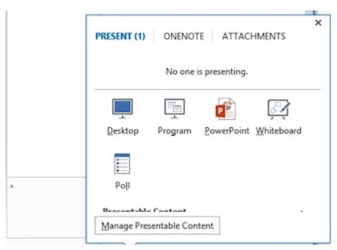
    It is important to understand the user experience of having an Office Web server in the architecture. To explain, the following screen shot shows the sharing options of a fully enabled client with an Office Web Applications Server present:

    Web Apps Present

    In the above screenshot, you can see the sharing options for Desktop, Program, PowerPoint, Whiteboard and Polls. This enablement is driven by the conferencing policy assigned to individual users. Selecting the PowerPoint presentation then uploads the presentation to the Lync Data share, and this is then streamed via the Office Web Applications Server.

    With architectures that do not have an Office Web Applications server available to them, users can share PowerPoint presentations using desktop and application sharing – marked out in the screen shot below – they cannot use the ‘PowerPoint’ button. This is different to the Lync 2010 client experience.

    The challenge with the user experience for architectures without an Office Web Apps server is configuring the policy to allow Desktop & Program Sharing, Whiteboard and Polls and removing the PowerPoint button – this is not currently possible.

    The reason for this is that PowerPoint, Whiteboard and Polls are part of the Data Collaboration Policy, whereas Desktop/Program sharing are part of the Application sharing policy.

    Disabling the data collaboration for a user disables the following functions:

    • Office Web Applications PowerPoint uploads
    • Whiteboards
    • Polls

    There is no granular control to just turn off the PowerPoint option. Turning off data collaboration disables all the above functions.

    Summary

    So, yes, you can implement a platform without Office Web Apps, but you just need to consider the other functions that it impacts when you turn it off by policy.

    The thing is, if the server role is just for a Skype for Business or Lync platform, you do not need Web Apps server or CALs…All you need to cover is the operating system to stand up the Web Apps platform, so it’s not particularly heavy duty.

    Anyways, I get asked this a lot, so I thought I’d provide some background.

  • Windows Server Update Services

    Windows Server Update Services – WSUS, WUS, SUS or whatever you like to call it. Possibly one of the daftest names for something I’ve seen in a long time…..Aaaanyway.

    This is the role you can use to cache, download, and deploy Windows Updates out to your estate under your control – I.e you can control both what updates the clients get, and how they get them – I.e. From the Internet or from your servers. The latter bit being a common usage – download to one distribution point, and then distribute out to your estate rather than all the machines downloading over the Internet.

    There’s lots of different architectures out there. The Technet article here is great at explaining them, and what the options are.

    Prepare for Your WSUS Deployment

    Most organisations don’t find this a difficult process or product to deploy – the ones that do, in my experience, have the problems because they try and massively over-complicate the deployment model for WSUS. Keep it simple – keep it working!

    The video below runs through the process of setting up a single server, how to get your clients talking to it, and how to approve/install basic updates. 

    I produced it for a specific request, but I thought it would be useful to share.

    Oh, by the way, if you have Windows 10 machines in your estate ensure your 2012 R2 WSUS server has this update installed. If it doesn’t, your Windows 10 machines will show up as Windows Vista – and nobody wants that.

    Update to enable WSUS support for Windows 10 feature upgrades

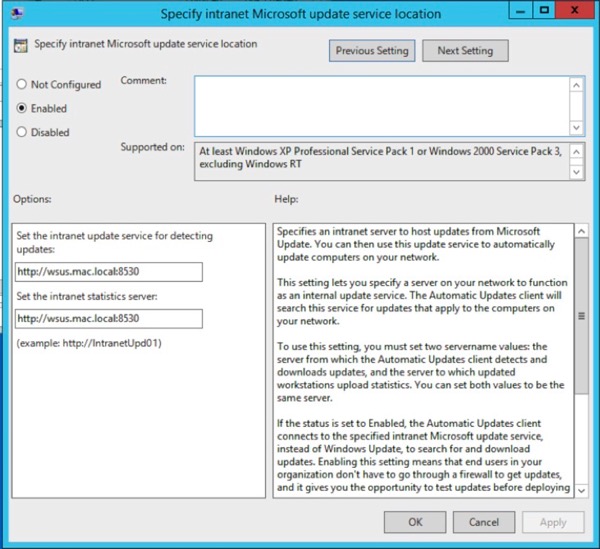
    Another thing to watch out for is specifying the servers in your group policy – make sure you put the port in, otherwise I find that the clients just don’t find the WSUS update server, and you never see the clients register.

    This bit – note the port numbers of 8530 and 8531 (http and https respectively), and don’t do what my brain keeps doing which is put 8350 and 8351 and sit there wondering why it’s not working.

    WSUS Settings

    The other piece of advice is that you should be patient once the group policy has applied – it can take a while for the machines to start appearing in the management console. That’s just fact, it takes a while.

  • Bulk Enabling Skype for Business Users

    I’ve been tidying up some of the scripts I use during deployments, so I thought I’d share some of them. This one that I’m about to go through does the following:

    • Takes a CSV of users
    • Enables them for Skype for Business or Lync 2013 (if they’re not enabled already)
    • Applies the conferencing policy
    • Applies the client policy
    • Applies the remote access policy

    These are the most common things you’ll see when working with users in bulk. The script can be modified to apply anything really – if you’re familiar with PowerShell, it’s fairly easy to read.

    Anyway, let’s look at the script. Firstly, you can download it below:

    SkypeEnable Very out of date, so I have removed it.

    Script Pre-Reqs

    You must have the Lync PowerShell modules installed on the machine you’re running this on – simplest way is to use the scripts on your Front End server(s).

    Script Modifications for your Environment

    You need to modify a couple of items to make it apply to your environment. These items are:

    #Update these variables appropriately

    $DefaultPool=”LyncPool.ds.co.uk”

    $LogFile=”.\EnableLOG.txt”

    $UserCSV=”.\EnableUsers.csv”

    They should be pretty obvious.

    • Default Pool: If the CSV doesn’t include a pool reference, then it will default to whatever you set this variable to.
    • Log File: Where do you want the log file to be written to?
    • UserCSV: This is the CSV containing the users you want to work on.

    Source File Requirements

    The script uses a CSV file containing the relevant info for the users that you wish to touch. The minimum data in the CSV is shown below:

    Data for import

    At a minimum, all you need in the CSV if the mail address of the user you want to touch. I alway use the mail address pretty much, as it’s usually unique in the organisation.

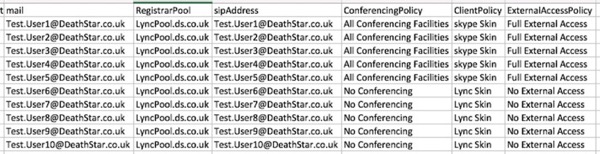
    There are other fields you can include too – shown below:

    All Fields

    The other fields that the script uses are:

    • RegistrarPool – the target pool that you wish to enable the users on.
    • SipAddress – what sip Address do you want to use? You can include the sip: prefix if you want – the script checks for its presence, and adds it if needs be.
    • ConferencingPolicy – what conferencing policy to apply.
    • ClientPolicy – which client policy to apply.
    • ExternalAccessPolicy – which external access policy to apply.

    Note that if any of these fields are empty or blank, the following logic applies:

    • RegistrarPool Missing/Blank – use the default one defined the variable I detailed above.
    • Sip Address Missing – use the Email address.
    • Conferencing/Client or External Access Policy missing then don’t touch those policy settings.

    Pretty simple really. If the file has extra columns – say you’ve done an AD Export for example – then they will be ignored. Only the above fields will be used.

    Executing the Scripts

    This is very simple. From an elevated PowerShell environment just execute the SkypeEnable.ps1 script with:

    .\SkypeEnable.ps1

    Note you must have set-executionpolicy unrestricted otherwise the script won’t run.

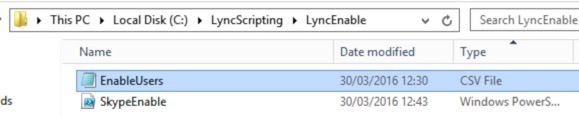
    The start directory where my scripts are looks like this. You can see the PowerShell script, and my CSV file ‘EnableUsers.CSV’.

    Start Directory

    Running the script results in this output:

    Script Execution

     It even tells you the files & logs to check.

    Script Output

    The script outputs a couple of check files for you to look at so you can make sure everything has gone as expected. I’ve used ‘EnableLog.txt’ for the main log file. In addition, a CSV called ‘UserCheck.CSV’ is also output. Let’s look at each – starting with EnableLog.TXT. This looks like this. The script tells you what it’s doing, and even shows you the PowerShell commands it’s using.

    The UserCheck.CSV contains a CSV export of the users we’ve touched, and includes their relevant policies. For example, have a look here. The CSV file will enable you to check against your original requirements and make sure stuff has applied properly:

    Check

    Can I use the script for anything else?

    Well, yes. If users are already enabled for Skype for Business/Lync, you can still specify Conferencing, Client or External Access policies. The script will then apply those policies to those users.

    Summary

    PowerShell is brilliant at automating common and bulk tasks, it absolutely makes sense to use it. To be fair, I may have over-complicated this script & process – sometimes simpler is easier – however the script process itself can be pretty useful for developing your own stuff. So I hope you find it useful.

    You can see a video run through below.

  • Skype for Business High Availability – Pool Pairing

    High availability and Disaster Recovery in Skype for Business/Lync 2013 is a beautiful thing. Providing always on services, as well as great recovery provisions for DR is core to the product. Looking at it though, you could perceive it requiring a whole heap of hardware and licensing – not the case really. A common misconception is around the pool pairing types. Let’s have a look at that. 

    Before we do however, let’s just qualify some terms for the purposes of this blog:

    High Availability

    For a service to be HA, it automatically survives a failure in the topology, and recovers, without administrative input.

    Disaster Recovery

    For DR, Administrative input is required to ‘push’ services/users to a DR site.

    Other’s have different definitions of the above, but this will do for the purposes of this blog.

    Firstly, for both HA and DR, don’t be quick to dismiss the Standard Edition of the product. It provides great high availability for voice, and easy to implement/low cost DR. Have a read of this to explain why:

    In praise of Lync Standard Edition

    Things seem to get expensive when you want to pair an Enterprise Pool for high availability. Consider the pool pairing requirements from this article:

    Front End pool disaster recovery in Skype for Business Server 2015

    In particular, note the requirements on the pool pairing:

    Pool Pairing

    As a quick side note, have a look at the RTO & RPO for the failover:

    RTO & RPO

    Great RTO and RPO, right? But wait – this is measured on 40 *thousand* active users, with 200 *thousand* enabled users. So, there’s that….

    Anyway, back to HA/DR. So let’s say for example you implement an Enterprise Edition pool as you want High Availability in your primary pool, and you also want to provision Disaster Recovery for the same pool. The configuration I often see proposed is similar to this (click on the image for a larger view):

    Example Structure

    So we put three front end servers in the primary pool, and have an SQL server for the databases. We also have the DR pool of three front end servers, and the associated SQL services at that site. Let’s say you have 3.5k users for example, that’s a lot of  server instances and Skype for Business Server 2015 licenses isn’t it? With that model, let’s assume:

    Primary DC (Active)

    • 2 x SQL Servers
      • 2 x OS, 2 x SQL
    • 3 x Front End Servers
      • 3 x Skype for Business Server 2015 licenses
    • Hardware Load Balancer for Web Services

    Secondary DC (Passive)

    • 1 SQL Server
      • 1 x OS, 1 x SQL
    • 3 x Front End Servers
      • 3 x Skype for Business Server 2015 licenses
    • Hardware Load Balancer for Web Services

    With three servers in the pool you’ll need to load balance the web services between the pool servers as well, usually using a Hardware Load Balancer of some sort.

    In this setup you have done the correct thing according to the supportability rules. Enterprise Pool with Enterprise Pool, virtual to virtual or physical to physical (no virtual to physical pairing), and you’ve used the same OS across the platforms.

    Here’s the thing though – why do you need three Front End Servers in the secondary/passive data centre? Look at the rules – where does it state you need the same number of Front End servers? The answer is – it doesn’t. You can have a differing amount of Front End servers in the paired pools.

    All of a sudden, that architecture is looking smaller. Consider this:

    Example Structure

    In this model, you’d need:

    Primary DC (Active)

    • 2 x SQL Servers
      • 2 x OS, 2 x SQL
    • 3 x Front End Servers
      • 3 x Skype for Business Server 2015 licenses
    • Hardware Load Balancer for Web Services

    Secondary DC (Passive)

    • 1 SQL Server
      • 1 x OS, 1 x SQL
    • 1 x Front End Servers
      • 1 x Skype for Business Server 2015 licenses

    You’ve immediately cut out an extra two servers, and the associated licensing, as well as the requirement for hardware load balancing in the secondary site. This works, and is supported. It’s a good model for when you want to provide HA & DR for users, without having to put a lot of infrastructure in the secondary DC.

    Of course this model only really suits an Active/Passive setup where you have users being provisioned from the primary DC, and the secondary DC is only used in a fail over scenario. If you wanted Active/Active (which is a very credible option), then you’d really need to provide HA in both DCs and provision enough resources for each DC to carry 100% of the load.

    I haven’t included Office Web Apps in the above, however that’s another consideration. You may put a couple of them in the Active DC load balanced – but why would you want multiple in DR? In fact, there’s a question of whether you need them in DR anyway unless you consider it a critical function.

    Anyway, the point of this blog is really just to show that there’s a lot of flexibility in Lync/Skype for Business in terms of HA/DR – put some thought in to it, you’ll find it’s not as difficult/expensive as you’d imagine.

  • Deleting the Skype for Business Address Books

    Quite a while ago I wrote a small VBScript that deletes all of the GalContacts (Skype for Business local Address Books) for you. It’s handy when testing things such as putting new normalisation rules on your Lync or Skype for Business Servers. Combine it with the ability to zero the download delay using the GalDownloadInitialDelay registry setting and it just makes your life a little bit easier. Initial article was here:

    Automatically Deleting the Lync Address Books

    Anyways, a few people now have asked me to update the script from VBScript to PowerShell – because the whole world is going PowerShell (and quite rightly, too!). Anyway, I have updated it, and you can download it here:

    DelContacts Removed as very out of date.

    So what does the script do? It’s quite simple – all it does is scan your own profiler any GalContacts.* files and deletes them. You can then use the Lync/Skype client to download new ones.

    It even logs the output of what it’s doing.

    Anyways, scripts like this, while they may not do an awful lot (but they do make your life slightly easier), are a great way to learn PowerShell. In here you’ll see how I’ve done some logging, called some DOS commands, the whole lot. Sure there’ll be other/better ways of achieving the same thing, there always are.

    Do you need to change anything in the script?

    Line 9 contains the path to the log file you wish to use for the script, so you need to change that to your preferred destination. Mine is usually on the desktop – but you can set it anywhere you have write access to:

    # Set LogPath to the place you want the log files to go

    $LogPath=”c:\DelContacts\DelContacts.TXT”

    How do you run the script?

    Start PowerShell, go in to the directory you have the script in, and use this command:

    .\DelContacts.ps1

    Bear in mind you will need to have appropriately set the set-executionpolicy to allow the script to run. 

    Log File Output

    The log file will tell you what it has done – example output below.

    Can I create a desktop shortcut to it?

    Yes, absolutely. Create a shortcut pointing to:

    Powershell.exe PathToScript\DelContacts.PS1

    For example on my Windows 10 desktop, I have a shortcut pointing to:

    powershell.exe C:\DelContacts\DelContacts.ps1

    ===========================================================================

    Computername : HUGEPC

    User Name : mark_

    Temp Dir : C:\Users\mark_\AppData\Local\Temp

    Profile Path : C:\Users\mark_

    Temp File : C:\Users\mark_\AppData\Local\TempDelContacts.TMP

    ===========================================================================

    Finding files using the command: DIR C:\Users\mark_\GalContacts.* /s /b >C:

    \Users\mark_\AppData\Local\TempDelContacts.TMP

    Temporary file found…

    Deleting files….

    Working on : C:\Users\mark_\AppData\Local\Microsoft\Office\15.0\Lync\sip_ma

    rk.*******@******.com\GalContacts.db

    File deleted.

    Working on : C:\Users\mark_\AppData\Local\Microsoft\Office\15.0\Lync\sip_ma

    rk.*******@******\GalContacts.db.idx

    File deleted.

    ===========================================================================

    Deleting temporary file…

    Temp file deleted.

    ===========================================================================

    Process finished.

  • Microsoft UC & VPN

    As I’ve said previously on my site here I spend most of my time designing Unified Comms systems, now predominantly around Microsoft architectures.

    I also get involved in normalising/rectifying/stablising systems that have already been deployed. With UC platforms it’s not that hard other a solution to 80% deployed and operational with little UC knowledge…and yet it’s that last 20% of deployment that can utterly ruin a user experience.

    Anyway, on that ruining a user experience piece, two networking things that I see a lot of that tends to fly under the radar at the design phases are VPNs, and Proxy setups. Media does not play well with a proxy system…but nor do VPNs. I’ll talk about the Proxy issues in another post, but lets look at VPNs first.

    So, whats the beef with VPNs? It’s really down to the fact that operating over a VPN can seriously degrade media performance to the point that it irritates the users. The reason for it is that the process of pushing traffic through an encrypted VPN tunnel seriously impacts jitter and latency figures for the media connection – mainly through the additional workload of additional encryption and decryption. Lync/Skype traffic is already encrypted – signalling via TLS and media via SRTP. so pushing it through a VPN just means you’re encrypting already encrypted traffic. Hardly efficient.

    Now, Microsoft’s architecture has a model in place for just this scenario – the Access Edge topology. Media relayed through the Edge is designed to provide a high quality experience over uncontrolled networks. 

    The problem is though how do you stop users sending their traffic over the VPN when they want to make a call? It’s not as if you can ask them to disconnect from the VPN to accept or make a call can you? Well, there is a way, but it does take a bit of planning – namely configuring a split tunnel VPN configuration.

    What you want to achieve is all your normal traffic goes via the VPN except any Skype/Lync traffic – you want that to go to the Access Edge servers. Split Tunnel VPNs are not that unusual and most VPN platforms support the capability – there’s something else you need to consider however, and that’s the client connectivity logic.

    Imagine the scenario where you enable split-tunnel on your VPN so that your Lync clients can connect to the Access Edge servers. The problem you’ll run in to is that the Lync client will first check for internal connections to the Front End servers using either LyncDiscoverInternal or other DNS entries – if it find them and the front-end servers then it will connect via the VPN tunnel regardless of the ability to connect to the Access Edge.

    So, how do you fix this? Well, explained simply the way to fix it is to ensure that not only do you allow the split-tunnel for the client but you also block access to the Front End Servers. Essentially you need a firewall rule that blocks:

    Firewall

    There’s numerous ways of achieving this. You can even achieve it using Windows Firewall policies for example, however for the most part it’s easier to configure at either a firewall or VPN platform level. The Windows firewall policies for example wouldn’t apply to Mac users or people using systems that don’t receive those policies.

    VPN configurations are one of those things that add to the quality of experience of using a platform, making the user’s situation stable, repeatable, and positive. Will the product work through a VPN? For the most part, yes – your users won’t thank you for it though.

  • Enabling Extension Number Display in Lync 2013 or Skype for Business

    I’m working on a site at the minute that has disjointed extension/DDI numbers – that is their extension numbers in no way match their assigned DDI. Throw in some routing to legacy PBX platforms…and your dial plan gets ‘interesting’. 

    Anyway, one thing I wanted to do was to turn on the ability to view extension numbers in the Skype client. What do I mean I hear you say – well, consider the normal display when I type in an extension number:

    You’ll see the normalised number – notice how 8622 actually maps to a 5831 number – but it would be useful to see the extension, like this:

    With this set, it displays the extension as well – of course you have to have it normalised like that in your dial-plan and your address book rules for it to appear as above.

    Anyway, how do we achieve this? Well, it’s pretty easy. You can do it in a client policy, like this:

    $x = New-CsClientPolicyEntry -Name “ShowExtensionInFormattedDisplayString” -Value “True”

    $y = Get-CsClientPolicy -Identity Global

    $y.PolicyEntry.Add($x)

    Set-CsClientPolicy -Instance $y

    The above puts it in the Global policy, but you could if you wanted create a new one, and assign that. See here on the processes for adding options to client policies:

    New-CsClientPolicyEntry

    WAIT! What if I want to remove it? Well, again it’s pretty easy.

    $y = Get-CsClientPolicy -Identity global

    $y.PolicyEntry.RemoveAt(0)

    Set-CsClientPolicy -Instance $y 

    The above assume it’s the first policy entry – you’ll need to update it to match the actual entry if you have multiple ones. Note you can clear all of them too using this command:

    Set-CsClientPolicy -Identity global -PolicyEntry $Null

    Fairly simple stuff. This capability was first introduced back with Lync 2010 – see here for info:

    An update is available to display the extension number of non-US telephone numbers in contact cards in Lync 2010

  • Why UC?

    It’s not often I write opinion pieces – I’m usually all about the technology and the how, and less about the why….so bear with me. I recently found myself having a coffee with quite a senior IT Director of a large organisation, and also a couple of very capable techies. The tech’s were focused on large infrastructure, so think large Exchange, AD, SQL and associated systems. I’ve known these people for a while – I came from a similar background.

    The conversation got to asking why am I so into UC type technologies, with a particular lean to the Microsoft offerings. Such an open question, and one you’d expect a short and easy answer to – but the more I thought about it, I realised it’s not an easy one to answer.

    My evolution in the world of technology consulting started with Novell Netware (version 2.11 if I remember rightly). I loved working on that stuff. Interesting, and it was an evolving market so interesting stuff. Worked right through the Netware 3.x and 4.x days, and then around the 4.x era Microsoft got in on the act. I remember sitting in a presentation over at Thames Valley Park and thinking that Windows was going to ruin Novell’s space – mainly through the commercial reality of it, even though the tech in me at the time didn’t think the platforms comparable. At the time, Novell was sold in user chunks, so 5, 25, 50, 250 seat licenses for example. Here was the upstart Microsoft offering a server that would do the file sharing (and much more) for just the server license cost – there were no CALs back then. Buy a single server license, connect as many clients as your server could handle. This seemed incredibly aggressive to me, and back then I wondered how it would work financially. Arguably it didn’t work – Microsoft later brought in the CAL model meaning each user would need a client access license. Ho hum.

    …Anyway, off in to the world of Microsoft I go. Working on largish Active Directory, Exchange and also for a while Citrix deployments. Good stuff, enjoyable, and kept me in holidays and biscuits. A fairly rapid developing area anyway – keeping up with the new technology was interesting, and integration to other platforms also become more viable as the product set developed too. Interesting stuff.

    The evolution of working on Microsoft Exchange and then moving into more realtime stuff like Office Communications Server (OCS), Lync, or Skype for Business seems a common one. Most of the people I work with in this space seem to have followed a similar route. This is the source of the originating question – why the passion to stay in realtime/unified comms?

    I thought there was a simple answer to this, and there really isn’t. So I’ve thought about this some more, and tried to break it down objectively.

    Technology

    From a technology perspective, working in UC means you have to have a good in-depth knowledge of multiple complex products across the stack, as well as a solid understanding of how vendors work together. Consider a Lync/Skype deployment for example:

    • Active Directory. AD is at the heart of the identity in S4B – getting user identity right is paramount to ensuring a high quality user experience. A lot of scripting/updating/architectural stuff here to be done.
    • SQL. SQL is used for various function – it really helps to know how this works. In some of the larger estates I’ve delivered (think 200k+ seats), script modifications in databases etc. weren’t unheard of.
    • Storage. Large transactional processing often requires storage that performs in the way you need. It’s not just a bunch of storage.
    • Virtualisation. VMWare/HyperV – how often do we install physical servers now? Even on the installs you do where you are installing physical units often a chunk of the estate will still be virtualised.
    • Networking. Fairly key to the delivery of media and a quality user experience.
    • Load Blalancing/Firewalls-Reverse Proxy. Possibly should be under the networking header, but you get my point. Knowing how these work is fundamental to a great UC setup.
    • Scripting. Anyone who says they’ve deployed/managed a large system of thousands of users, and who has no skills in PowerShell/VBScript type stuff…well, you’re either a glutton for punishment or I’m questioning your credentials.
    • End Points. PCs, Laptops, Phones, Mobiles, Tablets…You name it, a UC platform needs an answer to deployment of. Also includes technologies such as mobile device management.
    • Other Voice Vendors. You need a fairly good understanding of most of the other common vendors in this space too – Cisco, Avaya, Mitel etc.

    The above is just a selection of technologies I now get to work with every day. Would I get to work with the above wide stack if I’d have stayed in a more traditional AD/Exchange type role? Possibly some, but certainly not all….which also leads me on to the additional point of….

    What does UC do for the Users?

    Ever tried to get users excited about a new version of Exchange or Outlook? Tough call that one. Each new version of Exchange brings a lot of architectural advantages of course – they tend to help the IT Services deliver a better service though – or arguably, deliver more with less kit. Apart from perhaps large mailboxes….What value does it really bring the user? Of course Outlook has developed on – it’s a great product, and highly functional. I’ll take you back to my original point though, ever tried to get users excited about a new Exchange/Outlook deployment? Yeah, doesn’t happen in my experience.

    The same goes for other back-room IT type stuff too – if it doesn’t change the way a user works, then….from their perspective, what’s the point?

    Conversely, with UC, you’re offering truly new capabilities to users, and in my experience, people love the opportunities it gives them. The capabilities make people’s working days easier. Connect people, connect them well, from anywhere….People love it. Even doing things like product demos or model office type stuff, you can see people joining the dots on what capabilities these types of technologies bring to the work life. Depending on what direction you’re coming from, it either makes your existing work easier, or it can enable you to achieve more in the time you have at work. Either way, it tends to be a positive experience for the adopters.

    I’m not really talking about vendor aligned UC at this point either – Microsoft/Cisco etc. all have great solutions of course. From a user experience point of view, I’ve yet to see one that comes close to Microsoft’s however.

    Of course from a delivery point of view, to get this positivity out in the user population the user experience is absolutely key. If a user has to start thinking about how to do stuff, based on their device, location etc. well, it doesn’t work quite so well. For example, there’s a site I know where a coupe of remote offices use an Internet VPN for connectivity. This is absolutely fine, and mostly transparent to the user….apart from them not quite having set up the routing appropriately for Lync 2013. Users on that site can get basic services, but they run into issues with web conferencing, sharing etc. I won’t bore you with why this is, but essentially those users have become accustomed to know they have to disconnect from the corp network and connect via a public WiFi access point in order to gain access to the flakey services. Great user experience that isn’t.

    In the above scenario, the main sites that utilise the tech love it – it’s been listed repeatedly as the best thing IT have done for the employees in a while. Look at those couple of offices though, and they think the product set is terrible, unreliable……and this doesn’t sit well with me.

    Why work in the channel?

    The final thing we were discussing in relation to this, was that we’d all effectively spent our careers working in the IT Technology Delivery sector. That is working for the companies that repeatedly deliver this stuff, rather than working directly for end-clients who may operate such platforms, but perhaps only implement/upgrade etc. every few years.

    For me, the reasons for this relate back to my points about the technology. Working for a reseller means a stream of projects around the technologies that I’m interested in. It means you get far more exposure to those core technologies, often in greater detail, and often with higher backup from the vendors themselves too.

    Finish one 1k seat deployment? It’s off to your next one, with a new set of requirements, new unique business challenges, and yes, a new set of users to impress. It’s a different approach to design/implement/operate that I seem to observe working direct for the consumers of the technology.

    What’s Next?

    I suppose the next question is…what technology next? I’ve been fortunate to have spotted (probably by pure luck) evolving technology spaces – whether it was the jump from NDS to AD, or the excitement at remote desktop type services such as those delivered by Citrix. I saw the same opportunity with UC. Is UC mature now? Well, obviously it’s a lot more mature than it was. Working between platforms now is far easier than it once was, and people’s implementation of SIP seems to vaguely follow the same ideals now. So it’s certainly maturing, not convinced it’s totally mature yet.

    What’s next? Well, if I told you that, you’d all get in to it wouldn’t you? Watch this space.

  • Lync 2013/Skype for Business & Virtual Cores

    I’ve been setting up a couple of Standard Edition servers recently, and I wasn’t seeing the performance I expected when importing a fairly large number of users (about 3k) – this was a test lab. It was a bit confusing really, as the servers themselves were very well specified. 8 cores, 32Gb RAM, running on SSDs….albeit the platform being virtualised.

    After playing around with it for a while, I could see that SQL Express only seemed to be executing on a single core, not up to 4 which is what I thought was standard. I.e. SQL Express can use up to four cores. You can see the restrictions in this article here:

    Compute Capacity Limits by Edition of SQL Server

    (2012 version here).

    In particular, pay attention to this bit:

    It’s limited to the less of 1 socket or 4 cores. So, having looked, my VMs were running not with a single socket with 8 cores, but as a server with 8 sockets, each with 1 core. Explained the restriction. Having spoken to the VMWare administrator, this got fixed pretty quickly. Haven’t really looked at how, but there’s a great article here explaining how to allocate cores per processor. As a side note, the memory is still limited to 1Gb for SQLe I believe.

    Setting the number of cores per CPU in a virtual machine

    Anyways, an interesting one, and something to watch out for.

  • Changing a SIP Address in Lync or Skype for Business

    I was being asked about changing a SIP address for a user today on Lync 2013 – equally applies to Skype for Business too. What would the effect be on Contact lists? Say for example your login was ‘DerekT@TheForce.co.uk’, and that’s what you were on people’s contact lists as … What would happen if you changed that SIP login to ‘Derek.Trotter@Deathstar.co.uk’?

    Well, the answer fortunately is a positive one. It works. The contact subscriptions are held in the database by a unique identifier created at the time of subscription – this unique ID is not the SIP address. So, change the address, and when people with that user on their contacts list logs out of Lync/Skype and back in, they’ll still see the person on the contact list with presence and everything.

    One thing I’ve found by the way is that if you change the domain – I.e. The bit after the @ – you can see issues with authentication to Lync/Skype. Easily fixed by logging the user out/in again.

    So you can change these addresses. You do need to plan when you change them though – may also be worth deleting and updating the address book files too. Now, this works well enough for contact lists – but one thing you must educate your users is about is that scheduled meetings will break. Users with changed SIP addresses should go back and re-send any meetings they have in their diary, so that they contain the right URLs for the conferences – otherwise the conference joins will fail.

    Anyways, the video here shows the behaviour in action.

  • Jabber vs Lync/Skype for Business

    Jabber & Skype – which is better? What a difficult question to answer. I personally much prefer the Lync/Skype experience to that of Cisco Jabber – but why? How do you quantify that? It’s a question that gets asked a lot by businesses now, and certainly ones that are heavily invested in Cisco.

    It’s an interesting fight isn’t it? I saw a comment from a Cisco commentator a while ago asking:

    ‘Do you want an Enterprise Communications Platform that also does Instant Messaging, or do you want an Enterprise Instant Messaging platform that also does some telephony?’.

    I think that’s a little disingenuous really, and doesn’t tell the whole story.

    There’s an (obviously one sided!) document from Microsoft here, that’s worth reviewing:

    Comparing Skype for Business versus Slack, Cisco, and Google Hangouts

    Technical Comparison

    The problem you can often run in to when running a technical assessment of products is a lack of differentiator. How do you choose between say a Mitel PBX and a Cisco one for example – on a list of functional capabilities? The gap isn’t big, if it exists at all. Yet people constantly do, much preferring the Cisco UCM route in my experience.

    It’s more than a list of functions.

    It’s the same with Skype vs Jabber. Look at them from a functional basis and what gaps do you see? Not many really:

    Both products do this in some form don’t they? …and yet.

    Do I need to choose?

    This is another interesting question. Do you have to choose between Cisco & Microsoft? Well, no, is the answer. A Cisco voice platform with Lync/Skype on top is probably one of the most common deployment topologies we see. Some view it as the best of both worlds – leveraging Cisco’s excellent Call manager platform, while utilising Microsoft’s brilliance in the software space. 

    The only comment I’d make on this model is that once a user starts using Skype for telephony, the user won’t care how you’re delivering that telephony from an architecture point of view – they’re a Skype user. Now, with that comes pressure from other users – they look on enviously at the roaming user who gets their services everywhere, and an any device…and they end up wanting it too. If you’re not careful you end up with a large proportion of your estate on Skype, with a smaller Cisco back end just supporting the transport. I’ve seen this happen a lot – you end up re-engineering around the Cisco platform.

    Field Experience

    I’ll be the first to point out this is subjective opinion…..I’ve never seen a site move from Lync to Jabber and the users enjoy the experience. Ever. Yet companies sometimes do this. Often as they’re invested in Cisco, and expanding on their Skype deployment may involve additional costs in product/licenses. Legitimate reasons of course, but it’s not one the users enjoy from my exposure to it.

    Integration

    I think this is where the gap starts to widen. Integration of Microsoft apps into, well, the Microsoft ecosystem is far stronger than Cisco’s (Who knew etc.). Everything from the look and feel – it’s all familiar, it’s all Office.

    Cisco isn’t that far behind to be fair, but the interface isn’t as familiar, and it doesn’t have the integration points that Microsoft has.

    Usage – Switching Modalities

    This is an interesting one – one of the things I love about Skype is the ability to start with one conversation type and quickly move to another. It’s simply how conversations go.

    Start with an IM, jump to voice, share some docs, drag in another person etc. You go from an IM to a full on-line multi-party conference simply and easily. Using different clients to achieve this drops the user’s drive to use them – jumping between Jabber and WebEx for example. You need to plan and have an idea of what you want to use. 

    The Office365 Juggernaut

    If usage is one thing that starts leveraging the difference, I think Office365 is really where value and capabilities start stretching the divide.

    Pretty much all of my clients are on the Office365 roadmap or considering it. Astonishing isn’t it – ALL. I can’t remember the last time I did on on-prem Exchange migration that wasn’t consolidation in expectation of a ‘365 move.

    This is where the Microsoft Value proposition comes in – Skype is in pretty much all of the Enterprise Subscriptions within Office365. It’s there – you buy an E3, and you get it by default. Whether you use it or not is a value choice – but why would you pay for something twice? WAIT – Jabber is free, right? Well, sure, apart from the infrastructure you need to run it on….

    You then take in to account what’s coming with Office365 & Skype for Business – the roadmap. Things such as:

    • Dial in PSTN Conferencing. We’re all familiar with this – dial a number, enter your PIN etc. This will be natively available in Office365 so you won’t need any additional kit on-prem. Even the lines will be provided by Office365, so you don’t even need to worry about channel consumption.
    • Native PSTN Calling. This is the ability to make normal phone calls directly from Skype within Office365 – so again, not requiring any on-prem equipment or lines. All the infrastructure is from Office365.
    • Integration to on-prem PBX. Soon enough you’ll be able to integrate your Office365 Skype users to your existing on-prem PBX. If you should want to.

    I think once you start looking at the value proposition from Microsoft and Office365 – the gap between Jabber and Skype for Business starts to get wider. Quickly.

    What about QoS! I need Enterprise Grade Voice Quality! Well, that’s coming too by way of Express Route

    In some respects I think with telephony and voice we are where we were maybe five years ago with Email. Back then the idea of putting all of your corp email into the cloud was a bit wild & crazy. Now – not so much. I suspect large groups of users will start utilising ‘365 for voice as their working model allows it. I would fit the model for example – never in the office, always work from remote sites or home, and never use a traditional desk phone.

    Delivering my telephony natively out of a cloud – why would I care? Truth is of course it’s exactly what I do today anyway – use Skype Consumer as my everyday phone.

    It won’t match for all users – users with more complex requirements will still need a more complete functional delivery…but…the cloud will catch up.

    Summary

    How to summarise without having the hounds of subjectivity after me in the comments section…I think the Skype for Business proposition is a stronger one on every level than Jabber. It’s a nicer environment to use, user’s like it, and the IT Business has a stronger roadmap for delivering better services, more efficiently (I.e. Cheaper) in the future.

    Microsoft have this right.

    Would I be disappointed if I ended up working for somebody who only had Jabber deployed? No, no I wouldn’t. It isn’t a bad platform – if you think I’m saying it is then I’ve obviously not written this in a way that represents my thoughts. I just think the SfB one, combined with the roadmap for ‘365, is a far stronger proposition.

  • Skype for Business Server Documentation

    TechNet documentation for Skype for Business has now landed:

    Skype for Business Server 2015

  • Surface Pro 3 … Hmmm.

    Update 25/5/15

    Where am I now? Well, to be honest, the device rarely leaves my drawer, even after a small positive for a while. I just don’t understand the form factor. It just seems like one big compromise. As somebody who can touch-type (properly), the keyboard is painfully inadequate. I’d rater take a small laptop with me. 

    I found I was carrying the SP3 and my iPad everywhere. What’s the point of that? So as it stands, I’m back to using a small laptop as my travel buddy. Far more capable, keyboard is better, and not so compromised. Ho hum. Let’s see what the SP4 brings.

    Update 29/1/15.

    So, original article below from the end of October 2014. Where am I today? Well, surprisingly, my report back is a positive one! I’ve still the frustrations with Evernote and it’s terrible font size, but then my brain pointed out when I really need it I can use Evernote in a Web browse, and it’s just fine. I’d love them to fix it.

    I’ve got used to the unit, and it’s now more often than not my travel buddy! Even to the point I put some videos on it the other day to watch on the train…and my iPad stayed home. All the surprised.

    I still run in to the challenges of my job requiring power, and then I have to resort to other kit, but the Surface Pro 3 has found a far stronger place in my work life than I ever expected.

    Gone from 6/10 to an 8/10. 

    ====

    So, the Microsoft Surface Pro (3) – interesting concept. Not really a tablet or a laptop, but allegedly brilliant at both. I’ve got my hands on a rather shiny Surface Pro 3 – so I thought it would be an interesting journey to measure my usage over the week. 

    I’m going to try and use it as a replacement for my travel buddy – a 13” Macbook Pro Retina. Now, I get that some people who read my blog think I’m an Apple Fanboy. I honestly don’t think I am – I would say I’m a technology fan. I love stuff that’s cool, fun, and helps me get the job done. And is cool. 

    The last few years for me this has meant a Macbook Pro with Windows 8/8.1 running virtualised. Why? Well, I like Apple’s hardware, it fulfils the cool factor. And I’ve found the combination of the quality of the hardware with things like battery life really hit my technical cool spot. I like the power of the virtualisation capability of OS X – I can fire up anything very quickly, easily, and it just works. Now, before I get the hate-mail I know Windows laptops can do that too….but the oddity is that even though I have access to a wealth of laptops, phones, stuff etc. (for free, too, mostly), I always find myself gravitating to the Macbook Pro.

    So, I plan on logging my journey into using a Microsoft Surface Pro 3 as my travel buddy. I will try to be objective, but of course personal preference will come in. I’ll of course welcome any feedback. Even from you – yes, you – you know who you are.

    Day 1

    Unpacking is an interesting experience. They’ve taken some lessons from Apple – trying to make you enjoy the unpacking. Did they achieve it? Yes, but with some caveats. Firstly, the battery for the pen, and the small stick-on pen holder thing…rapidly disappears across the floor. Detracts from the cool, but ultimately not important. It’s just not quite right – they could do better! Perfection should be pursued in everything, for perfection to be perceived in anything.

    What next? Well, powering up the unit and getting going is no real hardship for anyone who powers up a new Windows laptop. Crap-ware free…apart from the 80+ Windows updates to be downloaded and installed, including one firmware update that reliably informed me that ‘that something had gone wrong’. Nearly two hours that took. Two. Hours. Two hours between taking the shiny out of the box and me being able to use it to appear funny and attractive to women on Twitter.

    Then I started installing all the software I use – of course it takes a while. Takes a while on OS X too, that and updates of course. I hate Windows Update. Hate it. With a passion. 

    So. The Pen. Works really well. I’ll say it functions better in OneNote than the EverNote pen does on the iPad. On the other hand, OneNote is the only app I could really find it worked well in at all. Oh, wow, except for maybe paint.

    This led me to my first twitch. Evernote. I am a big Evernote fan. It’s different to OneNote – Evernote is more like an electronic scrapbook – I put everything in it. Using it on the Surface Pro 3 has been a challenge, but to be clear it’s the inadequacy of the software here, not the platform. The Windows EverNote client is utter tripe compared to the OS X one, so I instantly hit a usability barrier. No Pen Support. Text is TINY compared to OS X – have to expand all the notes. Evernote Touch – well, the less said about that unstable, buggy, terrible POS the better.

    Anyway, the Pen. Works brilliantly in OneNote. Can’t really find anything else worth talking about. Oh, wow, apart from the ‘where do you keep it’ conundrum. You get a stick on pad that you can stick on the keyboard to hold it (Steve Jobs would never have allowed it. Oh. Wait.). Personally I find slotting the pen on to the closed keyboard cover far more convenient. Just feels unfinished.

    What about everything else? Well, I do find the weird mix between the touch environment and the desktop setup a bit weird – but I’m willing to embrace it. So I set all my email accounts up in both the normal Outlook 2013, and the non-Metro Mail client. I.e. use the not-Metro mail client for touch, normal Outlook for everything else.

    I’ve also got 1Password, EverNote (touch and desktop), all set up and ready to go. Also have my OneDrive (for Business and personal) all sync’ed up and working. That wasn’t that hard…as you’d expect.

    So…end of day 1 – where am I at? Well, let’s summarise, in bullets:

    • Ok, we can do this.
    • Wait, touching the screen for desktop apps is really fiddly.
    • Using the pen for desktop apps is clumsy.
    • Oh. Wait. Have a Bluetooth mouse somewhere – Microsoft Wedge – whoop.
    • Daughter: How do I play my videos? What the hell? Plugs in phone, shows phone drive, nothing else. Boggle.
    • Keyboard: Better than I expected! Expected almost spongy interim iPad type keyboard, actually feels just as good as my MBP keyboard.
    • Setup: Ye gods, how many updates.
    • Wait, Ethernet adapter looks like a 5 quid eBay job.
    • Keep touching screen at inappropriate times – desktop apps – getting frustrated and grabbing pen, then resorting to mouse.
    • Performance is ace – to the point that I’m not even sure which one it is I’m using.
    • Hate EverNote on Windows.
    • People use this as a tablet without the keyboard? What?
    • Wait, even more what, you don’t get a keyboard with this?
    • Screen – seems an odd resolution/shape? Looks ace though, as good as my iPad, maybe not quite the quality of my Retina MBP, but not enough to be readily noticeable.

    So, end of Day 1, it’s setup, it’s working…So let’s see what happens. I shall keep you updated.

    Actually, before I stop for day 1, interesting that I haven’t touched on the specs? Almost the same way I wouldn’t consider the specs of an iPad – it works, or it doesn’t. I think that means this works? Anyway, more anon.

    Edited to add an obvious point – I haven’t paid for this device, I’m not even sure of its price point. I shall investigate further and include opinions on that element.

    Day 2

    Ok, firstly, using this thing on your lap is a PITA. I’ve fixed it – using a tray*. So tricky using on the lap. It’s uncomfortable and tiring to try and do productive work with it on your lap. 

    *NSFW comedy language on that link. Quite possibly one of the funniest videos on YouTube though. Honest.

    So today is the first day I’ve tried to use this in anger…and I have to confess I failed and went back to using my MBP. I’ve been editing a lot of stuff today – screenshots, taking bits out of PDFs etc. – and quite frankly I was getting incredibly frustrated doing it on the SP3. To be fair I think it’s because the small Wedge mouse being tiny and not as usable as my main mouse. Now, on that front however I was quite happy editing all the stuff I ended up doing using the touchpad on my MBP? Couldn’t do it on the SP3 without giving myself the rage of frustration.

    So, not  a massively successful day with it truth be told. I will keep trying however, I want to believe.

    In evening I was also attempting to use it just as a tablet – for looking stuff up and consuming. Quite big to do that with, and a little clumsy truth be told. Totally possible however. Of course I miss things like being able to stream stuff to my sound system or my TV – all things that my (Insert Any Apple Device Here) takes in its stride. 

    Day 3

    Today I’ve spent the morning just using the SP3 – forcing myself too as I don’t have my MBP with me. Brave. How am I finding it? Well:

    • On a table it works like a laptop – who knew! A good one – fast, easy to use, getting more use to the touch screen. One thing I have noticed is that I’m one of those fortunate people who is practically ambidextrous so being able to use the mouse with one hand while randomly interacting with the screen on the other has made it far quicker to use than I initially realised.
    • It’s fast. Did I mention that? Not a massive spec this one either – i5 with 4Gb. It’s perfectly quick though to the point that I hadn’t really checked out the technical specifications.
    • Still not convinced by the ‘tablet’ element of it. As a touch screen laptop though – it’s a good one – especially combined with the Pen.

    The pen is interesting – found myself doing something earlier that surprised me. Sat on a conference call using the tablet part only, and the pen, to take notes in OneNotes. Notes I immediately emailed to Evernote of course.

    I think what’s becoming clear to me is that this is a great machine – fast, capable, and good to use…but I think I’ve become very aware of how dependent you are on the apps you use as your daily work-flow. These are often more important than the form factor of the device you’re using aren’t they? For example like I’ve said repeatedly above, I’m a very heavy Evernote user – I use it for everything. The Evernote client on Windows 8 is a challenge, whether you use the touch or the desktop app. I suppose if I were to persevere with the platform the correct thing would be to migrate to OneNote – while I get that OneNote is a great note taking app, it’s not good at what I also use Evernote for which is as an electronic scrapbook for everything that appears on all my devices. I’d not only be looking at changing device then I’d also be looking at changing work-flow.

    It’s amazing how important apps are. I’ve written before about how the only reason I keep with the phone I’m using is because of my investment in the apps on it. 

    How do I feel about this replacing my laptop and my iPad? Well, I think it can replace my iPad yes – except for when I’m out and about and just want to watch videos or read e-Magazines. It’s too big and bulky for that. It can though become my work travel buddy I think – one I take to meetings and work out on the road on.

    Can it replace my MBP and my iPad? No, I don’t think it again. To be clear though I’m not sure that’s down to the form factor or the device itself – it’s down to the way I like to work, and the apps I like to use. I think that makes some of my more complex stuff just harder to produce on the Surface than it is on my Windows equipped MBP? Incredibly subjective that one!

    I’m still utterly undecided. 

    Day 4 (Ok, not counting the weekend)

    I can confirm things are getting better! I actually used it as a tablet at the weekend to arrange some flights and some hotels – it was surprisingly workable. Perhaps I’m getting use to it?

    As a laptop replacement I’m also forcing myself to use it – and I’m slowly starting to get it. Like I point out above however, I think the apps you are use to, and how you work have a real bearing on whether a device like this will work for you. 

    Right now I’m feeling that it can as my travel buddy, but perhaps not as my main weapon of content production choice. Maybe that will change? I am putting the effort in, honest!

    I’ve discovered the MicroSD card slot for example, and now have Bitlocker encrypted File History setup and configured….and I like that. It is worlds apart from the ease of use of TimeMachine however on OS X. I had to dig around and find it for a start.

    The touch screen element is becoming more part of my general working as well, and again, I like that.

    Any issues? Well…..

    I can’t see me taking this out when I’m out for the day doing random (work/non-work) things. Say for media consumption for example. It’s too big. I’d take my iPad Air.

    If I were in the office all day working on a complex design document, I’d probably take my proper laptop. Saying that, my decision is closer than it was – I reckon if I found myself working on such a document and only had the Surface Pro 3 available I wouldn’t be massively overwhelmed.

    I guess where I’m going with this is that I’m struggling to find a place for the SP3. It’s not a replacement for my very powerful laptop (perhaps due to my usage type), and yet it’s a little too heavy to be a general travel ‘consumption’ device. What I can see myself using it for though is a replacement of my travel buddy for meetings and the like – it works well. It’s a great combination of light, powerful and comfortable form factor. Well, unless you want to use it on your lap, then it’s a PITA.

    Day 5, 6 and 7 

    Ok I got ruthlessly distracted by the real world and the Microsoft Decoded event. Where am I at? Well, I like it more than I did on days 1 thru 3 I can tell you that much. I do actually use it in anger now, and I found myself taking notes at the show with just the pen, straight in to OneNote. I was then of course later emailing those notes directly to EverNote where I keep everything else, but hey, it’s starting to work as a thing.

    Did have a bit of SNAFU earlier in the week when getting ruthlessly laughed at by somebody realising I was using my Macbook Pro as a tray so I could use the SP3 on my lap…..

    I stated earlier that I’m struggling to find a place for it – and I think that’s still true, but the statement needs some further qualification. If I had my ‘main’ work machine – whether it laptop, desktop, or whatever – then the Surface Pro 3 could absolutely be my only mobile device for work. Bizarrely though, if I were off out on the Tube (like I am in a bit), it would be my iPad Air that would come with me…for media consumption and web browsing on the go the Surface Pro 3 just cannot compete. It’s too big and clumsy.

    Could my iPhone 6 replace the iPad for media consumption? Well, here’s another little bizarre snippet. When the iPhone 6/6+ came out, I got a 6+…and I hated the size. Just didn’t get it. So I swapped it for a 6. Now, the 6 came with 128Gb of Storage, and that storage combined with the larger screen has changed how I use the unit – all of a sudden using it actively for EverNote (rather than just for reference) has become a reality…and guess what, I’m wishing I’d have stuck with the 6+! I’m certain that if I’d have kept the 6+, then that would be my travel consumption device of choice.

    Complicated isn’t it? Of course my situation is further complicated by the fact that I have access to such a wide range of devices, consisting of a simply spectacular 13” Retina Macbook Pro (I will say that I think is the best laptop I’ve ever used…by a country mile), iPads, phones and some pretty powerful but less mobile kit. It’s because of this choice I think that I’m struggling to find a complete ‘space’ for the Surface Pro 3? 

    So, let’s try and simplify it.

    If I had a Surface Pro 3 as a travel/mobile device, and a more powerful work unit (whether at home or at work), I think it would be a great solution. It would feel a bit compromised in that I think I’d need some form of lighter media/web consumption device – perhaps a larger phone.

    Could it totally replace my travel & work laptops? Not a chance – for me anyway – I suspect my compute demands may be just too high.

    My current perfect working environment? 

    iPad Air – personal media/web consumption

    Surface Pro 3 – general travel and presenting type stuff.

    MB Retina 13” –  ‘proper’ work away from base, so VMs, writing, productivity.

    Work Base – Multiple machines, from a 17” MBP to a Mac Pro.

    This is a fantastically flexible environment…but then…look at the price for all those things! The SP3, a tablet that can replace your laptop? Nah.

    I get this is a confusing piece of writing – but I think that tells a story in its own right doesn’t it?
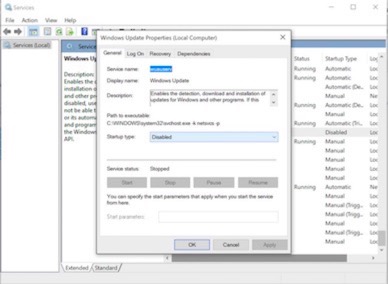
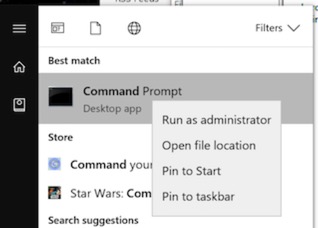
  • Outlook Advanced Searching

    The company I currently work for is in love with Email. Lots and lots of it. In fact, I’m fairly sure it’s their goal to deliver all the email everywhere.

    Anyway, a side effect of this is that often you know you have some information, from someone, somewhere, about something and it’s hard to track it down.

    Sure, Outlook has search, but hell you can never find anything, right? Well, having watched some people use the Outlook search I can understand why they can never find anything – I suspect people don’t realise exactly how powerful Outlook search is. There are great and simple ways to narrow the scope of your Email searches making it far, far easier to find the stuff you want.

    Simple things like AND and OR. Search for Andy Pandy for example and Outlook will search for messages that contain:

    Andy OR Pandy – and not in that order either. So emails with Pandy Andy will also show up.

    It’s the most common misunderstanding of Outlook search I see, and why people can’t find things. If you wanted something that contained Andy AND Pandy you could search for:

    Andy AND Pandy

    …or search for emails with Andy in, but not Pandy. Guess how we do that?

    Andy NOT Pandy

    You can also of course search for the explicit phrase by searching for “Andy Pandy” (I.e. In quotes).

    There are also some far more powerful search methods such as:

    From: Emails from that person.
    Hasattachment:Yes Only emails that have an attachment.
    Attachments:attachmentname Only emails with that specific attachment – very useful
    Received:=date Items only received on that day
    Received:yesterday Take a guess on that? Also tomorrow/today…
    Received:last week …wild stab in the dark?

    You can of course combine all of them – let’s imagine we want to find an email from Andy.Pandy@contoso.com, that has an attachment, and you received it last week. Well, you could search for:

    From:Andy.Pandy@contoso.com HasAttachment:yes Received:last week

    Boom, there’s your search.

    It’s really worth getting to know the search parameters, it makes finding stuff so, so much easier.

    In fact, Microsoft has made it even easier by listing it all in one cool place for you:

    Learn to narrow your search criteria for better searches in Outlook

    You can see a video run through of how it works, and why it’s so cool, below. This was produced by Webucator, they produce a number of Microsoft Outlook Online and Onsite Training Classes. Must admit I do like video run throughs of stuff – it makes things so much easier to, well, visualise. Always find quite astonishing when some companies ban things like YouTube – how many people now when they want to know how to do stuff would immediately turn to YouTube? I know I do.

  • Enabling PIN Login on Windows 8/8.1

    A lot of people I know have started using Windows tablets of one sort or another – and a question that keeps cropping is why when their machines are members of the domain can they not use the PIN login method?

    By default on the domain this feature is turned off.

    As a side note, it’s interesting the resistance you can run in to enabling the PIN login method….It’s INSECURE shout/rant etc. It may be insecure – but it’s interesting that the same people who shout & moan about this don’t moan about 4 pin locks for people’s phones & iPads, and they arguably can contain very similar data-sets?

    Anyways, where is the Group Policy setting? Under the Computer Policy, go to Administrative Templates\System\Logon.

    Under there you should see the option for ‘Turn on PIN Sign-In’.

    If you open the local group policy editor you can see it here:

    2014-11-21 GPO

    You can also set it directly in the registry at this path (for example if your edition of Windows doesn’t have the Group Policy editor in it):

    HKML\SOFTWARE\Policies\Microsoft\Windows\System AllowDomainPINLogon REG_DWORD

    Set it to 1 to enable, 0 to disable.

  • Managing your Presence – It’s a tool!

    What feels like a long, long time ago I wrote an entry about how people can and should manage their presence – you can see it here:

    The Etiquette of Presence Long gone, sorry!

    Presence isn’t that unusual any more – people are use to it…. that’s not to say people are always using it in the best way however.

    I still see people who the first thing they do when they get in or online is put their Status on busy. So much so you ignore the busy – you IM anyway, are you really busy or just on busy? Hello?

    Of course their response or lack of it tells me whether the busy is real or not…but that’s not very good is it? I may as well just ignore their presence and call whenever I want. What’s the point of that?

    In addition to that it’s obvious to me that some people bang up the times on their inactive and away settings:

    2014-11-03Presence

    They set them so that even when they wander off from the their PC for ages they’re still showing as available. Again, what is the point of that? Trying to IM someone when available only to see them rock in from the sandwich/coffee shop chatting away can be a little frustrating.

    Why do people do that? Why want to appear to be available when you’re not? My guess is it’s down the fear of the ‘Big Brother’ as in oh my, if I’m away for ages people will assume I’m lounging around watching Homes under Hammer.

    The reality of course is that few people do view this in such a way.

    You can also do custom presence states with Lync too – for example I have a few extra on my presence options:

    2014-11-03Presence

    You can see I’ve got a few extra states at the bottom – all designed to help people understand the best way to contact me.

    Mobile clients are also now massively on the rise. Personally for example I tend to leave my Lync client on my phone running all the time – I may logout at the weekends totally, but that’s only if I remember. I’m OK with that – I would get why a lot of people wouldn’t be of course.

    Presence is a great tool if managed and used properly. Constantly on busy – people will ignore it. Constantly available but not, people will ignore it – and get frustrated with you in the process.

  • Disabled in Active Directory, Enabled in Lync

    One common workflow that is often missed in the Lync world is what happens when you disable a user in Active Directory? For example, if a user has left? Well, the user will remain enabled for Microsoft Lync, and in some situations will still be able to logon to Lync as well:

    Disabled AD User Account can still login to Lync

    In reality you need to work in disabling a user for Lync when disabling their Active Directory account as well. Now, fortunately it’s fairly easy to find out who those disabled users are, and to disable them – so let’s have a look at that here.

    How Many Are There?
    Firstly, you may want to know exactly how many Disabled AD Users that are enabled for Lync – it’s pretty easy to find out using this command:

    Get-CsAdUser -ResultSize Unlimited | Where-Object {$_.UserAccountControl -match “AccountDisabled” -and $_.Enabled} | Measure-Object

    Note the above may be wrapped on your browser – it should be entered as a single command. The output of this will show you how many disabled accounts you have – like this:

    2014-11-03DisabledAccounts

    So in the system I’m looking at there’s 461 accounts – quite a few.

    Who are they?
    Next, you’ll want to know who those accounts are? Well, again that’s pretty easy to do with PowerShell – like this:

    Get-CsAdUser -ResultSize Unlimited | Where-Object {$_.UserAccountControl -match “AccountDisabled” -and $_.Enabled -eq $true} | Format-Table Name

    This will give a text output of the disabled accounts – if you want, you can push to a text file by putting >Output.TXT or similar on the end.

    How can I disable them for Lync?
    Again this is very easy with PowerShell – you can use this command. Bear in mind this will disable all of those identified users for Lync. All of them! Consider this for example if you have some AD disabled accounts you use for Synthetic Tests and the like. Anyway, the command is this:

    Get-CsAdUser -ResultSize Unlimited | Where-Object {$_.UserAccountControl -match “AccountDisabled” -and $_.Enabled} | Disable-CsUser

    Summary
    All of the above commands are built in the same way and should be fairly obvious. PowerShell is a fantastic tool for the scaled systems Adminstrator – how people managed without it I don’t know. Well, VBScript I guess? Still a big fan of that for down & dirty quick stuff.

  • Load Balancing Broadband Connections

    At home I have three Internet connections – two older ADSL lines, and a fibre connection. Why? Well, firstly I moved providers for ADSL and never really got around to cancelling the other one…and then got fibre, and, well, yeah.

    Anyway, I use the ADSL lines constantly – they’re loaded most work days with backups, uploads etc. (I work from home a lot), and I use the Fibre connection for everything else in my place – Movie streaming, UC workloads (Voice/Video etc). So, I do push those lines.

    One issue I use to have was trying to force certain services via specific connections. In fact I wrote about it ages ago, here:

    Crash plan Routing (As a side note, why did I ever think this format looked OK?!)

    I was using static routes to push services via certain connections – I eventually ended up putting in a small Cisco router to deal with the routing properly at the network layer, but it was never really ideal.

    Anyway, I recently stumbled across a product that claimed to be able to load-balance broadband connections (ADSL, Cable, 4G, fibre…whatever) – this one:

    TP-Link TL-R470T+ Load Balanced Broadband Router

    Catchy name, hey?

    This unit has up to four WAN ports and can load balance those WAN ports in various ways (more on that in a minute), across multiple providers. I found this idea interesting – I thought I could use it to load-balance the two ADSL lines I have to get better general performance from them, and also I found the idea of richer features attractive – static routing, firewall, more advanced NAT etc.

    So, with that in mind – I bought it. Forty quid is half a tank of fuel so it wasn’t a massive risk.

    Guess what? It works brilliantly well – it was up and running in about 10 minutes flat. Let’s have a look at how I set it up – click on the diagram to see a larger version:

    2014-09-14Network

    The ADSL routers are at their default settings – DHCP enabled etc. all that good stuff – so it’s just a matter of plugging them in. I then wire in an Airport Extreme WiFi base-station for the WiFi provision. Bear in mind you can’t use the WiFi on the ADSL routers as that wouldn’t be going via the load-balancer.

    So what was the result? Well, bear in mind I have two ADSL lines – one averaging about 7Mbps, and the other about 5.5Mbps – here’s the results:

    2014-09-16Speedtest

    I’ve also got my backup running at the minute – the upload is nearer 2Mbps without. Not too shabby? The general performance plays out as well, you can tell you’re getting far better performance than a single line can provide. I also tested media loads with Skype & Lync – usually notorious in these sort of setups, and it all worked just fine.

    Did I see any problems at all? Well, yes – passive FTP doesn’t work well over this type of load balancing – it’s very, very slow. Fortunately, there’s a way around that in the unit’s configuration – I can specify that certain ports/protocols only go via one connection:

    2014-09-16PolicyRouting

    So what I’ve done above is send anything for a destination port of TCP21 (FTP) over WAN link 1 only. Sorted that right out. You can also if you want add static routes via one particular WAN interface as well.

    Any other down-sides? Well, the ports are only 100Mb not Gigabit – so if you want to communicate between machines at faster speeds (Say for example one machine on Wifi 802.ac and another machine on wired Ethernet) then you will need the 802ac WiFi unit and the machine on Gb Ethernet plugged in to a Gigabit Switch, and that Gb switch plugged in to the load-balancer. (Or, if like me you’re using the AirPort Extreme from Apple, you’d ensure your Gigabit machines were plugged in to the switch on that).

    If you do it that way, then traffic from the WiFi 802.ac connection will go from the WiFi base-station, to the Gb switch, and then to the machine over Gb – so you’ll not hit any contention.

    If you just had the wired machine plugged in to the Load-balancer, along with the WiFi base-station, then you’ll be limited to 100Mb between the faster devices.

    Very, very pleasantly surprised at how capable this unit is, and how easy it is to configure.

    On the load-balancing piece, something to be aware of is the options in the load-balancing configuration. Have a look at this:

    2014-09-16LBConfig

    Out of the box, mine came configured for ‘Enable Application optimized routing’ – now, what this appears to do is allow a single application to connection over one of the connections. So multiple sessions/apps from a single machine will get balanced between the connections. What this doesn’t do is give you a higher general throughput. Testing at SpeedTest.net for example showed the source as alternating between the two providers.

    It’s not very intuitive but if you turn off both options then the connection seems to be load-balanced at a lower level and you get the higher throughputs reported – from my testing you do get the faster general experience as well.

    The unit itself has some other very cool stuff including:

    • Static routing – you can enter static routing information for specific targets/ranges.
    • Some very complex NAT options are possible.
    • Some quite advanced traffic management/control rules.
    • You can configure from 1 to 4 ports for load-balancing (Well, 2 as a minimum if you want to balance…).
    • Very functional firewall configuration options.

    This is quite a powerful little unit – all for forty quid!

    Anyway, I’ll be using this unit over the next few weeks – if i run into issues I’ll report back in here, but from my testing so far I’m really, really impressed. You can also view a video run through below:

  • ISDN CrossOver Cable

    Here’s a little gotcha for you. Sometimes, you may want to connect your PBX to your Session Border Control (SBC) or Voice Gateway, via E1/T1…and for whatever reason you just can’t get the interface to come up.

    Sometimes you need a ISDN CrossOver cable in these scenarios – and guess what, this is not the same as a normal Cat5 Cross Over. They’re different pin configurations.

    A normal Cat5 cable is straight-forward connection, with a 1:1 Pin correlation. The colour scheme I normally use is (starting from the left, with the plug facing away from you):

    Striped-Orange
    Solid Orange
    Striped-Green
    Solid Blue
    Striped-Blue
    Solid Green
    Striped Brown
    Solid Brown

    ISDN CrossOver
    The ISDN Cross-Over swaps pairs 1/2 and 4/5, so the pin layouts you’re now interested in would be:

    1 to 4
    2 to 5
    4 to 1
    5 to 2

    If you’re making the cables then don’t try and cut down the cable to those cables only – it’s nearly impossible to make the cable! Just leave the other pins straight through. So using the above colour scheme the layout would be:

    ISDNCrossOver
  • Disabled AD User Account can still login to Lync

    There is a certain behaviour with Microsoft Lync 2013 (and 2010 I believe) and authentication that could mean that when you disable an account in Active Directory, the user can still login to the Lync client. This isn’t ideal as the user is able to continue using services on the Lync platform – including Enterprise Voice – for the whole time they are connected, regardless if their account is enabled or not within Active Directory.

    Doesn’t sound great does it! The reasoning behind it is to do with the way that authentication is handled by the Lync client. If a user logs in to their Lync account and selects ‘Save my Password’, Lync will generate a certificate and this certificate will be installed in the user’s certificate store – this certificate is then used to authenticate.

    SignIn

    If you look at the certificate that is generated for the user you can see that it’s often quite a large time period set for its validity:

    Certificate

    In my demo environment for example you can see validity is some 6 months! As long as this certificate is valid the client will still be able to login to Lync regardless of whether their Active Directory account is enabled or not….seems kinda crazy doesn’t it?
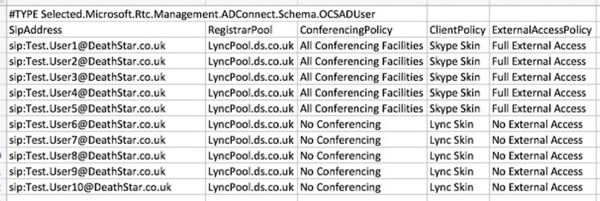
    In reality, as part of the administrative process for disabling a user account you should include the step of physically disabling the Lync user account too, either within the Lync Control Panel or with the PowerShell Management shell for Lync. Of course you can also add this option to your Active Directory Users & Computers plug-in and do it all at the same time! Why not – it makes admin far, far simpler.

    For examples on that bit see here:

    Automating Common Administrative Tasks

    The video below shows you the effects of this login process, and why you need to be aware of it. Click here for the hi-def version.

  • Mobile Platform Choice

    I’ve been having some fairly interesting conversations about mobile device platform choice recently – one of the fundamental ones is my insistence that I think Windows Mobile 8 is a spectacularly good system. Of course the immediate response to this is to point to my iPhone/iPad and say ‘HA! It can’t be that good!’.

    What’s interesting about that is that some of my friends who are not so into technology need it pointing out to them that the real investment in mobile devices (phones/tablets) is way beyond the operating system and handset layer…It’s applications. Cue blank stares around the table.

    I’ve spent a lot of money over the years on IOS compatible apps – from things like TomTom to expense apps, to all kinds of stuff that form part of my day to day work & private functional life. To up & move from one platform to another is pretty much akin to asking somebody to drop everything on their Windows PC and move to a Mac where they can only run OSX apps (Yes, I know you can run Windows apps on a Mac, it’s the only thing that makes the platform tenable for me). It’s a very hard sell, and one that a lot of people just don’t seem to get.

    It’s also I think part of the story that needs to be applied when looking at adoption rates and usage of Windows Mobile 8 against Android & Apple IOS – it doesn’t really say much about the platform capabilities as such, it says far more about Microsoft being late to the party of having a great mobile environment with decent apps. Everyone is invested everywhere else.

    I’m sure a lot of my tech followers will read the above and just think, like der, it’s obvious. It is obvious – but you’ll be astonished by how many non-tech people assume WinMo must be rubbish due to its adoption rate. It simply isn’t. In fact, it’s so not rubbish that I’m not far off dumping my investment in IOS apps to go the Windows mobile route. Just for absolute clarity here – the only reason I’m still on an Apple iPhone is because of my investment in applications on my mobile & iPad, and how much I rely on them.

    It’s a monetary investment – it’s not whether the apps are also available on WinMo. I don’t want to have to buy them again – certainly not the more expensive ones anyway. Like I say above however…I’m not that far off it. The biggest thing that’s holding me back at the minute is my investment in TomTom on the iPhone. Sure, my car has SatNav – but like most car systems it’s utter tosh compared to TomTom on any device. They can develop it so much quicker and they’re not so dependent on a single out of date hardware platform. I’m toying with replacing my car – and that will have a far more modern SatNav in it – for a couple of years at least until TomTom catches up, and by then I’ll have forgotten about what I spent on it previously – meaning my dependency on the iPhone app will diminish.

    Where am I going with this? Well, I think vendors that are late to the market (Yes, you Microsoft) need to be looking at filling that application void. Looking at offering incentives and working models that drive traffic to your platform, not think ‘oh that’s a great platform but I’d lose everything I have already’. There must be a model where this could be workable for both Microsoft and their partner vendors? Who knows? If I did know, I’d not be worrying about what new car to buy that’s for sure. I’d buy both of them.

    If you’re application light, don’t dismiss Windows Mobile 8. It’s fantastically good, and you have a massive range of handsets.

    From a selfish perspective, driving competition can only end well. Competition drives innovations, makes better products and cooler tech. Everybody wins.

  • Configuring Windows IIS ARR

    With the demise of Microsoft ForeFront Threat Management Gateway, I get asked repeatedly about what reverse proxy products are suitable for Microsoft Lync. Of course there are a raft of products out there capable of reverse proxy services – some of them quite expensive..There is also one that’s free – it’s called Application Request Routing or ARR.

    You can have a look at the web site and read all about it here:

    Application Request Routing

    This is a plug-in for IIS that full supports Reverse Proxying, and is supported for Microsoft Lync usage. It’s pretty powerful in its own right really – but for the purposes of this blog I’m going to focus on the reverse proxy element.

    Another useful feature – especially if you’re tight on public IP Addresses – is that multiple web sites can be proxy’d from a single IP address. I can have for example:

    https://webmail.contoso.com
    https://sharepoint.contoso.com
    https://Badgers.contoso.com

    …all listening on one public IP Address but being routed to three different back-end web servers. The proxy is routed differently depending on the requesting URL.

    So to look at what’s involved in configuring the reverse proxy, first let’s look at our lab environment. It’s detailed below. Click on the image to see a larger version.

    rpdemoenv1

    Configuring the Reverse Proxy Routing
    Firstly, there’s a few things to watch out for when you’re configuring the Server itself. I prefer to have two interfaces on these units – one internally facing, and one externally. The issue with having multiple interfaces is ensuring that the correct traffic goes out via the correct interface – if it doesn’t, you’ll have issues with your firewall rules won’t you? This article below explains what you need to watch out for on that front:

    Dual Homed Servers

    Certificate Considerations
    I want to be able to access my https sites from one IP address – to do that, I need a certificate that has all of the destination URLs listed in its Subject Alternative Name (SAN) field. So, for my lab, I have one certificate that has extweb1.contoso.com & extweb2.contoso.com in its SAN. This is then bound to the default web site within IIS. Without the AAR configured, connecting to https://extweb1.contoso.com for example, brings up the default page of the IIS installed on the reverse proxy server.

    Installing ARR
    Installing ARR is simple. You can get the code, and run the installer from this web site here:

    Application Request Routing

    There’s also some more detailed installation instructions here should you want to dig a little deeper.

    Configuring a Reverse Proxy Rule
    Let’s look at configuring the RP rules. We want multiple URLs routing to different hosts, so we need to configure multiple rules. In addition, I only want to Reverse Proxy HTTPS requests, not HTTP. To do this, we need to do the following items:

    • Configure our server farm within ARR
    • Turn off SSL Off-loading (Important!)
    • Delete the HTTP rule
    • Modify the HTTPS rule so that it only routes the requests that we want, and not everything

    That’s really all there is to it! So let’s look at each bit – specifically, for the extweb1.contoso.com website.

    Configure our Server Farm for ExtWeb1.contoso.com
    Fire up Internet Information Services Manager, and expand down the panels on the left – you should see a new entry – Server Farms:

    rp1

    Right-click on the server farms, and select ’Create Server Farm’. You will be asked to give it a name – use the External Web Site address as it makes it easier to track. For this example, I used ‘ExtWeb1.contoso.com’. Make sure ‘online’ is selected, and hit next.

    rp2

    At the next screen, enter the target address that you want to route to. For example, I want ExtWeb1.contoso.com to route internally to IntWeb1.contoso.local. In addition, you Microsoft Lync People, you can modify the target ports here too (to 8080/4443 for example) by hitting the advanced button. Make sure you hit ‘Add’ to add the destination server to the list.

    rp3

    Once you’ve done that – hit finish. You’ll now be asked if you want to create the re-write rules – like below – click ‘Yes’. Note that if you have already created a proxy rule you may get a message saying that the system wants to create a conflicting rule – that’s because by default the rules capture all traffic, not just the traffic we’re interested in. We’ll modify that rule in a minute.

    Now, we need to turn off SSL Off-loading, and optionally turn of disk-caching. Again for you Lync people, make sure you turn off caching as this causes issues with the Lync Web Services.

    Under the ‘Web Services’ section now in the IIS Manager, you should see the Server Farm we have just created. Select it, and you should see all of the options in the right hand pane, like so:

    rp4

    Firstly, select the ‘Caching’ option and turn off disk-caching. Next, select ‘Routing Rules’ and make sure you turn off ‘Enable SSL Offloading’.

    rp5

    For our final trick, we are going to modify the re-write rules so that it only captures and routes traffic for ExtWeb1.contoso.com to IntWeb1.contoso.local. To do this, select the very root of the IIS installation, and select the ‘URL Rewrite’ option as highlighted below:

    rp6

    In the URL Rewrite Screen, you should see a couple of rules for the farm we have just created – one for HTP and one for HTTPS (SSL). In my lab, I’m going to delete the HTTP one as I don’t want to forward HTTP requests, only HTTPS – note that the SSL/HTTPS one has an SSL marker on the end. Use the ‘Remove Rule’ on the right hand pane to remove the HTTP one it hat’s what you want to do.

    rp7

    Next, we’re going to modify the SSL rule to only affect traffic for extweb1.contoso.com. To do that, select the rule, and hit the ‘Edit’ button on the right hand pane. Further down the page, you will see an area marked ‘Conditions’ – these are the conditional modifiers to apply to the rule – you will see there is already one there making this rule match traffic that has HTTPS switched on. Click the ‘Add’ button to add a new rule – note that it’s {HTTP_POST} we’re interested in, but you can select it from the list rather than type it in.

    rp8

    Click ‘OK’ and then Apply the rule … and you’re done! Easy isn’t it? You can then go through and add in Server Farms & rules for other specific routing requests with different targets. For Microsoft Lync for example, you could have your meet, dialin, and web-farm stuff all directed appropriately.
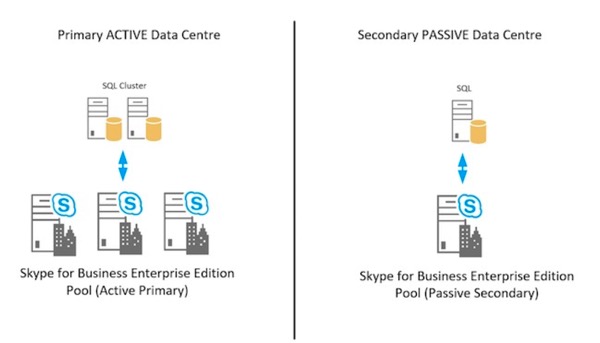
    Video Run Through
    I’ve also put together a video showing the whole process from start to finish – you can view that below.

  • Duplicating your Active Directory for a Test Environment

    Let’s look at a simple way to get a copy of your live Active Directory environment for testing purposes. The process is:

    • Implement a new domain controller in your live environment
    • Physically separate this new domain controller (after it’s synchronised) to a completely separate network.
    • Fire up the new domain controller and seize all of the flexible single master operation roles to your newly isolated domain controller
    • Clean up the live environment removing the dead domain controller

    What you’re left with is a complete copy of your Active Directory domain, in a completely isolated environment. Forgive the incessant bolding of the separation but it’s a very important point – once you’ve isolated that domain controller and seized the FSMO roles you absolutely must not let it out in to the wild – it would roam wild and cause all kinds of unhappiness. At best, it would ruin your weekend.

    It’s pretty easy to do in reality – process is:

    • Promote and synchronise a new domain controller
    • Physically separate (there I go with the bold again) the unit from your main network.
    • Seize the FSMO roles on the disjointed Domain Controller making a whole self-contained copy of your Forest
    • Remove the domain controller and associated meta-data from your live domain.

    So let’s run through the seizure, and clean up of the original Active Directory. I’m assuming you know how to promote a new domain controller, and physically separate it from your main network.

    Seizing of FSMO Roles
    On your new and isolated domain controller you need to seize five FSMO roles – these are:

    • Schema Master – Forest-wide and one per forest.
    • Domain Naming master – Forest-wide and one per forest.
    • RID Master – Domain-specific and one for each domain.
    • PDC Emulator – PDC Emulator is domain-specific and one for each domain.
    • Infrastructure Master – Domain-specific and one for each domain.

    Of course you’ll need relevant permissions to seize these roles – Schema & Enterprise Admins.

    We can seize them all using the NTDSUTIL utility – let’s go through each of them in turn. Firstly, we need to set up NTDSUTIL – so fire it up from Start/Run, or from a DOS prompt – and do this:

    ntds1

    The commands are:

    1. Roles
    2. connections
    3. connect to server your server
    4. q to quit to the higher menu

    Next, we’re going to seize each role in turn. To seize each role you use:

    • seize role

    ..where role is:

    • pdc
    • schema master
    • naming master
    • rid master
    • infrastructure master

    So let’s do the PDC first. The command is:

    • seize pdc

    Once you enter that, you’ll receive a warning similar to this:

    ntds2

    Say yes, and let it complete. You’ll see the completion/process in the window:

    ntds3

    Notice that it first tries to do an orderly transfer before going through the seizure.

    You’ll need to do the same for all of the remaining roles. Once they’re done, you’ll have a fully isolated copy of your Active Directory, complete the FSMO roles. You can then go off and do all of your testing in that environment – remember you must not allow this domain controller back on to your main network.

    Clean up your Live Active Directory
    Once you’ve removed your DC and isolated it, you’ll still be left with all the objects in your live Active Directory – we’ll need to clean that up. Firstly, we need to fire up NTDSUTIL and connect to the relevant service. You do this as follows:

    ntds4

    The initial commands are:

    1. Metadata cleanup
    2. connections
    3. connect to server your server
    4. q

    We’re now ready to connect to to the items to clear up – to do this, you need to select the right domain, site and server. Let’s go through how you do this – firstly, from the NTDSUTIL use the following commands:

    • select operation target
    • list domains
    • select domain number

    What you’re doing is selecting the relevant domain – it should look like this:

    ntds5

    Next, we’re going to select the site with these commands:

    • list sites
    • select site number

    It should look like this:

    ntds6

    Finally, we’re going to select the relevant server in that site using these commands:

    • list servers in site
    • select server number
    • q

    The q takes us back to the metadata cleanup level with the correct server specified – it should look like this:

    ntds7

    The last stage is to delete the server – you do this using this command:

    • remove selected server

    You’ll quite rightly receive a warning like this:

    ntds8

    Say yes and let the command complete – the output should be like this:

    ntds9

    …and you’re done! It’s worth scanning through your DNS too to see if there are any remnant records for the removed server too, but you’re pretty much done now and ready to go.

    There’s a video below running through the whole process too, should you want to see it all in action.